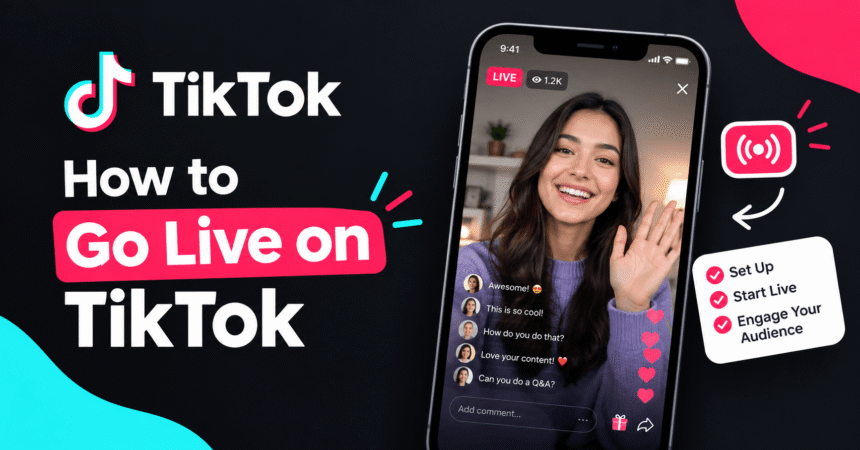
How to go live on TikTok: open TikTok, tap the + (Create) button, swipe the bottom menu to LIVE, add a title and your settings, then tap Go LIVE. To see the LIVE option, you generally need to be 18 or older, have an account in good standing, and have a minimum number of followers, which is commonly 1,000, though TikTok can change these rules by region. This guide explains the TikTok LIVE requirements, the exact steps on iPhone and Android, how to use TikTok LIVE Studio on a computer, how to prepare a successful stream, and what to do if the LIVE button is missing or your stream lags.
Last updated: October 2026. TikTok updates eligibility rules and menu names from time to time. If something looks different, check the official TikTok Support Center.
Quick Answer: How Do I Go Live on TikTok?
- Open the TikTok app and log in.
- Tap the + button at the bottom center.
- Swipe the options at the bottom until you reach LIVE.
- Tap the title area and write a short, clear title for your stream.
- Choose your options, such as topic, filters, effects and who can comment.
- Tap Go LIVE and wait for the countdown.
- When you finish, tap the X in the corner and choose End now.
If you do not see LIVE in the menu, you probably do not meet the requirements yet, which are explained below.
What Are the TikTok LIVE Requirements?
TikTok only gives LIVE access to accounts that meet certain conditions. The most common requirements are listed here.
| Requirement | What it usually means |
|---|---|
| Age | You must be 18 or older to host a LIVE |
| Followers | Typically at least 1,000 followers (this can vary by region and by feature) |
| Account status | No serious Community Guidelines violations or bans |
| Region | LIVE must be available in your country |
| App version | You should run the latest TikTok version |
Some creators get access earlier through special programs or tests, and TikTok can remove access after violations. Always check the Support Center for the latest rules in your region.
Can I go live on TikTok without 1,000 followers?
Usually you cannot host your own LIVE without meeting the follower requirement, but you still have options. You can join someone else’s LIVE as a guest if the host invites you, watch and comment on other streams to find your audience, and grow your follower count with regular videos. Be careful with websites that promise to “unlock LIVE” or sell followers. They often break TikTok’s rules and can lead to scams or a banned account. If you worry about fake offers, read our guide to how to spot a phishing email and scam messages.
How to Go Live on TikTok on iPhone and Android
The steps are almost identical on both types of phone.
- Open TikTok and make sure you are logged in.
- Tap + at the bottom of the screen.
- Swipe left or right in the bottom menu to select LIVE.
- Allow camera and microphone access if TikTok asks.
- Tap Add a title and describe your stream, for example “Q and A: Ask me anything.”
- Optionally select a topic or category so people can find you.
- Tap Go LIVE. A short countdown appears, and then you are live.
What Settings Should You Check Before Going LIVE?
Take two minutes to set these options.
- Title and topic: a clear title helps new viewers decide to stay.
- Comments: choose who can comment, and use keyword filters to hide unwanted words.
- Moderators: add trusted people who can mute or remove troublemakers.
- Effects and filters: test them before you go live so you do not waste time on air.
- Flip and camera: check whether you are using the front or back camera.
- Privacy: confirm who can see and message you. Our guide to TikTok privacy settings explains the key options.
How to Go Live on TikTok on a Computer (LIVE Studio)
TikTok LIVE Studio is a desktop program that lets you stream from your PC, which is popular with gamers and creators who want to share their screen. Access normally depends on the same kind of eligibility rules as mobile LIVE.
- Download TikTok LIVE Studio from the official TikTok website. Avoid copies from unknown sites.
- Install it and log in with your TikTok account, using the QR code or your login details.
- Add sources such as your webcam, game, screen or window.
- Set your title, topic and stream settings.
- Click Go LIVE to start streaming.
Make sure your computer meets the system requirements. A slow PC can cause lag, so our Windows 11 tips can help you free up resources before streaming.
How to Prepare for a Successful TikTok LIVE
1. Plan your topic and opening
Know what you will talk about for the first 10 minutes. Greet new viewers by name and repeat the topic every few minutes for people who join late.
2. Use good light and sound
Face a window or place a lamp in front of you, and avoid backlight. A cheap wired or wireless microphone is often the best upgrade.
3. Check your internet first
A stable connection matters more than anything else. Use Wi-Fi close to your router or a strong mobile signal. If your connection drops, see our guides to Wi-Fi troubleshooting and how to change your WiFi channel.
4. Announce your stream
Tell followers when you will go live using a video, your bio and other platforms. A regular schedule builds a habit.
5. Interact with viewers
Read comments aloud, ask questions and answer them. Interaction keeps people watching longer.
6. Follow the rules
Review the TikTok Community Guidelines so your stream is not removed or restricted. Do not show private information, such as your address, on screen.
How to Invite Guests or Go Live With Another Creator
TikTok offers features that let creators share a LIVE with others, which can include inviting a guest into your stream or taking part in a LIVE with another creator. During your stream, look for the guest or multi-guest icon on the bottom toolbar. Availability depends on your account and region. Only invite people you trust, and use moderators to manage the chat.
How to End a TikTok LIVE
- Tap the X or close icon at the top of the screen.
- Choose End now.
- Check the summary screen, which shows viewers, new followers and other stats.
Some accounts can save or share highlights afterward. Check what is available in your app version.
Why Can’t I Go Live on TikTok?
The LIVE button is missing
You may not meet the age or follower requirement, or LIVE may not yet be available for your account or region. Check your follower count and age settings.
Your app is out of date
Update TikTok from the App Store or Google Play and restart your phone.
Your account has a restriction
If you broke a rule, you may be blocked from going LIVE for a period. Check your Account status in the app, and read the notices in your Inbox.
Camera or microphone access is off
Open your phone settings, find TikTok and turn on camera and microphone permissions.
The app is slow or crashing
Clear temporary files, restart the phone and free up storage. Our guide to how to clear cache on Android can help, and the tech troubleshooting guide covers other problems.
Your LIVE keeps lagging
Move closer to your router, close other apps, and lower the number of devices using your connection.
Can You Make Money From TikTok LIVE?
Many creators earn through LIVE Gifts, which viewers send during a stream, and through other creator programs. Eligibility, payout rules and gift features vary by country, and some require you to be 18 or older. Do not buy “gift hacks” or share your login with strangers. If you ever decide to leave the app, our guide on how to delete a TikTok account explains what to do with unused coins and balances first.
Staying Safe During a TikTok LIVE
- Do not share personal details such as your address, school or phone number.
- Use moderators and comment filters.
- Block and report abusive viewers right away.
- Beware of scams. No one from TikTok will ask for your password in a comment or direct message.
- Protect your login with a strong password, as explained in our guide to how to create a strong password, and review our account privacy settings checklist.
Frequently Asked Questions About Going Live on TikTok
How do I go live on TikTok?
Tap the + button, swipe to LIVE, add a title and tap Go LIVE. You need to meet TikTok’s eligibility requirements for the option to appear.
How many followers do you need to go live on TikTok?
The common requirement is 1,000 followers, but rules can vary by region and may change, so check the TikTok Support Center.
How old do you have to be to go live on TikTok?
You generally need to be 18 or older to host a LIVE on TikTok.
Why don’t I have the LIVE option on TikTok?
You may be under the age limit, below the follower requirement, in a region where it is unavailable, using an old app version or have a restriction on your account.
Can you go live on TikTok without 1,000 followers?
Not on your own account in most cases. You can join other creators’ LIVE streams as a guest if invited and build your following until you qualify.
Can I go live on TikTok from my computer?
Yes, through TikTok LIVE Studio, if your account is eligible. Download it only from the official TikTok source.
Is TikTok LIVE free?
Yes, going live costs nothing. Viewers may buy coins to send gifts, and creators may earn from them where available.
How long can you stay live on TikTok?
TikTok may set limits that can vary by account or region. Check the app and Support Center for the current rules.
Can I go live on TikTok privately?
TikTok has tools that control who can watch or comment, but availability varies. Check your LIVE settings and privacy controls before you start.
How do I schedule a TikTok LIVE?
If your account has the feature, look for LIVE events or scheduling options in the LIVE setup screen. Share the details with your followers in advance.
How do I go live on TikTok with a friend?
Use the guest or multi-guest tools during your LIVE, where available, and invite your friend from the viewer list or bottom toolbar.
How do I end a TikTok LIVE?
Tap the X at the top, then choose End now.
Final Thoughts
Learning how to go live on TikTok is simple once your account qualifies. Check the age and follower requirements, update the app, set up your title, comment controls and moderators, and test your lighting, sound and internet before you press Go LIVE. Plan a clear topic, interact with viewers and follow the Community Guidelines. If the LIVE button is missing, keep posting good videos and growing your audience, because eligibility can come with time.
Tip: Do a short practice LIVE with a friend as your only viewer to check your audio, light and connection before your first public stream.