Last updated: October 2026
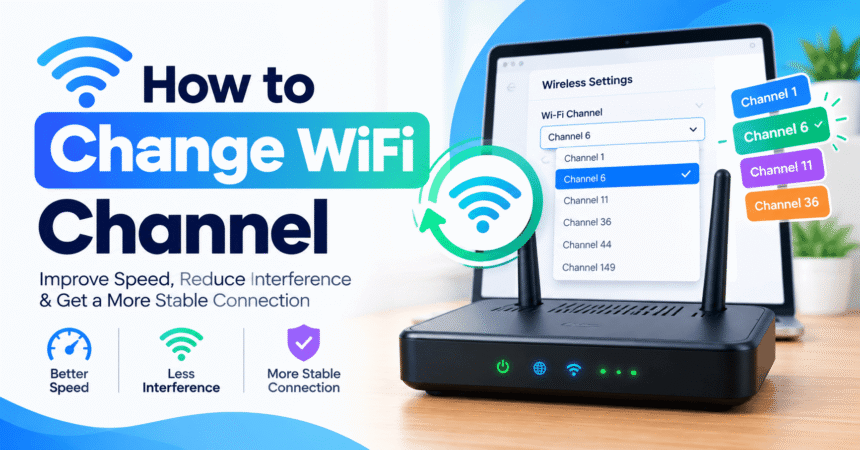
Quick answer: To change your WiFi channel, log in to your router’s admin page (usually 192.168.1.1 or 192.168.0.1), open the Wireless or WiFi settings, find the Channel option, switch it from Auto to a specific channel, and save. On 2.4 GHz, choose channel 1, 6 or 11. On 5 GHz, pick a quiet channel such as 36, 40, 44 or 149. Then reconnect your devices and run a speed test.
If your internet keeps slowing down, videos buffer, or video calls freeze even though your plan is fast enough, the problem may not be your internet provider at all. It may be that your router is sharing the same WiFi channel as dozens of neighbouring networks. In this guide you will learn how to change WiFi channel settings on any router, how to find the best WiFi channel for your home, and how to fix problems if something goes wrong.
Key Takeaways
- A WiFi channel is a slice of radio frequency your router uses to talk to your devices.
- Crowded channels cause interference, slow speeds and random disconnections.
- On 2.4 GHz, only channels 1, 6 and 11 do not overlap with each other.
- 5 GHz has many more channels, so congestion is usually much lower.
- You change the channel from your router’s admin page, not from your phone or laptop settings.
- A WiFi analyzer app or a simple Windows command can show you the least crowded channel.
What Is a WiFi Channel?
A WiFi channel is a specific range of radio frequencies that your router uses to send and receive data. Think of it like a lane on a highway. If every car in your neighbourhood uses the same lane, traffic slows down. If you move to an empty lane, everything moves faster.
WiFi works on radio bands, mainly 2.4 GHz and 5 GHz, and newer routers also support 6 GHz. Each band is divided into numbered channels. Your router picks one channel per band, and all the devices connected to that band use it. When many routers nearby use the same or overlapping channels, their signals interfere with each other. This is called channel congestion or co-channel interference.
Why Should You Change Your WiFi Channel?
You should consider changing your WiFi channel if you notice any of these signs:
- Your WiFi is fast at night but slow in the evening when neighbours are online.
- Video calls drop or lag even when you sit close to the router.
- Speed tests give very different results at different times of the day.
- Devices disconnect and reconnect randomly.
- You live in an apartment building or a dense neighbourhood with many networks.
- Your router has been on the same channel for years and you never checked it.
Changing the channel is free, takes about five minutes, and can be undone at any time. It is one of the easiest ways to improve WiFi performance without buying new equipment.
WiFi Channels Explained: 2.4 GHz vs 5 GHz vs 6 GHz
| Band | Number of channels | Range | Speed | Congestion |
|---|---|---|---|---|
| 2.4 GHz | 11 to 14 (only 3 non-overlapping) | Longest, passes walls well | Lower | High |
| 5 GHz | Around 25 (depends on country) | Medium | Higher | Medium to low |
| 6 GHz (WiFi 6E and WiFi 7) | Dozens of wide channels | Shorter | Highest | Very low |
The 2.4 GHz band is crowded because it is also used by Bluetooth devices, cordless phones, baby monitors and microwave ovens. The 5 GHz band is faster and has more room, but its signal does not travel through walls as well. If you want to learn more about how the channel numbers map to frequencies, the list of WLAN channels on Wikipedia is a useful reference, and the Wi-Fi Alliance publishes official information about WiFi standards.
What Is the Best WiFi Channel?
The best WiFi channel is the one with the least interference in your location. That said, there are good starting points for each band.
Best WiFi channel for 2.4 GHz
Channels on the 2.4 GHz band are only 5 MHz apart, but each one is about 20 MHz wide. This means neighbouring channels overlap heavily. The only three channels that do not overlap are 1, 6 and 11. If you choose channel 3 or 8, you will interfere with two or three other channels at the same time. So always pick 1, 6 or 11, and choose the one that your WiFi analyzer shows as least used.
Best WiFi channel for 5 GHz
The 5 GHz band has far more non-overlapping channels. Common choices are 36, 40, 44 and 48 (usually the lower group) and 149, 153, 157, 161 and 165 (the upper group). Channels 52 to 144 are called DFS channels. They share spectrum with weather radar, so your router must switch away if it detects radar. DFS channels are often quieter but can cause brief drops, so many people prefer the non-DFS options.
Should you use Auto channel?
Most routers ship with the channel set to Auto. This works well for many homes, but many routers only scan for the best channel when they start up. If a new neighbour sets up a router later, yours may never move. Choosing a channel manually after checking what is around you often gives better and more stable results.
How to Find the Least Crowded WiFi Channel
Before you change anything, find out which channels are busy. Here are four simple ways.
1. Use a WiFi analyzer app on Android
Install a free WiFi analyzer app from the Google Play Store. Open it and look at the channel graph. It shows every nearby network and the channel it uses. Pick the channel with the fewest networks and the weakest overlapping signals. Walk to the room where your WiFi is slowest and scan again for a more accurate result.
2. Use the Windows command line
On Windows, open Command Prompt and type netsh wlan show networks mode=bssid. Windows will list nearby networks with their signal strength and channel numbers. Count how many networks use each channel and choose a less crowded one. For more Windows tricks, see our Windows 11 tips guide.
3. Use Wireless Diagnostics on a Mac
Hold the Option key, click the WiFi icon in the menu bar, and choose Open Wireless Diagnostics. Then open the Window menu and select Scan. Mac will show nearby networks along with recommended channels.
4. Check your router’s own scan tool
Many routers from TP-Link, Netgear and ASUS include a site survey or channel scan feature in the wireless settings. It lists nearby networks and sometimes recommends the best channel directly.
How to Change WiFi Channel on Your Router: Step by Step
The exact menu names differ between brands, but the process is nearly the same everywhere.
- Connect to your WiFi or use a LAN cable. A cable is safer because your WiFi may disconnect for a moment when you save the change.
- Find your router’s IP address. It is usually 192.168.1.1, 192.168.0.1 or 192.168.1.254, and it is often printed on a sticker under the router.
- Open a browser and type the IP address into the address bar, then press Enter.
- Log in with the admin username and password. These are also often on the router sticker. If you changed them and forgot, you may need to reset the router. Our guide on how to reset a router explains how.
- Open the Wireless settings. Look for menus named Wireless, WiFi, Wireless Settings or Advanced.
- Select the band. If your router is dual band, you will see separate settings for 2.4 GHz and 5 GHz. Change one at a time.
- Find the Channel option and change it from Auto to a specific number. Use 1, 6 or 11 for 2.4 GHz, and a quiet channel such as 36, 40, 44 or 149 for 5 GHz.
- Click Save or Apply. The router may restart its WiFi for about 30 seconds.
- Reconnect your devices and run a speed test to compare results.
If you also want to refresh your security while you are in the admin page, follow our step-by-step guide to change your WiFi password and use the tips in our post on creating a strong password.
Brand-specific notes
- TP-Link: Go to Wireless or Advanced, then Wireless Settings, and choose the channel from the dropdown. See the TP-Link support centre for model-specific help.
- Netgear: Open Wireless Settings and look for the Channel dropdown. The Netgear support site has guides for each model.
- ASUS: Open Wireless, choose the band, and select the control channel. Visit ASUS Support for manuals.
- ISP routers (Huawei, ZTE, PTCL and similar): Look under WLAN or Wireless Settings. Some providers lock the channel option, in which case you may need to contact support.
How to Change Channel Width
Channel width is how wide each channel is. Wider channels carry more data but are more likely to run into interference. On 2.4 GHz, use 20 MHz in a crowded area because 40 MHz uses up most of the band. On 5 GHz, 40 MHz or 80 MHz is usually fine, and 160 MHz is best only if you have very few neighbours and a compatible device. The width setting is usually right below the channel setting in the same menu.
What to Do After You Change the Channel
- Run a speed test near the router and again in the farthest room.
- Test during busy evening hours, not just once.
- Check if video calls and streaming feel smoother.
- If results are worse, try another channel. Testing two or three options is normal.
- Write down the old channel in case you want to go back.
Troubleshooting Common Problems
I cannot log in to the router
Check that you are connected to the router and that you typed the right IP address. If the admin password does not work, try the one on the sticker. As a last option, a factory reset restores the default login, but it also erases your WiFi name and password settings.
The channel option is greyed out
Some routers hide or lock the channel when the mode is set to Auto, or when the internet provider manages the device. Change the mode first, or ask your provider to unlock the setting.
My devices cannot connect after the change
Old devices may not support some 5 GHz channels, especially DFS channels above 52. Switch to channel 36 to 48, or turn the WiFi off and on again on the device. For more fixes, read our tech troubleshooting guide.
The channel keeps changing back
Your router may have an automatic optimisation feature turned on, or a firmware update may have reset it. Disable Auto channel or smart connect features, and update the firmware.
Other Ways to Fix Slow WiFi
If changing the channel does not help enough, try these additional steps:
- Move the router to a central, open, elevated spot away from walls and metal objects.
- Keep it away from microwave ovens and cordless phones.
- Use the 5 GHz band for phones, laptops and streaming devices that stay near the router.
- Restart the router every few weeks.
- Update the router firmware.
- Upgrade to a WiFi 6 or WiFi 6E router if yours is more than five years old. If you are shopping for devices that support newer WiFi, our laptop buying guide explains what to look for.
You can find more step-by-step help in our collection of technology tutorials.
Frequently Asked Questions
How do I change the WiFi channel?
Log in to your router’s admin page, open Wireless settings, choose a specific channel instead of Auto, and save the changes.
What is the best WiFi channel for 2.4 GHz?
Channel 1, 6 or 11, whichever is least used near you. These are the only three channels that do not overlap.
What is the best WiFi channel for 5 GHz?
Non-DFS channels such as 36, 40, 44, 48 or 149 and above are reliable choices. Use a WiFi analyzer to find the quietest one.
Does changing the WiFi channel improve speed?
It can, if your current channel is crowded. It will not increase the speed you buy from your internet provider, but it can remove slowdowns caused by interference.
Can I change the WiFi channel from my phone?
You can open your router’s admin page in a phone browser or use the router’s mobile app. You cannot change the channel in the phone’s own WiFi settings.
Is Auto channel better than manual?
Auto is convenient, but manual selection after a scan often works better in busy areas because many routers only check channels at startup.
Is channel 6 better than channel 11?
Neither is better in general. The better one is whichever has fewer nearby networks on it at your location.
What is WiFi channel interference?
It happens when nearby networks or devices use the same or overlapping channels, which makes signals collide and slows down data.
Will I lose internet when I change the channel?
Only for around 30 seconds while the WiFi restarts. Your internet connection to the provider stays active.
How often should I change my WiFi channel?
Only when you notice slowdowns or when new networks appear nearby. Checking once every few months is enough for most homes.
Conclusion
Knowing how to change WiFi channel settings is a quick and powerful way to improve your connection. Scan your area, choose channel 1, 6 or 11 on 2.4 GHz or a quiet channel on 5 GHz, save the setting, and test again. If you want to keep improving your home network, read our guides on changing your WiFi password and resetting your router, and explore our other tutorials such as how to recover deleted files and what is cloud storage.