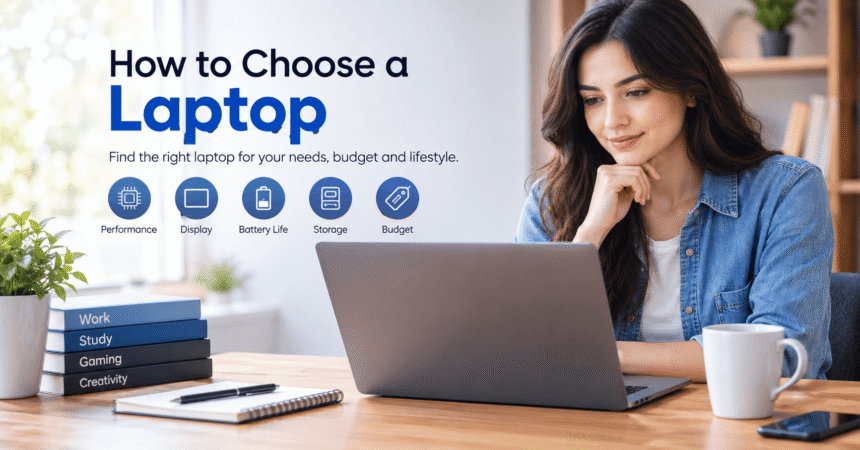
How to choose a laptop: start with your budget and main use, then match five things: the processor (Intel Core, AMD Ryzen, Apple M-series or Snapdragon), at least 16 GB of RAM, a fast SSD of 512 GB or more, a sharp screen (Full HD or better) and real-world battery life of 8+ hours. Then check the keyboard, weight, ports, build quality and warranty. For most students and office users, a 14 or 15-inch laptop with a modern mid-range processor, 16 GB RAM and a 512 GB SSD is the safe choice. This guide explains every step in plain language so you do not overpay or buy the wrong machine.
Last updated: October 2026. Specifications and model names change quickly, so use the principles here and always compare current models and independent reviews before you buy.
Quick Answer: What Should You Look for in a Laptop?
| Component | Minimum for basic use | Recommended for most people | For heavy work or gaming |
|---|---|---|---|
| Processor (CPU) | Intel Core i3 / Ryzen 3 or similar | Intel Core 5/7, Core Ultra 5/7, Ryzen 5/7, Apple M-series or Snapdragon X | Intel Core 7/9, Ryzen 7/9, Apple M Pro/Max |
| RAM | 8 GB | 16 GB | 32 GB or more |
| Storage | 256 GB SSD | 512 GB SSD | 1 TB SSD or more |
| Screen | Full HD (1920 x 1080) | Full HD+ or 2.5K, 300+ nits | High refresh rate or OLED, accurate color |
| Battery (real use) | 6 hours | 8 to 12 hours | Shorter is normal; keep the charger |
| Graphics | Integrated | Integrated | Dedicated NVIDIA or AMD GPU |
| Weight | Under 2.2 kg | 1.2 to 1.7 kg for portability | 2 kg and above is common |
Step 1: Decide What You Will Use the Laptop For
The biggest mistake buyers make is starting with specifications. Start with your daily tasks, because they decide how much power you need.
- Browsing, video, email, Office and online classes: a mid-range laptop is plenty. Prioritize battery life, keyboard and screen.
- Students: light weight, long battery life, 16 GB RAM and a comfortable keyboard matter most. A 13 to 14-inch model is easy to carry.
- Office and remote work: a good webcam and microphone, a quality keyboard, solid Wi-Fi and enough ports for monitors and accessories.
- Programming and data work: 16 to 32 GB RAM, a fast processor with several cores, and a large SSD.
- Photo editing, video editing and design: a powerful processor, 32 GB RAM if possible, a dedicated GPU or strong Apple M-series chip, and an accurate, bright display.
- Gaming: a dedicated graphics card, a high refresh-rate screen (120 Hz or more) and strong cooling.
- Freelancing and content creation: balance performance and portability, and prefer a laptop that handles heat well.
Write down your top three tasks and your budget before you open any shopping site. If you are still learning what software you will need, see our list of essential Windows software and productivity tools.
Step 2: Set a Realistic Budget
Laptop prices vary by country and change often, so think in tiers instead of exact numbers:
- Entry level: fine for web, documents and video calls. Expect plastic builds and average screens. Avoid models with 4 GB RAM or slow eMMC storage.
- Mid-range: the best value for most people. You get 16 GB RAM, an SSD, a good screen and decent build quality.
- Premium: lighter metal bodies, excellent displays, long battery life and better speakers and webcams.
- High-end workstation or gaming: powerful graphics and processors, higher prices and heavier weight.
Spend extra on things you cannot upgrade later (screen, keyboard, build, battery), and save on things you can upgrade (extra storage, sometimes RAM).
Step 3: Choose the Operating System
Windows
The widest choice of brands, prices and software. Best for most users, gamers and anyone who needs specific Windows programs. New laptops ship with Windows 11. Our Windows 11 tips show how to get the most from it.
macOS (MacBook)
Excellent battery life, strong performance from Apple’s M-series chips, great screens and speakers, and a smooth experience with other Apple devices. Prices are higher and you cannot upgrade RAM or storage later, so buy the memory you need on day one.
ChromeOS (Chromebook)
Simple, fast, secure and affordable. Ideal for students and for people who live inside web apps such as Google Docs. It is not suitable if you need desktop-only software. Read our guide to web apps to see if your daily work can run in a browser.
Linux
Great for developers and enthusiasts. Check hardware compatibility before buying.
Step 4: Pick the Right Processor (CPU)
The processor is the brain of your laptop. Naming is confusing, so use these rules:
- Intel: Core i3, i5, i7, i9 on older naming, and Core 3/5/7/9 or Core Ultra on newer models. Higher numbers usually mean more power.
- AMD: Ryzen 3, 5, 7 and 9. Ryzen 5 and 7 offer excellent value for most people.
- Apple: M-series chips (M1 and later, with Pro and Max versions for demanding work). They are very efficient, so battery life is strong.
- Qualcomm Snapdragon X: ARM chips used in some Windows laptops, known for battery life. Check that your important apps run well on ARM.
Important: the model generation matters as much as the number. A newer Core 5 can beat an older Core 7. Look at the full model name and read independent benchmarks. Also check the letter suffix on Intel and AMD chips: U or P series are efficient, H and HX are high-performance, and they use more power and run hotter.
If you want AI features built into Windows, look for laptops labeled Copilot+ PC, which include a powerful NPU (neural processing unit). It is nice to have, but not required for normal work.
Step 5: How Much RAM Do You Need in a Laptop?
RAM is short-term memory. More RAM lets you keep more apps and browser tabs open without slowdowns.
- 8 GB: bare minimum for light use. It can feel slow with many tabs and apps.
- 16 GB: the sweet spot for students, office workers and most people. It is the best choice for a laptop meant to last several years.
- 32 GB: useful for programming with virtual machines, 4K video editing, large datasets and heavy multitasking.
- 64 GB or more: only for professional workloads.
Check whether the RAM is soldered (cannot be upgraded) or replaceable. Many thin laptops and all MacBooks use soldered RAM, so choose enough from the start.
Step 6: Choose the Right Storage
- Always choose an SSD. Avoid laptops with only a traditional hard drive (HDD), because they are far slower.
- 256 GB: acceptable only if you use cloud storage heavily.
- 512 GB: a comfortable amount for most people.
- 1 TB or more: best for photos, videos, games and large projects.
Look for NVMe SSDs, which are faster than older SATA types. Also check if there is a free M.2 slot so you can add more space later. Keeping your files safe matters too: back up important data to the cloud or an external drive.
Step 7: Check the Display
You will stare at the screen all day, so do not compromise here.
- Size: 13 to 14 inches is portable, 15 to 16 inches is comfortable for multitasking, 17 inches is best for desktop-like work but heavy.
- Resolution: Full HD (1920 x 1080) is the minimum. Look for 16:10 screens (such as 1920 x 1200 or 2560 x 1600), which show more vertical content for documents and web pages.
- Brightness: aim for at least 300 nits for indoor use. Lower than 250 nits looks dim near windows.
- Panel type: IPS panels have good colors and viewing angles. OLED offers deep blacks and vivid color but can cost more and use more power with bright content.
- Color accuracy: designers and photographers should look for strong sRGB or DCI-P3 coverage.
- Refresh rate: 60 Hz is fine for work. 120 Hz or higher makes motion smoother and helps gaming.
- Finish: matte screens reduce reflections. Glossy screens look vivid but can be hard to use in bright light.
Step 8: Battery Life: Believe Reviews, Not Marketing
Manufacturers often quote best-case battery times. Real life is shorter. Look at battery size (in Wh) and independent tests that measure browsing or video playback. Sites such as Notebookcheck and RTINGS publish detailed tests.
- 8 to 10 hours of real use is good for all-day work.
- Gaming and creator laptops usually last far less on battery, and you will keep them plugged in.
- USB-C charging is convenient because one charger can power your phone and laptop.
Battery habits matter too. Our Windows 11 tips explain power modes and Energy saver that can extend battery life.
Step 9: Keyboard, Trackpad, Webcam and Speakers
These small details decide whether you enjoy the laptop. If you can, test the laptop in a store.
- Keyboard: good key travel, a comfortable layout and a backlight. If you type a lot, this matters more than a slightly faster chip.
- Trackpad: large, smooth and accurate, with reliable palm rejection.
- Webcam: 1080p is a worthwhile upgrade for online classes and meetings. Many cheaper laptops still use weak 720p cameras.
- Microphones and speakers: useful if you attend many calls.
- Security: a fingerprint reader or face unlock (Windows Hello) makes signing in faster and safer.
Step 10: Ports and Connectivity
Thin laptops often have few ports. Check that the laptop has what you need:
- USB-C (ideally with Thunderbolt or USB4 and charging support)
- USB-A for flash drives and mice
- HDMI for projectors and monitors
- A headphone jack
- An SD card reader if you work with cameras
- Wi-Fi 6, Wi-Fi 6E or Wi-Fi 7 and Bluetooth 5.x for stable wireless connections
A weak or outdated Wi-Fi chip can cause slow internet even when your router is fine. If you ever face connection problems, our Wi-Fi troubleshooting guide will help.
Step 11: Build Quality, Weight and Repairability
- Build: metal or strong plastic with a rigid lid and little flex in the keyboard deck.
- Weight: under 1.5 kg is easy to carry daily. Over 2 kg is better kept on a desk.
- Cooling: good airflow keeps performance stable. Thin laptops with weak cooling slow down under load.
- Repairability: can you replace the battery, SSD and RAM? Check teardown guides on iFixit. Repairable laptops last longer and cost less over time.
- Durability: spill-resistant keyboards and military-grade durability tests are helpful for students and travelers.
Step 12: Warranty, Support and Where to Buy
- Check the warranty length and what it covers. One year is common; longer warranties add peace of mind.
- Confirm that the brand has service centers in your city and that spare parts are available.
- Buy from authorized sellers to avoid refurbished or grey-market machines sold as new.
- Keep the invoice and register the warranty.
- Check the return policy so you can swap a laptop with dead pixels or a faulty keyboard.
Be careful with deals that look too good to be true, especially from social media sellers or unknown websites. Fake shops use urgent pricing to steal payment details, as explained in our guide to how to spot a phishing email.
Laptop Specs Explained in Simple Words
| Term | What it means | Why you should care |
|---|---|---|
| CPU | The processor that runs programs | Decides overall speed |
| GPU | The graphics processor | Matters for games, video editing and 3D |
| RAM | Short-term memory | More RAM means smoother multitasking |
| SSD | Fast storage with no moving parts | Faster boot and app loading |
| Nits | Screen brightness | Higher is easier to see in bright rooms |
| Refresh rate (Hz) | How often the screen updates per second | Smoother scrolling and gaming |
| Wh | Battery capacity | Bigger numbers usually mean longer life |
| NPU | Chip for AI tasks | Needed for some AI features, not for basic work |
| Thunderbolt / USB4 | Fast USB-C ports | Useful for external monitors and fast drives |
Common Laptop Buying Mistakes to Avoid
- Buying only for the processor name. A strong chip with a dim screen and 8 GB RAM is a poor experience.
- Ignoring RAM and storage upgrade limits. Soldered parts cannot be changed later.
- Trusting the quoted battery life. Read independent tests.
- Buying a gaming laptop for studying. It will be heavy, loud and have poor battery life.
- Choosing a hard drive. Always pick an SSD.
- Skipping the warranty check. A cheap laptop without local service is a risk.
- Paying for extras you will not use, such as a high-end GPU for office work.
- Not reading reviews of the exact model. The same brand sells many variants with different screens and cooling.
Laptop Buying Checklist
- I know my top three tasks and my maximum budget.
- I chose an operating system that runs my software.
- The CPU is recent and suited to my workload.
- RAM is 16 GB (or I have a clear reason for less or more).
- Storage is an SSD of at least 512 GB, or I have cloud and external backup.
- The screen is at least Full HD, 300 nits and comfortable to look at.
- Independent reviews show good real battery life.
- The keyboard and trackpad feel good.
- It has the ports and Wi-Fi I need.
- Warranty and service are available locally.
- I am buying from a trusted, authorized seller.
After You Buy: Set Up Your New Laptop Safely
- Install all system updates first.
- Remove unwanted pre-installed trial software.
- Turn on disk encryption and a strong sign-in. Use our guide to creating a strong password.
- Review privacy options with our account privacy settings guide.
- Set up automatic backups.
- If something behaves strangely, follow our tech troubleshooting guide.
To check whether a Windows laptop meets Microsoft’s baseline, see the official Windows 11 specifications.
Frequently Asked Questions About Choosing a Laptop
How do I choose a laptop for the first time?
Decide what you will use it for, set a budget, then choose a model with a recent mid-range processor, 16 GB RAM, a 512 GB SSD, a Full HD screen and good battery life. Read independent reviews and check the warranty.
How much RAM do I need in a laptop?
16 GB is the best choice for most people. 8 GB works for light use but can feel limited over time. Choose 32 GB for programming with virtual machines, video editing or heavy multitasking.
Is 8 GB RAM enough for a laptop in 2026?
It is enough for basic browsing, documents and video calls, but it leaves little room for the future. If your budget allows, choose 16 GB, especially if the RAM is soldered.
Which processor is best for a laptop?
There is no single best one. Intel Core 5/7 or Core Ultra, AMD Ryzen 5/7 and Apple M-series chips all offer excellent performance for everyday work. Choose based on current reviews and your budget.
How much storage should a laptop have?
512 GB SSD is comfortable for most users. Choose 1 TB if you keep many photos, videos, games or large projects.
What is the best laptop for students?
A lightweight 13 to 15-inch laptop with 16 GB RAM, an SSD, a sharp screen, a good keyboard and 8+ hours of real battery life is ideal. Chromebooks are a good low-cost option if your coursework runs online.
Which is better: Windows laptop or MacBook?
Choose Windows for variety, lower starting prices and software compatibility, including most games. Choose a MacBook for battery life, build quality and tight integration with iPhone and iPad. Pick based on the apps you need.
Is a touchscreen laptop worth it?
It is useful for note-taking with a pen, 2-in-1 tablet use and presentations. If you mostly type and browse, it is not essential and can reduce battery life slightly.
Do I need a dedicated graphics card?
Only for gaming, 3D work, and some video editing or AI tasks. Modern integrated graphics handle web, office and light photo editing well.
How long should a laptop last?
A well-chosen laptop typically lasts four to six years, sometimes longer. Enough RAM, an SSD, good cooling and a replaceable battery help it stay useful.
Should I buy a new or refurbished laptop?
New laptops have full warranties and the latest hardware. Refurbished business laptops can be great value if they come from a reputable seller with a warranty and a battery in good condition.
How do I check a laptop before buying?
Inspect the screen for dead pixels, test every key and port, check the battery health, confirm the specs in system settings and make sure the warranty is active.
Are cheap laptops worth buying?
They can be, if they have an SSD, at least 8 GB RAM (16 GB is better) and a decent screen. Avoid models with very slow storage, tiny batteries and dim displays.
Final Thoughts
Learning how to choose a laptop comes down to matching the machine to your real needs instead of chasing the biggest numbers. Start with your tasks and budget, aim for a recent mid-range processor, 16 GB of RAM, a 512 GB SSD, a bright Full HD or better screen and genuine all-day battery life, and then judge the keyboard, ports, build and warranty. Read independent reviews of the exact model and buy from a trusted seller. Follow the checklist above and you will end up with a laptop that stays fast, comfortable and reliable for years.
Tip: Share this guide with a friend who is about to buy a laptop. A few minutes of checking can save a lot of money and regret. For more help after you buy, explore our technology tutorials.