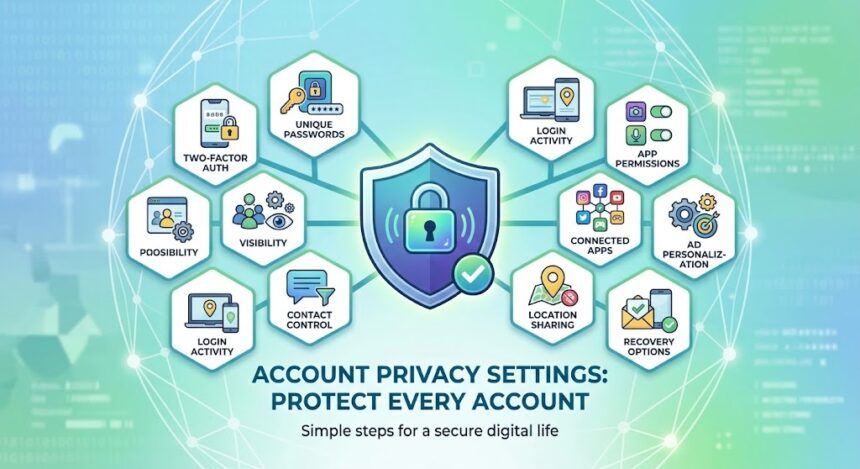
Account privacy settings are the options inside an app, website or device that control who can see your information, how your data is collected and used, and how well your login is protected. The most important account privacy settings to check on every platform are: your profile and post visibility, who can contact you, two-factor authentication, a strong unique password stored in a password manager, login and device activity, app permissions and connected apps, ad and data personalization, location sharing, backups and recovery options, and regular privacy checkups. This guide gives you a simple, universal checklist, then points you to step-by-step guides for each major platform.
Last updated: October 2026. App menus change often. If a setting is not where we describe it, use the search bar in the app’s Settings or visit the official help center.
Quick Answer: How Do I Secure My Account Privacy Settings?
Do these five things first. They protect the most people against the most common problems:
- Turn on two-factor authentication for email, social media, banking and shopping accounts.
- Use a unique password for every account, saved in a password manager.
- Set profiles and posts to the narrowest audience you are comfortable with, such as friends or followers you approve.
- Review which apps and devices are connected to your account and remove the ones you do not use.
- Run each platform’s privacy checkup every few months.
Why Account Privacy Settings Matter
Most privacy problems do not come from sophisticated hackers. They come from default settings that favour sharing, reused passwords, old apps that still have access and fake messages that trick people into giving up login codes. Good settings reduce the chance of:
- Account takeover: someone logs in as you, messages your contacts and posts scams.
- Identity theft: personal details such as your birthday, phone number and workplace help criminals impersonate you.
- Stalking and harassment: public profiles and location tags can expose your routine.
- Unwanted tracking: detailed ad profiles built from your activity.
- Embarrassment: old posts, tags and photos that you do not want strangers or employers to see.
The Universal Account Privacy Settings Checklist
These ten settings exist in some form on almost every platform.
1. Turn on two-factor authentication (2FA)
Two-factor authentication asks for a second proof of identity in addition to your password, such as a code from an authenticator app, a text message or a security key. It stops most account takeovers even if your password leaks.
- Prefer an authenticator app or security key over text messages when the choice exists.
- Save backup codes in a safe place, such as your password manager or a locked drawer.
- Start with your primary email account, because email is used to reset every other password.
2. Use a password manager and unique passwords
A password manager creates long random passwords and fills them in for you, so you only need to remember one strong master password. Reusing one password across sites is dangerous because a leak at one company exposes all your accounts. Bitwarden is a well-known open-source option, and many browsers and phones include built-in managers. Our essential Windows software guide and useful Android apps list both cover password manager options. To check whether your email address appeared in a known data breach, use Have I Been Pwned.
3. Set profile and post visibility
Choose who can see what you share. Common options are Public, Friends or Followers, specific people and Only me. A good rule: share publicly only what you would be comfortable seeing on a billboard. Look for settings such as private account, audience, past post limits and story controls.
4. Control who can contact you
Limit messages, friend requests, tags, mentions and comments to people you know or follow. This reduces spam, scams and harassment. Most apps also let you filter offensive words and report or block users.
5. Review login activity and logged-in devices
Find the page that lists where you are signed in. Log out of any device or location you do not recognise, then change your password. Turn on login alerts if the platform offers them.
6. Check app permissions on your phone
Apps can ask for access to your camera, microphone, contacts, photos and location. Open your phone’s privacy or permissions settings and remove access that an app does not truly need. On Android, the Privacy Dashboard shows recent permission use; see our Android phone tips for steps.
7. Remove connected apps and “Sign in with” connections
Over time you may connect your account to games, shopping sites and tools using “Sign in with Google” or “Log in with Facebook”. Each connection may share data. Review the list in your account settings and remove anything old or unfamiliar.
8. Manage ad and data personalization
Platforms use your activity to personalise ads and recommendations. You can usually limit this in ad settings and data settings. Turning personalization off does not remove ads, but it makes them less targeted. Many services also let you download or delete your data.
9. Limit location sharing
Location can reveal your home, school, workplace and routine. Set location access to While using the app or Never, turn off live location features unless you need them and avoid tagging your exact location in real time.
10. Set recovery options and run regular checkups
Make sure your recovery email and phone number are current so you can regain access if something goes wrong. Then schedule a checkup every three to six months. Google, Meta and other companies provide guided tools such as the Google Security Checkup.
Platform-by-Platform Account Privacy Guides
Each platform names its settings differently. Use these detailed guides for exact steps.
| Platform | Key settings to change | Full guide |
|---|---|---|
| Privacy Checkup, post audience, profile lock, tag review, two-factor authentication | Facebook privacy settings | |
| Private account, activity status, Close Friends, tags, message controls | Instagram privacy settings | |
| Last seen, profile photo, groups, disappearing messages, two-step verification | WhatsApp privacy settings | |
| TikTok | Private account, direct messages, downloads, liked videos, Family Pairing | TikTok privacy settings |
| YouTube | Watch history, private likes and subscriptions, autoplay, Restricted Mode | YouTube settings |
How to Spot Phishing and Fake Login Pages
Even perfect settings cannot help if you give your password to a criminal. Watch for these warning signs:
- Urgent threats: messages saying your account will be closed unless you act now.
- Requests for codes: no real support agent needs the code sent to your phone.
- Look-alike addresses: a web address with a slightly different spelling than the real one.
- Unexpected attachments or links: especially from a friend whose account may have been hacked.
- Too-good-to-be-true offers: free followers, prizes or investments.
When in doubt, do not click the link. Open the official app or type the website address yourself. Report suspicious messages inside the app. The U.S. Federal Trade Commission also publishes practical advice on identity theft and online security, and CISA’s Secure Our World program offers simple habits for everyone.
What to Do If Your Account Is Hacked
- Try to log in and change your password immediately. If you cannot, use the platform’s account recovery page.
- Secure your email first because attackers use it to reset other accounts.
- Log out of all devices and remove unknown devices from your login activity.
- Turn on two-factor authentication right away.
- Remove unknown connected apps and check forwarding rules in your email.
- Warn your contacts that messages sent from your account may be scams.
- Change passwords elsewhere if you reused the hacked password.
- Contact your bank if payment details may have been exposed.
If a device may be infected, see our tech troubleshooting guide for step-by-step help.
Account Privacy Settings for Families and Teens
- Use private accounts: make sure children’s profiles are private or restricted wherever possible.
- Turn on parental controls: tools such as TikTok’s Family Pairing and YouTube’s supervised experiences give parents options.
- Talk about sharing: explain why addresses, school names and daily routines should not be posted.
- Agree on rules: decide together who your child can accept as a friend and what to do if something feels wrong.
- Review together: sit down every few months and go through the settings together instead of checking secretly.
Privacy Settings on Shared Devices and Public Wi-Fi
- Always log out of accounts on shared or public computers, and avoid saving passwords in the browser there.
- Use a private or guest window when signing in on someone else’s device.
- Avoid banking or password changes on public Wi-Fi. If you must use it, use your mobile data or a trusted VPN service.
- Keep devices updated and locked with a PIN, fingerprint or face unlock. Our Windows 11 tips include steps for sign-in options and security.
- If your connection is unreliable, our Wi-Fi troubleshooting guide helps you fix it without using risky public networks.
A Simple Privacy Routine You Can Repeat
| How often | What to do |
|---|---|
| Every month | Install updates, review any security alerts and delete suspicious messages |
| Every 3 months | Run privacy checkups on major platforms and review connected apps |
| Every 6 months | Review app permissions, old accounts and recovery details |
| Every year | Change important passwords if you do not use a manager, and delete unused accounts |
For more step-by-step help with common tasks, browse our technology tutorials.
Frequently Asked Questions About Account Privacy Settings
What are account privacy settings?
Account privacy settings are controls that decide who can see your information, who can contact you, how your data is used and how securely your account is protected. They exist in social media apps, email, shopping sites, phones and more.
How do I make my accounts more private?
Set your profiles to private or friends only, limit who can message and tag you, remove old connected apps, limit location sharing, and turn on two-factor authentication. Then review your settings every few months.
What is the most important account privacy setting?
Two-factor authentication is usually the most important, because it protects your account even when your password is stolen. Start with your email account and your most-used social media accounts.
Is two-factor authentication really necessary?
Yes. Passwords leak and get guessed. A second factor makes it much harder for an attacker to log in with only a stolen password. It adds a few seconds to login but greatly improves security.
What is a privacy checkup?
A privacy checkup is a guided tool from a platform that walks you through key privacy and security options. Facebook, Google and others offer them, and they are a quick way to review your settings.
How do I know if someone else is using my account?
Look at the list of devices and locations where you are logged in, check for login alerts and review recent activity such as posts, messages and password changes. Log out of unknown sessions and change your password.
Should I use the same password for different accounts?
No. If one website is breached, criminals try the same email and password on other services. Use a unique password for every account and store them in a password manager.
Do private accounts hide everything?
No. A private account limits who can view your posts, but your name, profile picture and bio may still be visible, and approved followers can take screenshots. Only approve people you trust.
How often should I check my privacy settings?
Every three to six months is a good rhythm. Also check after app updates, a phone change or any security alert.
What should I do if I forgot to set up recovery options?
Add or update your recovery email and phone number today in your account security settings. Without them, regaining access after a hack or lost phone can be slow or impossible.
Final Thoughts
Strong account privacy does not require technical skill. It requires a few repeatable habits: use two-factor authentication, keep unique passwords in a manager, share with the smallest audience that makes sense, remove access you no longer need and review everything on a schedule. Start with your email account, then work through the platform guides above. Ten focused minutes today can prevent months of stress caused by a hacked account.
Tip: Share this guide with family members who are new to smartphones. A secure household starts with everyone using the same good habits.