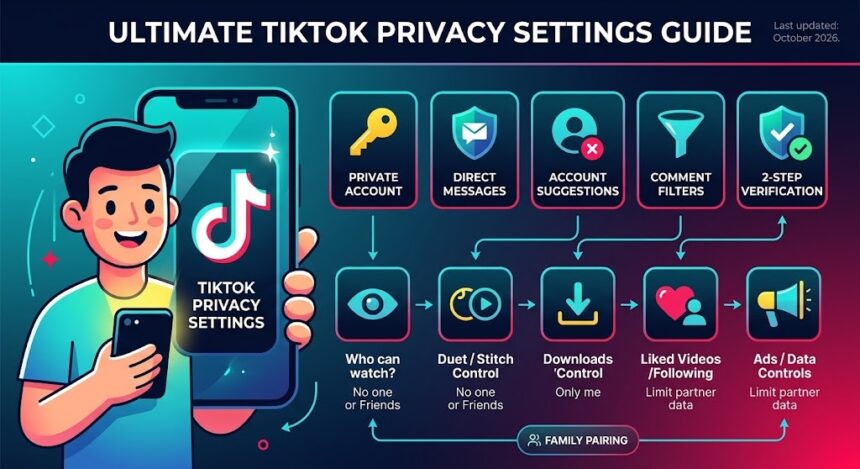
TikTok privacy settings control who can watch your videos, follow you, comment, message you, reuse your content and find your account, as well as how your data is used for ads. The 10 most important options are: a private account, video visibility, account suggestions, direct messages, comments, Duet/Stitch and downloads, liked videos and following list, activity status and profile views, ads and data controls, and 2-step verification. This guide explains each one in plain language, with steps you can finish in about 10 minutes.
Last updated: October 2026. TikTok regularly renames menus and moves options between screens, and some settings depend on your age and country. If a label looks different, open Settings and privacy and use the search bar.
Quick Answer: What Are the Best TikTok Privacy Settings?
If you only have two minutes, change these five settings first:
- Switch to a private TikTok account so only approved followers can watch your videos.
- Set direct messages to Friends or No one to avoid spam and scams.
- Turn off account suggestions if you do not want to be recommended to people you know.
- Restrict who can comment and turn on keyword filters.
- Turn on 2-step verification to protect your login.
How to Open TikTok Privacy Settings
- Open TikTok and tap Profile at the bottom right.
- Tap the menu icon (three lines) in the top-right corner.
- Tap Settings and privacy.
- Tap Privacy to see most of the controls in this article. Security options sit under Security & permissions.
TikTok also publishes official explanations in its privacy controls help article and its Safety Center.
1. Make Your TikTok Account Private
This is the most powerful setting on the app. A private TikTok account means you approve every follower, and only approved followers can watch your videos. Anyone can still see your profile picture, username and bio, so avoid putting personal details there.
How to make your TikTok account private
- Go to Settings and privacy > Privacy.
- Turn on Private account.
What changes when you go private?
- New followers must send a request that you accept or decline.
- Your videos are no longer open to the public, so they cannot go viral in the same way.
- People who already follow you stay on your follower list unless you remove them.
- Options such as downloads and who can reuse your content become more limited.
Tip: Creators and businesses usually need a public account. If that is you, keep the account public and use the other nine settings below to protect yourself. Younger teens get stricter defaults, which we cover in the family section further down.
2. Choose Who Can Watch Each Video
The question who can see my TikTok videos has two answers. Your account setting decides the default, and each individual video has its own audience selector.
- Tap + to create a video and reach the post screen.
- Tap Who can watch this video (or similar wording).
- Choose Everyone, Friends (people who follow each other) or Only me.
You can also change the audience of a video you already posted. Open the video, tap the three dots, then Privacy settings. This is helpful if a video gets more attention than you expected, or if you want to hide old posts without deleting them.
3. Control Account Suggestions and Contact Syncing
TikTok can suggest your account to people who may know you, such as contacts, Facebook friends or people with mutual connections. That helps you grow but can be uncomfortable if you do not want an ex, coworker or distant relative to find you.
- Go to Settings and privacy > Privacy.
- Open Suggest your account to others (the wording may include Discoverability).
- Turn off the categories you do not want.
- Check Sync contacts and Facebook friends and turn off contact syncing if you want to stop TikTok from using your address book.
Even with suggestions off, anyone who knows your exact username or phone number may still find you in search, depending on your settings.
4. Adjust TikTok Direct Messages Settings
Direct messages are a common route for scams, harassment and unwanted contact, so the TikTok direct messages settings deserve careful attention.
- Go to Settings and privacy > Privacy > Direct messages.
- Choose who can message you. Depending on your age and region, the choices may include Everyone, Friends or No one.
TikTok has limited messaging for younger teens, and users under 16 do not have access to direct messages. For everyone else, Friends or No one is the safest option. Never click links from strangers, never share passwords or verification codes, and be suspicious of anyone who promises prizes, followers or money.
5. Manage Comments and Filters
Comments can bring spam, bullying and unwanted attention. TikTok gives you several layers of control.
- Who can comment on your videos: choose Everyone, Friends or No one in Privacy > Comments.
- Filter keywords: add words, phrases or emojis you do not want to see in your comments.
- Filter spam and offensive comments: turn on automatic filters so likely spam is hidden.
- Review comments: require approval before a comment appears publicly, if the option is available.
You can also delete or report a single comment by pressing and holding it, and you can block an account from the same menu.
6. Limit Duet, Stitch, Reuse of Content and Downloads
TikTok is built around remixing. Duet and Stitch let other people react to or reuse parts of your videos. Downloads let viewers save your video to their device. If you want more control, change the following:
- Go to Settings and privacy > Privacy.
- Look for Reuse of content or separate options for Duet and Stitch, and choose Friends or No one.
- Open Downloads and turn off Video downloads to stop people from saving your videos through the app.
Keep in mind that nothing stops someone from filming their screen. A privacy setting reduces risk but cannot guarantee that a public video will never be copied. If you do not want a video copied, make the account private or set that video to Friends or Only me.
7. Hide Liked Videos and Your Following List
Your likes and the accounts you follow say a lot about you. By default, some of this may be visible to others.
- TikTok liked videos privacy: go to Privacy > Liked videos and choose Only me or Friends.
- Following list: go to Privacy > Following list and decide who can see the accounts you follow.
- Saved videos and favourites: collections can be set to private from the collection settings.
Hiding these lists is a good idea if you follow news, health, religious or political accounts that you would rather keep personal.
8. Review Activity Status and Profile Views
TikTok has features that show when you are active and who looked at your profile.
- Activity status: shows when you were last online to friends. You can turn it off in Privacy.
- Profile views: if this is on, people who also have it on can see that you viewed their profile. Turn it off if you want to browse quietly. When you turn it off, you also stop seeing who viewed you.
- Post views history: controls whether creators can see that you viewed their videos in certain situations.
Switching these off makes the app feel quieter and reduces the amount of information other people can collect about your habits.
9. Manage Ads, Data and Personal Information
Like most social apps, TikTok uses your activity to personalise ads and recommendations. You can reduce this and also see what the app has stored.
- Open Settings and privacy and look for Ads and data or Ad settings to limit how data from partners is used.
- Go to Account > Download your data to request a copy of your information.
- Open your phone settings and choose While using the app or Never for TikTok’s location and contacts permissions. Our guide to Android phone tips explains how to review app permissions.
- Clear your cache occasionally to remove stored files from the app.
Also avoid putting your phone number, home address, school name or workplace in your bio or videos. Backgrounds in videos can reveal more than you expect.
10. Turn On 2-Step Verification and Check Your Devices
Your privacy settings are only useful if nobody else can log into your account. TikTok 2-step verification asks for a second proof of identity, such as a code, when you log in.
How to turn on 2-step verification
- Go to Settings and privacy > Security & permissions.
- Tap 2-step verification.
- Choose at least two methods, for example a text message, email or authenticator app, and follow the prompts.
More ways to secure your account
- Open Security & permissions > Manage devices (or Security alerts) and log out of devices you do not know.
- Use a long, unique password. A password manager helps; see our essential Windows software list for options.
- Be careful with third-party apps that promise free followers, because they often ask for your login details.
TikTok Family Pairing and Settings for Teens
TikTok Family Pairing lets a parent or guardian link their own TikTok account to a teen’s account and manage some controls from their phone. Depending on your region, a linked parent can set daily screen time limits, turn on Restricted Mode, manage who can send direct messages, and review privacy options.
How to set up Family Pairing
- On both phones, open Settings and privacy > Family Pairing.
- On the parent phone, choose Parent. On the teen phone, choose Teen.
- Scan the QR code shown on one phone with the other phone to link the accounts.
- Choose the controls you want to use and talk with your teen about why.
TikTok applies stricter default settings to younger users, including private accounts and limits on features such as messaging, Duet and Stitch. Because rules change by age and country, sit down with your child and check each option together. Free parent guides are available from groups such as Internet Matters.
TikTok Privacy Settings Checklist
| Setting | Recommended for | Where to find it |
|---|---|---|
| Private account | Personal accounts and teens | Settings and privacy > Privacy |
| Direct messages: Friends or No one | Everyone | Privacy > Direct messages |
| Comment filters | Creators and public accounts | Privacy > Comments |
| Downloads off | Anyone worried about reposting | Privacy > Downloads |
| Liked videos: Only me | Anyone wanting more privacy | Privacy > Liked videos |
| Activity status off | Quiet browsing | Privacy > Activity status |
| Account suggestions off | Keeping profile separate | Privacy > Suggest your account |
| 2-step verification | Everyone | Security & permissions |
Frequently Asked Questions About TikTok Privacy Settings
How do I make my TikTok account private?
Go to Profile, tap the menu icon, open Settings and privacy, tap Privacy and turn on Private account. After that, only followers you approve can watch your videos.
Can people still see my profile if my TikTok is private?
Yes. Everyone can see your profile picture, username and bio even when the account is private. Your videos, followers and likes are only visible according to your settings.
Does TikTok tell people when I view their profile?
Only if the profile views feature is on for both people. If you turn it off, others cannot see that you viewed them, and you cannot see who viewed you.
How do I stop people from downloading my TikTok videos?
Go to Settings and privacy, open Privacy, tap Downloads and turn off video downloads. You can also set an individual video to Friends or Only me. Screen recording is outside TikTok’s control.
How do I stop strangers from messaging me on TikTok?
Open Privacy, tap Direct messages and select Friends or No one. Report and block anyone who sends spam, threats or suspicious links.
Can I hide my liked videos on TikTok?
Yes. Open Privacy, tap Liked videos and choose Only me or Friends. This stops the public from seeing what you have liked.
What is Family Pairing on TikTok?
Family Pairing is a parental tool that links a parent’s account to a teen’s account so the parent can manage screen time, Restricted Mode, messaging and other options. Both people need TikTok accounts.
Is TikTok safe for kids and teens?
TikTok offers safety tools, but safety depends on the settings you choose and the conversations you have. Use a private account, limit messages, turn on Family Pairing and teach children not to share personal information.
How do I know if my TikTok account was hacked?
Signs include login alerts you did not trigger, videos or comments you did not post, and changed account details. Change your password, log out of all devices, turn on 2-step verification and contact TikTok support through the app.
How often should I check my TikTok privacy settings?
Check them every three to six months and after major app updates. TikTok adds and renames features often, and defaults can change.
Related Guides
- Facebook privacy settings
- Instagram privacy settings
- WhatsApp privacy settings
- YouTube settings
- Account privacy settings: a complete guide
Final Thoughts
You do not have to give up the fun of TikTok to protect yourself. Decide whether your account should be private, limit who can message and comment, hide your likes and activity, and protect your login with 2-step verification. If you are a parent, set up Family Pairing and review the options together with your teen. Spend ten minutes on the settings above and schedule a reminder to look again in a few months. For general safe-online advice, the Secure Our World program has simple tips that work on every platform.
Tip: Ask friends and family to review their own settings too. Privacy is stronger when the people around you protect their accounts as well.