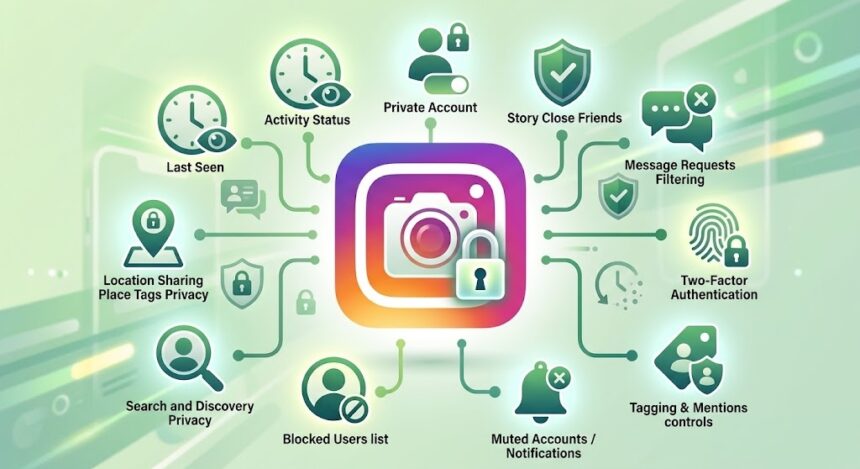
Instagram privacy settings are the controls inside the app that decide who can see your posts, Stories and activity, who can message or tag you, and how secure your account is. The 10 most important options are: a private account, activity status, Story and Close Friends controls, tags and mentions, comment filters, message controls, block/restrict/mute, sensitive content and like counts, location sharing, and two-factor authentication. This guide explains each one in plain language, with steps you can follow in under 10 minutes.
Last updated: October 2026. Menu names on Instagram change from time to time, so if a label looks slightly different on your phone, use the search bar inside Settings and privacy.
Quick Answer: What Are the Most Important Instagram Privacy Settings?
If you only have two minutes, change these five things first:
- Switch your account to private so only approved followers see your content.
- Turn on two-factor authentication to stop hackers even if they know your password.
- Limit who can message and tag you to people you follow.
- Turn off location sharing unless you really want friends to see where you are.
- Turn off activity status if you do not want others to see when you were last online.
How to Open Instagram Privacy Settings
Every setting in this article lives in one place. To find it:
- Open Instagram and tap your profile picture in the bottom-right corner.
- Tap the menu icon (three lines) in the top-right corner.
- Tap Settings and privacy.
From here you will see sections such as Who can see your content, How others can interact with you, and What you see. Password and security options sit under Accounts Center.
1. Make Your Instagram Account Private
This is the single most powerful privacy control. A private Instagram account means only followers you approve can see your posts, Reels, Stories and followers list. Anyone else sees only your profile picture, name and bio.
How to make your Instagram account private
- Go to Settings and privacy.
- Tap Account privacy.
- Turn on Private account and confirm.
What changes when you go private?
- New followers must send a request that you approve or decline.
- Your posts will not appear on public hashtag or location pages.
- People who already follow you stay following you unless you remove them.
- Your content cannot be shared as a public link that anyone can open.
Instagram also explains these steps in its official Help Center guide to private accounts.
Tip: Public accounts are better for creators and businesses who want reach. If you are a creator, keep the account public and use the other nine settings below to protect yourself.
2. Hide Your Activity Status
Activity status shows a green dot or “Active now” text to people you follow or have messaged. If you do not want others to know when you are online, you can turn it off.
How to hide activity status on Instagram
- Open Settings and privacy.
- Tap Messages and story replies (or search for “activity status”).
- Tap Show activity status and switch it off.
Keep in mind that when you hide your activity status, you usually cannot see other people’s status either. The setting works both ways.
3. Control Who Sees Your Stories and Use Close Friends
Stories are where most people share casual, personal moments, so they deserve their own privacy rules. Instagram gives you three layers of control.
Hide your Story from specific people
Go to Settings and privacy > Hide story and live. Pick the people who should not see your Stories. They will not be notified.
Share only with your Close Friends list
The Instagram Close Friends list lets you share a Story, post or Reel with a smaller, hand-picked group. Posts shared this way show a green ring or badge so viewers know they are exclusive.
- Go to Settings and privacy > Close Friends.
- Search for people and add them.
- When you create a Story, choose Close Friends instead of “Your story”.
Turn off Story resharing and replies
Under Story settings, you can stop people from resharing your Story to their own, and choose who can reply: everyone, people you follow, or nobody.
4. Manage Tags and Mentions
Tags can place your name on posts you had no control over. Fortunately, you can decide who is allowed to tag or mention you, and you can approve tags manually.
- Go to Settings and privacy > Tags and mentions.
- Under Allow tags from, choose Everyone, People you follow, or No one.
- Do the same for Allow mentions from.
- Turn on Manually approve tags so a tagged photo only appears on your profile after you accept it.
This setting is especially useful after parties, events or trips, when friends may post photos you would rather not have on your profile.
5. Filter Comments and Hidden Words
Comments are a common source of spam, bullying and unwanted attention. Instagram lets you filter them before you ever see them.
- Allow comments from: choose everyone, people you follow, your followers, or turn comments off for a specific post.
- Hidden Words: automatically hides comments and message requests that contain offensive language, and lets you add your own custom words, phrases or emojis to block.
- Block comments from specific people: they will not know they have been blocked from commenting.
You can find these under Settings and privacy > Comments and Hidden Words.
6. Set Message Controls and Read Receipts
Direct messages (DMs) can be a gateway for scams and harassment, so tighten them early.
Choose who can message you
Open Settings and privacy > Messages and story replies. Here you can decide whether people you do not follow, followers, or other Instagram users can send you messages or message requests.
Turn off read receipts
You can switch off Show read receipts so others cannot see when you have opened their message. WhatsApp has a similar option, which we explain in our guide to WhatsApp privacy settings.
Handle message requests safely
Messages from people you do not follow land in Message requests. Never click suspicious links, and never share passwords, codes or bank details with anyone who messages you first.
7. Use Block, Restrict and Mute
Instagram offers three different tools. Each one handles a different type of problem.
- Block: the person cannot find your profile, see your content or message you. Use this for harassment, stalking or spam.
- Restrict: a softer option. Their comments on your posts are visible only to them unless you approve, and their messages go to your requests folder. They are not told they are restricted. This works well for people you cannot avoid, such as a classmate or coworker.
- Mute: you stop seeing their posts or Stories, but they can still see yours and are not notified.
To use any of them, open the person’s profile, tap the three dots, and choose the option you want.
8. Adjust Sensitive Content and Like Counts
Privacy is also about what you see and how much of your engagement is public.
- Sensitive content control: go to Settings and privacy > Content preferences > Sensitive content to see less or more of the content Instagram considers potentially upsetting. Teen accounts are limited to the most restrictive setting.
- Hide like counts: you can hide like counts on posts you see, and hide them on your own posts, so people do not judge engagement numbers.
- Limit interactions: if you suddenly attract unwanted attention, this feature temporarily limits comments and messages from people who are not your close followers.
9. Control Location Sharing
Location is one of the riskiest pieces of personal data you can share. Even a casual Story with a tag can reveal your home, school or daily routine.
- Instagram Map: if you use the friend map feature, keep location sharing off or limit it to a very small group. It should be an opt-in choice, and you can change it at any time in Settings and privacy by searching “location”.
- Device permission: in your phone settings, set Instagram’s location access to Never or While using the app. On Android, the Privacy Dashboard shows which apps recently used your location, as explained in our Android phone tips.
- Post tags: avoid tagging your exact location in real time. Post later, or tag a general area instead.
10. Turn On Two-Factor Authentication and Review Login Activity
Privacy settings mean little if someone else can log into your account. Two-factor authentication (2FA) adds a second step to your login so a stolen password is not enough.
How to turn on two-factor authentication
- Go to Settings and privacy > Accounts Center.
- Tap Password and security, then Two-factor authentication.
- Choose your Instagram account and pick a method: an authentication app (the most secure choice), SMS text message, or WhatsApp.
- Save the backup codes somewhere safe. Our technology tutorials explain how to protect your accounts with a password manager and 2FA.
Check where you are logged in
Under Password and security > Where you’re logged in, review every device. Log out of any you do not recognize and change your password immediately.
Spot fake emails
You can see official emails Instagram has sent you under Password and security > Security checkup or by checking recent emails from Instagram. If an email asks for your password or a login code, it is almost certainly a phishing attempt.
Instagram Privacy Settings Checklist
| Setting | Recommended for | Where to find it |
|---|---|---|
| Private account | Personal accounts | Settings and privacy > Account privacy |
| Activity status off | Anyone wanting less visibility | Messages and story replies |
| Close Friends | Sharing personal moments | Settings and privacy > Close Friends |
| Manual tag approval | Everyone | Tags and mentions |
| Hidden Words | Creators and public accounts | Hidden Words |
| Message controls | Everyone | Messages and story replies |
| Location off | Everyone | Settings and phone permissions |
| Two-factor authentication | Everyone | Accounts Center > Password and security |
Frequently Asked Questions About Instagram Privacy Settings
What does a private Instagram account mean?
A private Instagram account means only people you approve as followers can see your posts, Reels, Stories and follower list. Everyone else can only see your profile photo, username and bio.
Can people see that I viewed their Story?
Yes. When you watch a Story, your username appears in the viewer list for that Story. You cannot hide this from the person who posted it, except by not opening it or by blocking them.
How do I know if someone checks my Instagram profile?
Instagram does not tell you who visits your profile. Third-party apps that claim to show profile visitors are not real and often steal passwords, so avoid them.
Does a private account hide my followers from everyone?
Yes, non-followers cannot see your followers or following list when your account is private. Approved followers can still see it.
Can someone screenshot my private posts?
Yes. A private account limits who can view your content, but approved followers can still take screenshots. Only approve people you trust.
How do I stop strangers from messaging me on Instagram?
Go to Settings and privacy, then Messages and story replies, and limit who can message you. You can also turn on Hidden Words to filter abusive message requests.
Is it safe to use Instagram if my account is public?
It can be safe if you take precautions: avoid sharing your location, address or school, turn on two-factor authentication, filter comments and manually approve tags.
How often should I review my Instagram privacy settings?
Review them every three to six months, or after any major app update. Instagram regularly adds or renames features, and some defaults may change.
What is the difference between block and restrict on Instagram?
Blocking removes all contact and visibility. Restricting quietly limits what the person can do without notifying them, which is useful for people you cannot fully cut off.
Are Instagram teen accounts private by default?
Yes. Instagram places teens in Teen Accounts, which are private by default and include stricter messaging, tagging and sensitive content limits. Younger teens need a parent’s permission to loosen those settings.
Final Thoughts
Good Instagram privacy does not require turning your account into a fortress. Start by choosing whether your account should be private, then protect your login with two-factor authentication, control who can message, tag and comment, and think carefully before sharing your location. Spend ten minutes going through the ten settings above, then set a reminder to check them again in a few months. A few small changes now can prevent unwanted contact, scams and account takeovers later.
Tip: Share this guide with family members, especially teens and parents who are new to Instagram.