
Last updated: November 2026
Quick Answer: How Do You Factory Reset Windows 11?
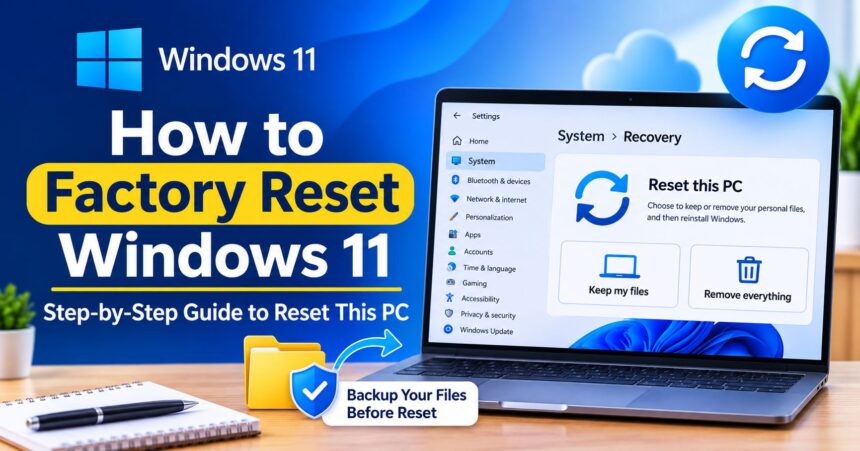
To factory reset Windows 11, open Settings > System > Recovery, click Reset PC next to “Reset this PC,” and choose Keep my files or Remove everything. Then pick Cloud download (a fresh copy of Windows from Microsoft) or Local reinstall (uses files already on your PC), review the summary and click Reset. Your PC restarts several times and reinstalls Windows. Back up your files first, plug in your laptop, and do not turn the PC off during the reset.
Key Takeaways
- A Windows 11 factory reset is done with the built-in Reset this PC feature. You do not need a USB drive or a product key.
- Keep my files removes apps and settings but keeps your personal files. Remove everything wipes the PC like new.
- Cloud download is best when Windows is corrupted or you want the newest version. Local reinstall is faster and works without internet.
- If you cannot sign in, hold Shift while clicking Restart on the sign-in screen to reach the reset option.
- If Windows will not start, interrupt the boot three times to open the Windows Recovery Environment, then go to Troubleshoot > Reset this PC.
- Your Windows 11 license is tied to your device, so it normally reactivates itself after a reset.
- Always back up photos, documents, browser data and BitLocker keys before you start.
What Does a Factory Reset Do on Windows 11?
A factory reset on Windows 11 reinstalls the operating system and returns it to a clean, like-new state. Microsoft calls this feature Reset this PC. It removes the apps you installed, resets your settings, and, if you choose Remove everything, deletes your personal files as well. It can also fix stubborn problems such as a slow PC, system file errors, malware and broken updates when simpler fixes fail.
| Item | Keep my files | Remove everything |
|---|---|---|
| Personal files (Documents, Pictures, Desktop) | Kept | Deleted |
| Installed apps and desktop programs | Removed | Removed |
| Windows settings and customizations | Reset to default | Reset to default |
| User accounts | Kept | Removed |
| Windows license | Kept | Kept |
| Best for | Fixing problems without losing files | Selling, giving away or starting fresh |
Before You Reset: 7-Step Checklist
- Back up your files. Copy documents, photos, videos and downloads to an external drive or to cloud storage. If you are new to the cloud, read what is cloud storage and how to use Google Drive. Microsoft also explains how to back up your Windows PC.
- Save your BitLocker or device encryption key. Many Windows 11 PCs are encrypted, and you may be asked for the key. You can find it at account.microsoft.com/devices/recoverykey.
- Write down your logins. Know your Microsoft account email and password, Wi-Fi password and any app licenses (Microsoft 365, Adobe, antivirus).
- Note your app list. Open Settings > Apps > Installed apps and take a screenshot. Our guide to taking a screenshot on Windows 11 shows the quickest way.
- Download drivers if needed. Visit your PC maker’s support page, such as Dell Support, HP Support or Lenovo Support, and keep the Wi-Fi and chipset drivers on a USB stick.
- Plug in your laptop. A power cut during a reset can damage the installation. Keep the charger connected.
- Free up time. A local reinstall often takes 20 to 30 minutes, while a cloud download or a full drive clean can take an hour or more, depending on your internet speed and drive.
If you delete something by mistake, our guide to recovering deleted files may help, but recovery after a “Remove everything” reset is often impossible.
Method 1: Factory Reset Windows 11 from Settings (Easiest)
Use this method when you can sign in to Windows normally.
- Open Settings by pressing Windows key + I.
- Click System, then scroll down and click Recovery.
- Under Recovery options, find Reset this PC and click Reset PC.
- Choose Keep my files or Remove everything.
- Choose Cloud download or Local reinstall.
- On Additional settings, review the options. Click Change settings if you want to adjust them (see below).
- Click Next, review the summary and click Reset.
- Wait while your PC restarts and reinstalls Windows. Do not turn it off.
- When setup appears, choose your region, keyboard layout, Wi-Fi network and sign in with your Microsoft account.
Microsoft describes these same choices in its official guide to resetting your PC.
Cloud Download vs Local Reinstall: Which Should You Choose?
| Option | How it works | Choose it when |
|---|---|---|
| Cloud download | Downloads a fresh copy of Windows 11 from Microsoft and installs it | Windows is corrupted, you want the latest version, or you want a cleaner install without manufacturer extras. Needs a reliable internet connection and several gigabytes of data. |
| Local reinstall | Rebuilds Windows from files already on your PC | Your system files are healthy, your internet is slow, or you want it faster. On branded PCs it can also restore manufacturer apps and drivers. |
If a local reinstall fails, switch to cloud download. Most problems are solved that way.
What Does “Change Settings” Do?
- Clean data: Securely erases the drive instead of simply deleting files. It takes longer but is recommended if you will sell or give away the PC.
- Delete files from all drives: Wipes other drives and partitions too, not only the Windows drive. Leave it off if you store files on a second drive you want to keep.
- Restore preinstalled apps: Appears on PCs that came with apps from the manufacturer. Turn it on to bring back the original apps.
- Download Windows: Switches between cloud download and local reinstall.
Method 2: Factory Reset Windows 11 Without a Password
If you forgot your password and cannot sign in, you can still reset Windows 11 from the sign-in screen.
- On the sign-in screen, click the Power icon in the bottom-right corner.
- Hold down the Shift key and click Restart.
- When the blue menu appears, select Troubleshoot > Reset this PC.
- Choose Remove everything. This is the option that works without signing in.
- Select Cloud download or Local reinstall, then confirm and reset.
Important: Removing everything deletes all files on the PC. If you only forgot a Microsoft account password, try resetting it first at account.live.com/password/reset using another device, which keeps your files safe. After you finish, follow our guide to create a strong password and store it in a password manager.
Method 3: Reset Windows 11 from Boot (Windows Recovery Environment)
Use this when Windows 11 will not start properly. The Windows Recovery Environment (WinRE) loads before Windows and does not need you to sign in.
Option A: From Advanced Startup (Windows still opens)
- Go to Settings > System > Recovery.
- Next to Advanced startup, click Restart now.
- Choose Troubleshoot > Reset this PC and follow the prompts.
Option B: Force Recovery Mode (Windows will not start)
- Turn on the PC. As soon as you see the Windows or manufacturer logo, hold the power button until the PC shuts off.
- Repeat this two or three times until you see Preparing Automatic Repair or Automatic Repair.
- Click Advanced options.
- Select Troubleshoot > Reset this PC.
- Choose Keep my files or Remove everything, then Cloud download or Local reinstall.
If you only want to fix boot problems, try Startup Repair or System Restore under Advanced options before you reset. For more general fixes, see our tech troubleshooting guide.
Method 4: Clean Install Windows 11 with a USB Drive
A clean install is the most thorough “factory reset.” Use it if Reset this PC keeps failing, the recovery files are damaged, or you replaced your drive.
- On a working PC, download the Windows 11 Installation Media from Microsoft’s Windows 11 download page.
- Insert a blank USB drive (8 GB or larger) and run the tool to create the installer. This erases everything on the USB drive.
- Plug the USB drive into the PC you want to reset and turn it on.
- Press the boot menu key repeatedly (commonly F12, F10, Esc or F2, depending on the brand) and choose the USB drive.
- Select your language and click Install now.
- If asked for a product key and you already had Windows 11 on this PC, click I don’t have a product key. Windows normally activates automatically online.
- Choose Custom: Install Windows only (advanced).
- Select the drive that contains Windows, delete the old partitions if you want a full wipe, then click Next.
Your PC must meet Microsoft’s Windows 11 system requirements. If an old PC no longer qualifies, see our laptop buying guide before you upgrade.
Method 5: Use Your PC Manufacturer’s Recovery Tool
Many brands include their own recovery options, such as a recovery key at startup, a dedicated recovery button or a cloud recovery tool. These can restore the exact factory image, including original drivers and apps. Check your brand’s official support site for the right steps for your model: Dell, HP or Lenovo. Microsoft also lists more routes in its recovery options in Windows article.
Which Factory Reset Method Should You Use?
| Your situation | Best method |
|---|---|
| Windows works but is slow or buggy | Settings > Reset this PC > Keep my files |
| Selling or giving away the PC | Remove everything + Clean data |
| Forgot the password | Shift + Restart on the sign-in screen |
| Windows will not boot | WinRE (interrupt boot three times) |
| Reset keeps failing | Cloud download or USB clean install |
| Want original manufacturer software | Local reinstall or manufacturer recovery tool |
| Want a quick fix without wiping anything | Restart, System Restore or Startup Repair first |
What to Do After a Factory Reset
- Run Windows Update. Go to Settings > Windows Update > Check for updates and install everything, including optional driver updates.
- Install manufacturer drivers for graphics, Wi-Fi, Bluetooth and touchpad if something is missing.
- Restore your files from your backup or sign in to OneDrive or Google Drive.
- Reinstall your apps. Start with a browser, antivirus and Office. Our list of essential Windows software programs is a good starting point.
- Check your privacy settings. Review location, diagnostics and ad settings using our account privacy settings guide.
- Turn on security features such as Windows Security, BitLocker or device encryption, and two-step verification.
- Tweak Windows 11. Use our Windows 11 tips and shortcuts to set it up faster.
Be careful with emails and downloads when you are re-signing into accounts. Learn how to spot a phishing email so you do not hand your fresh login to scammers.
How to Factory Reset Windows 11 Before Selling or Giving Away Your PC
- Back up everything you want to keep.
- Sign out of apps such as Microsoft 365, Adobe and games, and deactivate licenses if required.
- Remove the device from your Microsoft account at account.microsoft.com/devices.
- Go to Settings > System > Recovery > Reset PC and choose Remove everything.
- Click Change settings and turn on Clean data. Turn on Delete files from all drives if you want every drive wiped.
- Choose Cloud download if you want the newest Windows, then Reset.
- Stop at the first setup screen (region or language) and shut the PC down. The next owner then sets it up with their own account.
Windows 11 Factory Reset Not Working? Try These Fixes
“There Was a Problem Resetting Your PC”
- Restart and try again, or choose Cloud download instead of Local reinstall.
- Open Command Prompt as administrator and run
sfc /scannow, thenDISM /Online /Cleanup-Image /RestoreHealth. Restart and retry. - Free up disk space. A nearly full drive can stop the reset.
- Disconnect USB devices and external drives.
- If it still fails, do a clean install with a USB drive (Method 4).
Reset This PC Is Missing or Greyed Out
- Open Command Prompt as administrator and type
reagentc /infoto check whether the recovery environment is enabled. - If it says Disabled, run
reagentc /enable, then try again. - If recovery files are missing, use a Windows 11 USB installer.
Reset Is Stuck at a Percentage
Resets can look frozen for a long time, especially at 0%, 25% or 64%. Wait at least one to two hours, check that the drive light is flickering and the PC is plugged in. If nothing changes for hours, hold the power button, restart and try again, preferably with Cloud download.
Asks for a BitLocker Recovery Key
Sign in to your Microsoft account on another device and open the recovery key page to find it. Microsoft cannot recreate a lost key, which is why you should save it before you reset.
Windows Is Not Activated After Reset
Connect to the internet and sign in with the Microsoft account you used before. Then open Settings > System > Activation and select Troubleshoot. For more help, see Microsoft’s Windows support center.
Factory Reset vs Other Windows 11 Fixes
- Restart: Fixes small glitches and keeps everything.
- System Restore: Rolls system files back to an earlier restore point without touching personal files.
- Startup Repair: Fixes boot problems.
- Reset this PC (Keep my files): Reinstalls Windows and removes apps and settings.
- Reset this PC (Remove everything): Factory reset with a full wipe.
- Clean install: The deepest reset, using a USB installer.
Not sure which one fits? Start with the simplest and move down the list. Our technology tutorials cover more PC fixes. If your problem is your internet instead, read how to reset a router, because a router reset and a Windows reset are very different things.
Frequently Asked Questions
How do I factory reset Windows 11?
Go to Settings > System > Recovery, click Reset PC, choose Keep my files or Remove everything, select Cloud download or Local reinstall, and click Reset. Windows restarts and reinstalls itself.
How do I factory reset Windows 11 without a password?
On the sign-in screen, hold Shift and click Restart from the Power menu. Then go to Troubleshoot > Reset this PC and choose Remove everything. This deletes all files on the PC.
How do I reset Windows 11 without losing files?
Choose Keep my files in Reset this PC. Windows removes apps and settings but keeps your personal files. Back up your data anyway in case something goes wrong.
Does a factory reset delete everything on Windows 11?
Only if you choose Remove everything. With Keep my files, your personal files stay, but installed apps and settings are removed.
How long does a Windows 11 factory reset take?
A local reinstall often takes about 20 to 30 minutes. A cloud download, a clean data wipe or a slow hard drive can make it take an hour or longer.
What is the difference between Cloud download and Local reinstall?
Cloud download gets a fresh copy of Windows 11 from Microsoft, which helps if local files are damaged. Local reinstall uses files already on your PC, so it is faster and works offline.
How do I factory reset Windows 11 from BIOS or boot?
You cannot reset Windows from the BIOS itself, but you can reset from boot using the Windows Recovery Environment. Interrupt startup three times or hold Shift while clicking Restart, then choose Troubleshoot > Reset this PC.
How do I factory reset a Windows 11 laptop?
The steps are the same as for a desktop. Plug in the charger, then open Settings > System > Recovery > Reset PC. For brand-specific recovery tools, check your laptop maker’s support website.
Will a factory reset remove viruses?
Usually yes, especially with Remove everything and a cloud download. Back up files carefully first, and scan them before restoring, because infected files in your backup can bring malware back.
Will I lose my Windows 11 license after a reset?
No. Windows 11 usually uses a digital license linked to your device and Microsoft account, so it reactivates automatically after you connect to the internet.
Do I need a USB drive to factory reset Windows 11?
No. Reset this PC works from Settings or the recovery menu without a USB drive. You only need a USB drive for a clean install or when recovery files are damaged.
Is a factory reset the same as reinstalling Windows?
It is similar. Reset this PC reinstalls Windows from a local or cloud image. A clean install from a USB drive is a deeper, fully manual reinstall.
Can I undo a factory reset on Windows 11?
No. After a reset finishes, you cannot undo it. If you backed up your files first, you can restore them. Otherwise, data recovery tools rarely succeed after a full wipe.
Why is my Windows 11 reset stuck?
Resets can look stuck for an hour or more, especially on slower drives. Make sure the PC is plugged in and give it time. If nothing changes for several hours, restart and retry with Cloud download.
Does a Windows 11 factory reset delete OneDrive files?
Local OneDrive copies on the PC are removed with Remove everything, but files already synced online stay in OneDrive. Sign in again after the reset to download them.
Should I factory reset before selling my Windows 11 PC?
Yes. Back up your data, remove the device from your Microsoft account, then use Remove everything with Clean data turned on so the next owner cannot recover your files.
Conclusion
Knowing how to factory reset Windows 11 gives you a powerful fix for slow, buggy or infected PCs and a safe way to prepare a computer for a new owner. For most people, the best route is Settings > System > Recovery > Reset PC, with Keep my files to fix problems or Remove everything to start fresh. Back up your data and BitLocker key first, choose Cloud download if Windows is damaged, and use the recovery environment or a USB installer if the PC will not start. After the reset, install updates, drivers and security tools, then restore your files. For more step-by-step help, browse our technology tutorials and tech troubleshooting guide.