Last updated: October 2026
Quick answer: There are two ways to reset a router. A restart (soft reset) means unplugging the power for 30 seconds and plugging it back in. It fixes most slow or dropped connections and keeps all your settings. A factory reset means holding the small reset button for about 10 seconds while the router is on. It erases your WiFi name, password and settings and returns the router to its defaults. Try a restart first, and use a factory reset only when you are locked out or other fixes fail.
Knowing how to reset a router can save you a call to your internet provider. When the internet drops, pages will not load or you forgot the admin password, a reset is often the quickest solution. But “reset” can mean two very different things, and choosing the wrong one can erase your settings and leave you offline. This guide explains the difference, shows how to restart a router and how to factory reset a router step by step, and tells you exactly what to do afterwards to get back online safely.
Restart vs Factory Reset: What Is the Difference?
A restart (also called a reboot or power cycle) simply turns the router off and on. It clears temporary memory, refreshes the connection to your internet provider and keeps everything you configured. A factory reset wipes the router’s saved configuration and restores the settings it had when it left the factory. Think of a restart as closing and reopening an app, and a factory reset as uninstalling it and starting from scratch.
| Feature | Restart (soft reset) | Factory reset (hard reset) |
|---|---|---|
| How it is done | Power off and on, or reboot from settings | Hold the reset button for about 10 seconds |
| Time needed | 2 to 5 minutes | 10 to 30 minutes including setup |
| WiFi name and password | Kept | Erased (back to default) |
| Admin login | Kept | Back to default |
| Internet login details | Kept | Erased, you may need your ISP details |
| Best for | Slow, dropped or frozen internet | Forgotten admin password, corrupted settings, selling the router |
When Should You Reset Your Router?
Restart your router when the internet is slow, a website will not load on all devices, the WiFi keeps disconnecting or a light is blinking oddly. Factory reset it only in these cases:
- You forgot the router admin password and cannot log in.
- A setting change broke your connection and you cannot undo it.
- The router behaves strangely after a failed firmware update.
- You suspect someone changed your settings or infected the router.
- You are selling, giving away or returning the router and want to erase your data.
- Restarts and other troubleshooting steps have not solved a persistent problem.
If you are not sure whether the problem is the router or your internet provider, start with our tech troubleshooting guide and the 12 Wi-Fi troubleshooting fixes, which show how to tell the difference.
How to Restart a Router (Soft Reset) in 5 Steps
This is the safe option and the first thing support teams ask you to try. It does not touch your settings.
- Unplug the power cable from the router, and from the modem too if you have a separate one. Do not press the reset button.
- Wait 30 seconds. This lets the internal memory clear completely.
- Plug in the modem first and wait until its lights are steady, which can take one to three minutes.
- Plug in the router and wait two to five minutes for the WiFi light and internet light to turn steady.
- Test the connection. Reconnect your phone or computer and open a website.
You can also restart from the admin page or app. Look for Reboot, Restart or Maintenance under System or Administration settings. Some routers let you schedule an automatic reboot at night, which is a good habit if your connection becomes unstable over time.
How to Factory Reset a Router With the Reset Button
Before you start, understand that a factory reset erases your WiFi name, WiFi password, admin password, parental controls, port forwarding and any internet login details. Complete the preparation steps below first, so you are not stuck without internet afterwards.
Prepare before you reset
- Find your internet login details. Some providers, especially DSL and fiber, need a username and password (PPPoE) or other settings such as a VLAN ID. Check your provider’s account page, your welcome email or the router’s WAN settings before you reset. If you cannot find them, contact your provider first.
- Back up your settings if the router offers it. Look for Backup or Export configuration in the admin page, and save the file on your computer.
- Note your current WiFi name and password so you can reuse them and avoid reconnecting every device.
- Find the default login printed on the router’s label. You will need it after the reset.
- Check with your provider if the router is rented. Some provider-managed routers are configured remotely, and a reset may remove that configuration.
Reset steps
- Keep the router powered on. Resetting works only while it has power.
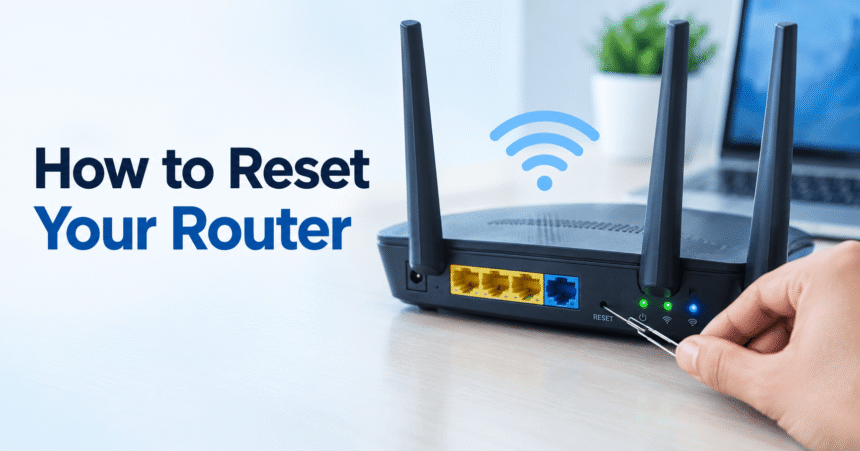
- Find the reset button. It is usually a tiny pinhole on the back or bottom labeled Reset or RST. A few routers have a regular button.
- Press and hold it with a paperclip, SIM ejector tool or pin for about 10 seconds. Some models need 15 to 30 seconds, so check the manual.
- Release it when the lights blink or turn off. The router will restart by itself.
- Wait two to five minutes until the power and WiFi lights are steady. Do not unplug it during this time.
Do not confuse the reset button with the WPS button. WPS is for pairing devices and will not reset anything. Pressing reset for only a second or two usually triggers a normal restart, so hold it long enough.
How to Reset a Router From the Admin Page or App
If you can still log in, resetting from the settings is safer than using the button, because you see a warning and can often restore a backup. Open your router’s IP address (commonly 192.168.1.1 or 192.168.0.1), sign in and look under System, Administration, Maintenance or Advanced for Factory Defaults, Restore Factory Settings or Reset. Confirm the prompt and wait for the router to restart. In an app such as Google Home, eero or TP-Link Deco, the reset option is usually in the network or device settings, and mesh systems may also have their own reset button on each unit.
What to Do After You Reset Your Router
After a factory reset, your router is like a new device. Set it up carefully so it is secure and working properly:
- Connect to the router. Use the default WiFi name and password printed on the label, or connect an Ethernet cable from your computer to a LAN port.
- Open the admin page (from the label) and sign in with the default admin login. Many routers start a setup wizard.
- Enter your internet settings. Choose the connection type your provider uses (DHCP, PPPoE or static IP) and add any username and password. If the router connects automatically, your provider does not need extra details.
- Change the admin password immediately so the default login does not stay active.
- Set a new WiFi name and password with WPA2 or WPA3 security. Follow our guide on how to change your WiFi password for exact steps, and use the tips in our strong password guide.
- Update the firmware. Check for updates in the admin page, because a reset does not install the newest version.
- Reconnect your devices. If you kept the old WiFi name and password, many devices reconnect on their own. Otherwise forget the network and join again. Smart TVs, printers and cameras may need to be set up again.
- Restore your backup if you saved one, or recreate special settings such as port forwarding, DNS and parental controls.
Sharing the new password with guests is easy if you create a Wi-Fi QR code. For extra hardening, read the Federal Trade Commission’s tips for securing your home Wi-Fi network and the CISA guidance on securing wireless networks.
What Do the Router Lights Mean?
Lights vary by brand, so check your manual, but these patterns are common:
| Light | Steady | Blinking or off |
|---|---|---|
| Power | Router is on | Blinking may mean booting or resetting; off means no power |
| Internet or WAN | Connected to the internet | Orange, red or off often means no connection from the modem or provider |
| WiFi or WLAN | Wireless is on | Off means WiFi is disabled |
| LAN | Device connected by cable | Blinking shows data activity |
| WPS | Pairing succeeded | Blinking while pairing |
If the Internet light stays red or orange after a restart or reset, the problem is probably the modem, the cable or your provider, not the router’s settings.
Router Reset Not Working? Try These Fixes
The router has no internet after a reset
Check that the WAN cable is firmly connected, restart the modem, and confirm the connection type and login details with your provider. Some providers also tie service to your router’s hardware address (MAC address) and need to update it.
I cannot log in after the reset
Use the default login from the label, not the old password. Connect by cable, type the address in the address bar and try a different browser. If it still fails, repeat the reset and hold the button longer.
The reset button does nothing
Make sure the router is powered on, use a thin tool that fits the hole, press firmly and hold it for the full time shown in the manual. If lights do not change at all, the button or router may be faulty.
The problem comes back after resetting
Repeated failures can mean an overheating router, outdated hardware, a bad cable, interference or a fault on your provider’s line. Test with a wired connection, move the router to an open and ventilated spot, and call your provider. If the router is more than four or five years old, consider replacing it with a modern Wi-Fi 6 or Wi-Fi 7 model.
Frequently Asked Questions About Resetting a Router
How do I reset my router to factory settings?
With the router on, press and hold the recessed reset button for about 10 seconds until the lights blink, release it, and wait a few minutes. You can also use Factory Defaults in the admin page.
Does resetting a router delete my WiFi password?
A factory reset does, and it restores the default password printed on the label. A simple restart keeps your password.
How long should I hold the router reset button?
Hold it for about 10 seconds on most routers. Some models need up to 30 seconds, so follow the manual for your brand.
How often should I restart my router?
You do not need to restart it daily. Restart it when you notice problems, or every month or two as maintenance. Some routers can reboot on a schedule.
Will resetting my router fix slow internet?
A restart often fixes temporary slowness. If speeds stay low on a wired test, the issue is more likely your plan or provider. See our Wi-Fi troubleshooting guide for more.
What is the difference between a modem and a router reset?
A modem connects you to your provider, and a router shares that connection with your devices. Restarting both in the right order (modem first, then router) fixes many problems. A factory reset on a modem can remove provider settings, so contact your provider first.
Can I reset my router remotely?
Often yes, if your router has an app or your provider offers remote management. A remote restart from an app is safe, but a remote factory reset can leave you offline until you set it up again.
Should I factory reset my router before selling it?
Yes. A factory reset removes your WiFi details and saved settings so the next owner starts fresh. Also log out of any cloud accounts linked to it.
Final Thoughts
To reset a router correctly, start small. Restart it first by unplugging it for 30 seconds, because that fixes most problems without losing anything. Use a factory reset only for forgotten logins, broken settings or when you are selling the router, and prepare your internet details beforehand. Afterwards, change the admin password, create a strong WiFi password, update the firmware and reconnect your devices. For more practical fixes and walkthroughs, browse our technology tutorials.