Last updated: October 2026
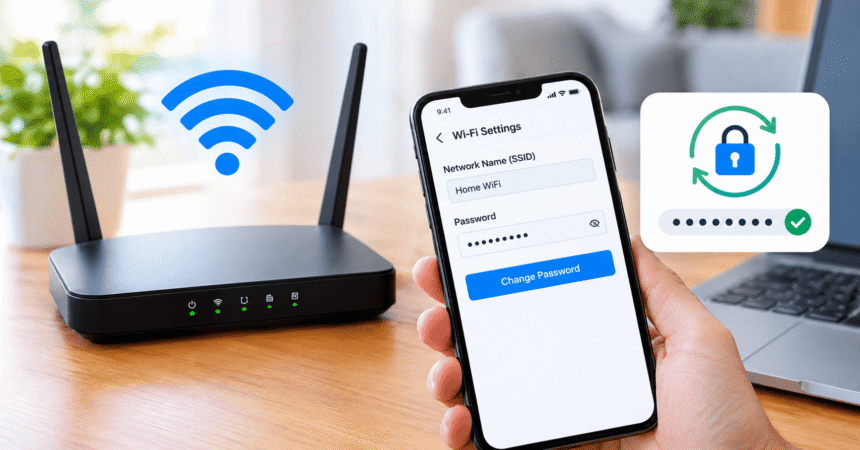
Quick answer: To change your WiFi password, connect to your network, find your router’s IP address (often 192.168.1.1 or 192.168.0.1), open it in a browser, and sign in with the router admin username and password. Go to Wireless or Wi-Fi settings, enter a new password of at least 12 characters, choose WPA2 or WPA3 security, save, and reconnect your devices. If your router has a phone app, you can usually do the same thing under Wi-Fi > Network name and password.
Knowing how to change a WiFi password is one of the simplest ways to protect your home network. Whether you want to kick off an unknown device, replace the weak default password that came with your router, or stop an ex-roommate from using your internet, the process takes about five minutes and works on any phone or computer. This guide explains each step for any router brand, shows the app method, tells you how to find a forgotten password, and explains what to do after you save the change.
Before You Start: WiFi Password vs Router Admin Password
Most people confuse two different passwords. The WiFi password (also called the network key or passphrase) is what devices type to join your network. The router admin password is what you type to log in to the router’s settings page. You need the admin login to change the WiFi password. If your router still uses the default admin login printed on its label, such as “admin” and “admin”, change that as well, because anyone on your network could otherwise take control of your settings.
| Password type | What it does | Who needs it |
|---|---|---|
| WiFi password | Lets devices join the wireless network | Everyone who uses your WiFi |
| Router admin password | Lets you open and change router settings | Only you |
| ISP account password | Logs in to your internet provider’s account | Only you |
How to Change Your WiFi Password on Any Router (Step by Step)
These steps work on almost every router, including TP-Link, Netgear, ASUS, D-Link, Linksys, Huawei and internet provider routers. Menu names differ slightly, but the pattern is always the same.
Step 1: Connect to your network
Connect your phone or computer to the WiFi, or better, plug a laptop into the router with an Ethernet cable. A wired connection is best because your WiFi will disconnect the moment you save the new password, and a cable keeps your session alive.
Step 2: Find your router’s IP address
The router’s address is also called the default gateway. The most common addresses are 192.168.1.1, 192.168.0.1, 10.0.0.1 and 192.168.100.1. Many routers also have a name such as tplinkwifi.net, routerlogin.net or router.asus.com printed on the label. To check it yourself:
- Windows: Open Command Prompt, type
ipconfigand press Enter. Look for Default Gateway. - Mac: Go to System Settings > Network > Wi-Fi > Details > TCP/IP and read the Router line.
- iPhone: Open Settings > Wi-Fi, tap the info icon next to your network and read Router.
- Android: Open your Wi-Fi settings, tap your network and look for Gateway or Router (you may need Advanced options).
Step 3: Log in to the router admin page
Type the address into your browser’s address bar (not the search box) and press Enter. Enter the router admin username and password. If you never changed them, look at the sticker on the bottom or back of the router, or in the manual. If you changed them and forgot, you will need to reset the router, which erases all settings.
Step 4: Open the wireless settings
Look for a menu called Wireless, Wi-Fi, WLAN, Wireless Settings or Basic Settings. On some routers you must open Security or Wireless Security inside that menu.
Step 5: Enter the new password and choose strong security
Find the field called Password, Passphrase, Pre-Shared Key or Network Key and type your new password. Set security to WPA3 if available, or WPA2-PSK (AES) otherwise. A mixed WPA2/WPA3 mode works well if you have older devices. Avoid WEP and WPA (TKIP), because they are outdated and easy to break. If your router has separate settings for 2.4 GHz and 5 GHz, change the password for both bands, or both networks will not match.
Step 6: Save and reconnect your devices
Click Save or Apply. The router may restart its wireless radios for a minute. Every device that had the old password will disconnect. On each one, forget the old network and join again with the new password. Use the table below as a checklist of devices people often forget.
| Device | How to update the WiFi password |
|---|---|
| Phones and tablets | Forget the network, then rejoin with the new password |
| Laptops and desktops | Remove the saved network under known networks, then reconnect |
| Smart TVs and streaming boxes | Open network settings and re-enter the password |
| Printers | Use the printer’s display or setup app |
| Smart speakers, cameras, plugs and bulbs | Re-run setup in the device’s app |
| Game consoles | Network settings, then set up a wireless connection |
If a TV or streaming device will not reconnect, see our smart TV troubleshooting guide for network fixes.
How to Change Your WiFi Password From Your Phone Using a Router App
Many routers now come with a companion app that lets you change the WiFi name and password without typing an IP address. Examples include TP-Link Tether and Deco, Netgear Nighthawk, the ASUS Router app, Google Home, Amazon eero and apps from internet providers. The general steps are:
- Open the router’s app and sign in with your account.
- Select your network, then open Wi-Fi, Network settings or Wireless.
- Tap Name and password (or similar) and enter the new password.
- Save the change and wait while the router applies it.
- Reconnect your devices with the new password.
If you use a mesh system, the app updates every node at once, which is easier than logging in to each unit.
How Do I Find My Current WiFi Password?
If you can still connect to the network on one device, you can usually see the saved password there. If no device is connected, check the router’s label or log in to the admin page.
- Windows: Open Command Prompt and run
netsh wlan show profile name="YourNetworkName" key=clear. The password appears next to Key Content. - iPhone: Go to Settings > Wi-Fi, tap the info icon beside the network and tap Password. You must confirm with Face ID, Touch ID or your passcode.
- Android: Tap the gear icon next to the connected network and choose Share or QR code. The password usually appears under the code. You can also learn how to create a QR code to share it.
- Mac: Open Keychain Access, search for your network name, double-click it and tick Show password.
- Router label: Many routers print the default WiFi name and password on a sticker. This only works if you never changed it.
How to Choose a Strong WiFi Password
A strong WiFi password is long, unique and unrelated to your name, address or phone number. Aim for at least 12 characters, and preferably 16 or more. A passphrase made of four or five unrelated words, such as a random sentence with numbers or symbols added, is easier to type on a TV remote and still very hard to guess. Never reuse a password from your email, bank or social media accounts. Our guide on how to create a strong password gives 12 rules you can apply here.
- Avoid “12345678”, “password”, your phone number or the router’s default key.
- Avoid characters that are hard to type on game consoles and TVs if you have many such devices.
- Store the password in a password manager or write it somewhere safe at home.
When Should You Change Your WiFi Password?
You do not need to change your WiFi password every month, but you should change it right away in these situations:
- You are still using the default password printed on the router.
- You see unknown devices in your router’s connected-device list.
- Your internet suddenly became slow and you suspect someone is using it.
- A roommate, tenant, babysitter, ex-partner or contractor no longer needs access.
- You shared the password widely, for example at a party or in a public message.
- You were hacked, received a phishing message about your network, or lost a device that had the password saved.
Otherwise, changing it once or twice a year is a sensible habit. Be alert to scam messages that ask you to “verify” your WiFi login. Our guide on how to spot a phishing email explains the warning signs.
Extra Steps to Secure Your WiFi After Changing the Password
A new password is only one layer of protection. The US Federal Trade Commission explains more steps in its guide to securing your home Wi-Fi network, and the Cybersecurity and Infrastructure Security Agency covers the basics in its advice on securing wireless networks. The Wi-Fi Alliance also describes how WPA3 security protects your network. Use this checklist:
- Change the router admin username and password so strangers cannot open your settings.
- Turn off WPS (the push-button setup feature), which can be a weak point on older routers.
- Update the router firmware to patch known security flaws.
- Create a guest network for visitors and smart home gadgets so your main devices stay separate.
- Turn off remote management unless you really need to log in from outside your home.
- Review connected devices in the router admin page and remove ones you do not recognize.
For slow speeds or dropped connections after the change, our Wi-Fi troubleshooting guide has 12 fixes.
Common Problems When Changing a WiFi Password
I cannot open the router login page
Check that you are connected to the router, that you typed the address in the address bar, and that the IP is correct. Try another browser or a private window, clear the cache, or connect by Ethernet. If a VPN is on, switch it off.
The admin password does not work
Check the router label for the default login, and try common defaults only for your own router. If you or your internet provider changed it and it is lost, a factory reset is the last option. Note any internet login details your provider gave you first, because a reset removes them.
Devices will not reconnect after the change
Forget the network on the device and join again. If it still fails, check that the password has no typing errors, that the security mode is supported, and that the device supports the band you chose. If nothing works, restart the router and the device.
Frequently Asked Questions About Changing a WiFi Password
Can I change my WiFi password from my phone?
Yes. Use your router’s app, or open the router’s IP address in your phone’s browser while connected to the WiFi and sign in to the admin page.
How do I change my WiFi password without the old password?
You do not need the old WiFi password, only the router admin login. If you do not know either, connect by Ethernet and use the label’s admin details, or reset the router and set up a new password.
Will changing the WiFi password disconnect everyone?
Yes. All devices using the old password are disconnected and need the new one, which is exactly why it removes unwanted users.
How do I change the WiFi name as well?
On the same wireless settings page, edit the SSID or Network name field. Avoid using your name or address in it.
How often should I change my WiFi password?
Once or twice a year is enough for most homes, and immediately after any suspicious activity or when someone who knew it should no longer have access.
What is the default router IP address?
Common defaults are 192.168.1.1, 192.168.0.1 and 10.0.0.1, but the correct one for your network is the default gateway shown in your device’s network details.
Is it safe to share my WiFi password?
It is safe with people you trust, but a guest network is better for visitors. You can also share it as a QR code, which avoids reading it aloud.
Does changing the WiFi password stop hackers?
It stops anyone who only knew the old password. For complete protection, also change the router admin password, use WPA2 or WPA3, and keep firmware updated.
Final Thoughts
Changing your WiFi password comes down to six steps: connect, find the router’s IP address, log in, open the wireless settings, enter a strong new password with WPA2 or WPA3, and reconnect your devices. Do it whenever you suspect misuse, and pair it with a new admin password and updated firmware for real protection. If something goes wrong, our tech troubleshooting guide and technology tutorials will help you fix it step by step.