Last updated: October 2026
Quick Answer: How Do You Turn Off Active Status on Facebook?
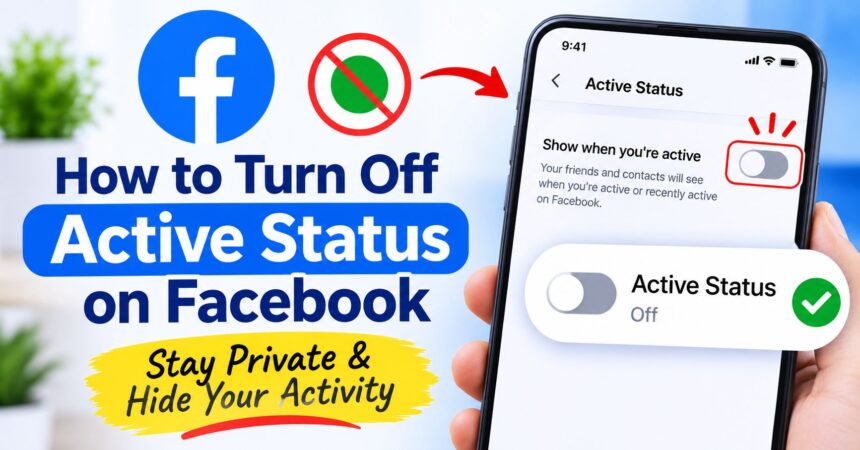
To turn off active status on Facebook, open the Facebook app, tap the menu (three lines), go to Settings & privacy > Settings > Audience and visibility > Active status, switch off Show when you’re active and tap Turn off. On a computer, open your chats on facebook.com, click the three dots, choose Active status, turn it off and save. Repeat the step in the Messenger app if you use it, so you appear offline everywhere.
Key Takeaways
- Active status is the green dot, the “Active now” label or the “Active 10m ago” time that tells people when you are using Facebook or Messenger.
- You can turn it off in the Facebook app, on facebook.com and in the Messenger app. It takes less than a minute.
- When your active status is off, you also cannot see when other people are active.
- Turning it off does not stop you from sending or receiving messages. Chats still arrive normally.
- Your posts, comments, likes and public activity are still visible. Active status only controls the online indicator.
- On desktop you may be able to hide your status from only some contacts instead of everyone.
- If you still appear online, check Messenger, Facebook Lite and other logged-in devices.
What Is Active Status on Facebook?
Active status on Facebook is a presence indicator. It shows your friends and people you have chatted with when you are currently using Facebook or Messenger, or how recently you were last active. You will usually see it in one of three forms:
- A green dot next to a profile picture in the chat list or contacts list.
- “Active now” under a person’s name inside a conversation.
- “Active 5m ago”, “Active 2h ago” or “Active yesterday” when someone was online recently.
The feature is meant to help friends know when a quick reply is likely. The downside is that it can feel like pressure to answer straight away, and it reveals your daily routine. That is why many people prefer to hide it as part of their wider Facebook privacy settings.
Why Turn Off Your Active Status on Facebook?
- Privacy: You do not want people to know when you are online or how often you check Facebook.
- Less pressure: You can read messages in your own time without friends expecting an instant reply.
- Fewer interruptions: People are less likely to message you the moment they see a green dot.
- Safety: It makes it harder for strangers, ex-partners or unwanted contacts to track your habits.
- Focus: You can use Facebook for work, groups or Marketplace without a constant chat stream.
How to Turn Off Active Status on the Facebook App (Android and iPhone)
The steps are almost the same on Android phones and iPhones. On Android the menu icon is at the top right. On iPhone it is usually at the bottom right. Menu names can change slightly between app versions.
- Open the Facebook app and log in.
- Tap the menu icon (three horizontal lines).
- Scroll down and tap Settings & privacy, then tap Settings.
- Open Audience and visibility (on some versions this is the Privacy section) and tap Active status.
- Switch off Show when you’re active.
- Tap Turn off in the confirmation pop-up.
The toggle turns grey and your green dot disappears for other people. If you cannot find the option, use the search icon at the top of Settings and type Active status.
How to Turn Off Active Status on Facebook on a Computer
On desktop, Facebook ties active status to your chats. Since Meta closed the standalone messenger.com website in April 2026, visiting it now sends you to facebook.com/messages, so all desktop chat settings are managed on Facebook itself. You can read about that change in TechCrunch’s report on the Messenger website shutdown.
Method 1: From the Facebook Homepage
- Go to facebook.com and log in.
- Click the Messenger icon at the top right, or open Chats in the side panel.
- Click the three dots (…) in the chat window.
- Choose Turn off active status or Active status.
- Select who you want to hide from, then click Turn off or Save.
Method 2: From the Full Messages Page
- Open facebook.com/messages.
- Click the three dots or your profile picture in the left panel.
- Choose Preferences or Settings, then Active status.
- Switch off Show when you’re active and save.
Facebook sometimes changes the layout of its chat panel. If your menu looks different, look for a gear icon, a three-dot menu or the words Active status or Preferences.
How to Turn Off Active Status in the Messenger App
If you chat in the Messenger app, turn off your status there too. Switching it off in one place does not always change what other people see when you are using another app or device.
- Open the Messenger app.
- Tap your profile picture or the menu icon at the top left.
- Tap the Settings (gear) icon if you see one, then tap Active status.
- Switch off Show when you’re active.
- Tap Turn off to confirm.
For more help with chat settings, see the official Messenger Help Center.
How to Turn Off Active Status on Facebook Lite
Facebook Lite has a simplified menu. Open the app, tap the menu icon, go to Settings and look for Active status. If it is not visible, scroll down or use the search bar. Switch off Show when you’re active and confirm. If your version of Lite does not show the option, update the app or use the main Facebook app or desktop site instead.
Where to Find Active Status: Quick Reference
| Where you use Facebook | Where to find Active status |
|---|---|
| Facebook app (Android and iPhone) | Menu > Settings & privacy > Settings > Audience and visibility > Active status |
| Facebook on a computer | Messenger or Chats > three dots > Active status |
| Full messages page (facebook.com/messages) | Three dots or profile picture > Preferences > Active status |
| Messenger app | Profile picture or menu > Settings > Active status |
| Facebook Lite | Menu > Settings > Active status (or search Settings) |
How to Hide Your Active Status From Specific People on Facebook
Facebook’s desktop version may offer more detailed choices than the mobile app. When you turn off active status on a computer, you can often pick one of these options:
- Turn off active status for all contacts: nobody sees you as active.
- Turn off active status for all contacts except…: you stay visible only to the people you choose.
- Turn off active status for only some contacts…: you stay visible to everyone except the people you choose.
Type a name in the box, select the people and click OK or Save. On mobile you generally only get a simple on or off switch, so use a computer if you want to hide your status from just one person. Availability can vary by account and region.
If you want to cut off a specific person completely, you can also block them, and you can reverse it later by following our guide on how to unblock someone on Facebook.
What Happens When You Turn Off Active Status on Facebook?
- The green dot disappears. Friends no longer see “Active now” or “Active 5m ago” next to your name.
- You cannot see other people’s status. Facebook makes this a two-way setting, so your friends’ green dots also disappear for you.
- You still get messages. Chats and message requests arrive as usual and wait in your inbox.
- You can still reply. You can send messages while appearing offline.
- There is no alert. Facebook does not tell your friends that you turned it off.
- It can be undone any time. Turn the same switch back on whenever you like.
What Turning Off Active Status Does Not Hide
Hiding your status helps, but you are not invisible. Remember that:
- Posts, comments and likes still show timestamps, so people can see you were around at that time.
- Stories, Reels and public activity remain visible according to their audience settings.
- Read receipts are a separate feature. Active status does not control whether people see that you opened a message. Check the Privacy and safety options in Messenger to see if your version has a read receipts control.
- Other apps such as Instagram and WhatsApp have their own activity and last seen settings.
- Facebook itself still knows when you are using the service. The setting only hides the indicator from other users.
Facebook Active Status Still Showing After Turning It Off: How to Fix It
- Turn it off in Messenger too. The Facebook app and the Messenger app can show separate toggles on some accounts. Check both.
- Check every device. If you are logged in on a phone, tablet and computer, confirm the setting on each one.
- Log out of old sessions. Go to Accounts Center > Password and security > Where you’re logged in and log out of devices you no longer use.
- Update the app. Install the latest version of Facebook and Messenger from Google Play or the App Store.
- Restart and wait a minute. The green dot can take a short time to disappear. Close the app fully, reopen it and check again. Our guide to clearing cache on Android can help if the app is acting up.
- Check for a different account. If you have more than one profile, the setting belongs to the account you are logged into.
- Try another platform. If the option is missing in the app, use facebook.com on a computer.
Why Can’t I See My Friends’ Active Status Anymore?
If your friends’ green dots have disappeared, your own active status is probably turned off. Facebook only lets you see other people’s status if yours is on. Turn your setting back on and restart the app. Also remember that friends who have hidden their own status will not appear as active to anyone.
How to Turn Active Status Back On
- Open Settings & privacy > Settings > Active status in the Facebook app, or open the Active status menu in your chats on desktop.
- Switch on Show when you’re active.
- Save or confirm if asked.
Your green dot returns, and you can see your friends’ status again.
Other Ways to Be Less Visible on Facebook
Active status is only one piece of your online presence. To protect your privacy and your time, you can also:
- Mute chats or pause notifications so you are not pulled into conversations.
- Lock your profile so strangers see less. Here is how to lock your Facebook profile.
- Run Privacy Checkup to review who sees your posts and how people can find you. Open Facebook’s Privacy Checkup.
- Review all your accounts with our account privacy settings guide.
- Take a break by learning how to deactivate your Facebook account.
Keep Your Facebook Account Secure
Hiding your online status protects your privacy, but it does not protect your login. Use a strong, unique password, and follow the CISA guidance on strong passwords. If you think someone else may be using your account, change your Facebook password straight away and read our tips on how to create a strong password. For anything not covered here, visit the official Facebook Help Center.
Frequently Asked Questions
How do I turn off active status on Facebook?
Open the Facebook app, tap the menu, go to Settings & privacy > Settings > Active status, switch off Show when you’re active and tap Turn off. On desktop, open your chats, click the three dots and choose Active status.
How do I appear offline on Facebook?
Turn off active status in both the Facebook app and the Messenger app. After that, your green dot and “Active now” label are hidden from other people.
Can people tell if I turned off my active status?
No, Facebook does not send a notification. Friends simply stop seeing a green dot or last active time next to your name, though they may notice the absence.
Does turning off active status stop messages?
No. You still receive and send messages as normal. Only the online indicator is hidden.
Can I turn off active status for one person on Facebook?
Often yes, on desktop. Choose “Turn off active status for only some contacts” and select the person. On mobile you usually only get an on or off switch.
Why can’t I see who is active on Facebook?
Your own active status is probably off. When it is off, you cannot see other people’s status either. Turn it back on to see your friends’ green dots.
What does the green dot mean on Facebook?
A green dot means that person is currently active on Facebook or Messenger. Text like “Active 30m ago” shows how recently they were last online.
Is Facebook active status the same as Messenger active status?
They are closely linked, but you should check both apps. Turning it off in one place may not update every device right away.
How long does it take for active status to turn off?
It is usually instant, but the green dot can take a minute or so to disappear for other people. Restart the app if it still shows.
Does turning off active status hide read receipts?
No. Active status and read receipts are separate. Look in Messenger’s privacy settings to see whether your version lets you control “Seen” indicators.
Can I use Facebook if my active status is off?
Yes. Everything works normally, including posting, commenting, messaging, groups and Marketplace.
Does turning off active status stop Facebook tracking me?
No. It only hides your online indicator from other users. Facebook still processes your activity under its own policies.
How do I turn off active status on Facebook Lite?
Open Facebook Lite, tap the menu, go to Settings and find Active status. Switch it off and confirm. If it is missing, update the app or use the main Facebook app.
Can I turn off active status on Facebook Messenger on a computer?
Yes. Since messenger.com now redirects to facebook.com/messages, open your messages on Facebook, click the three dots or Preferences and choose Active status.
How do I turn active status back on?
Go to the same Active status setting and switch on Show when you’re active. Your green dot will show again and you will see others’ status too.
Conclusion
Knowing how to turn off active status on Facebook gives you more control over your time and privacy. Open Settings & privacy > Settings > Active status in the app, switch off Show when you’re active and repeat the steps in Messenger and on desktop. If you still appear online, check each device and update your apps. For more help with your accounts, explore our technology tutorials.