Last updated: October 2026
Quick Answer: How Do You Clear Cache on Android?
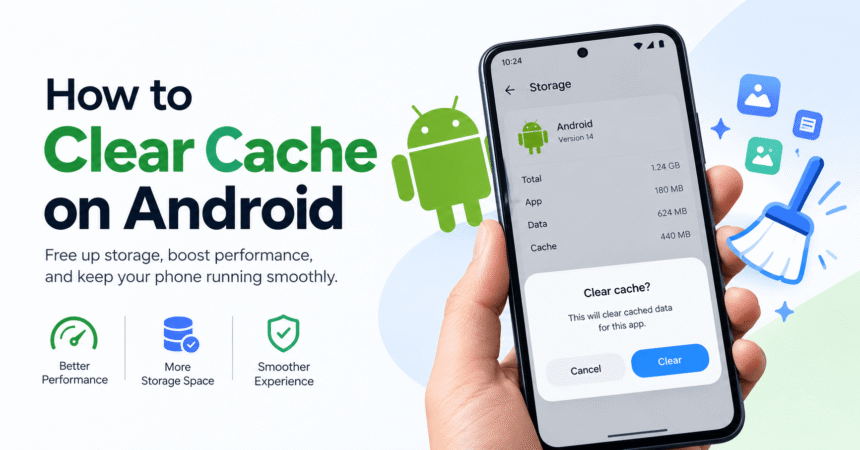
To clear cache on Android, open Settings > Apps, tap the app you want to clean, choose Storage & cache (or just Storage on Samsung), then tap Clear cache. Clearing cache removes temporary files only. It does not delete your photos, messages, logins or app settings. To clear cache in Chrome, open Chrome, tap the three dots, go to History > Clear browsing data, tick Cached images and files, and tap Clear data.
Key Takeaways
- Cache is temporary data that apps store so they can load faster. Deleting it is safe and the app rebuilds it automatically.
- Clearing cache can fix freezing, slow apps, loading errors and low storage warnings.
- Clearing data is different: it resets the app and may log you out. Choose “Clear cache”, not “Clear data”, unless you want a full reset.
- Most modern Android phones clear cache app by app. The old “clear all cached data” button was removed in Android 8.
- Menu names differ slightly between Google Pixel, Samsung, Xiaomi, OnePlus and other brands, so use the search bar in Settings if you cannot find an option.
What Is Cache on Android?
Cache is a set of temporary files that an app or website saves on your phone so it does not have to download the same things again and again. Examples include thumbnails, images, scripts, map tiles, video fragments and website elements. When you open an app a second time, it reads these stored files instead of fetching them from the internet, which makes it feel faster and uses less mobile data.
The cache is separate from your personal data. Your chats, photos, saved passwords, game progress and account details live in app data or in the cloud, not in the cache. That is why clearing cache is one of the safest fixes you can try on a phone that feels slow.
Why Cache Builds Up
Every time you scroll social media, stream music, browse the web or use a navigation app, the app stores more temporary files. Over weeks and months, a heavy app such as a video, social or browser app can store hundreds of megabytes or even several gigabytes of cache. If the files become outdated or damaged, the app may load old content, show blank screens or crash.
Cache vs Data: What Is the Difference?
This is the most common point of confusion, and it matters because the two buttons sit right next to each other.
| Option | What it removes | Will you be logged out? | Safe for regular use? |
|---|---|---|---|
| Clear cache | Temporary files such as thumbnails and stored web content | No | Yes |
| Clear data / Clear storage | All app data, including settings, accounts and offline files | Usually yes | Only when you want a fresh start |
| Force stop | Nothing is deleted; the app is simply closed | No | Yes |
| Uninstall | The app and its data | Yes | Only if you no longer need it |
If you are unsure, always start with Clear cache. It is the lowest-risk option, and you can move on to clearing data later if the problem remains.
How to Clear Cache for a Single App on Android
This method works on Android 8 and newer, including Android 14, 15 and 16. The exact wording changes a little by brand, but the path is nearly the same.
On Google Pixel and Stock Android
- Open the Settings app.
- Tap Apps, then See all apps.
- Select the app you want to clean, for example Instagram, YouTube or Chrome.
- Tap Storage & cache.
- Tap Clear cache.
You can also long-press the app icon on your home screen, tap App info (the small “i”), and follow the same steps from there.
On Samsung Galaxy (One UI)
- Open Settings > Apps.
- Tap the app you want to clean.
- Tap Storage.
- Tap Clear cache at the bottom of the screen.
On Xiaomi, Redmi, POCO, OnePlus, Oppo, Vivo and Realme
Go to Settings > Apps > Manage apps (or App management), select the app, tap Storage usage or Storage, and then tap Clear cache. On Xiaomi phones using HyperOS, the cleaning tool in the Security app can also remove cache in bulk.
How to Clear Cache on All Apps at Once
Older Android versions had a single “Cached data” option under Storage that wiped everything in one tap. Google removed that option in Android 8 Oreo, so a true one-tap “clear all cache” button is no longer part of stock Android. You still have a few practical choices.
Use Your Phone’s Built-In Cleaner
- Samsung: Open Settings > Battery and device care, then use the storage or optimization options to remove unneeded files and temporary data.
- Xiaomi/Redmi/POCO: Open the Security app and tap Cleaner.
- Pixel: Open Settings > Storage > Free up space to see suggestions from Files by Google.
Clear the Biggest Offenders First
Instead of cleaning every app, go to Settings > Storage or Settings > Apps, sort apps by size, and clear cache for the top five. Social media, streaming, browser and map apps usually hold the most cache, so this takes about two minutes and gives the biggest result.
About “Wipe Cache Partition”
Some older phones had a recovery-mode option called Wipe cache partition. Many newer Android phones no longer include it because of changes in how the system updates and stores files. If your phone does not show this option, you do not need it. Cleaning app cache from Settings covers the same everyday needs. Check your manufacturer’s support page before trying recovery mode, since the steps vary by model.
How to Clear Chrome Cache on Android
Browser cache is one of the most useful things to clear because websites change often and old stored files can cause display problems.
- Open Chrome on your Android phone.
- Tap the three-dot menu and choose History.
- Tap Clear browsing data.
- Pick a Time range. Choose All time for a full clean-up.
- Tick Cached images and files. Leave Cookies and site data unticked if you want to stay logged in to websites.
- Tap Clear data.
Google also explains this process on its official page for clearing cache and cookies in Chrome. For Samsung Internet, open the app, tap the menu, go to Settings > Personal browsing data > Delete browsing data, and select Cached images and files. For Firefox, open Settings > Delete browsing data and tick Cached images and files.
When Should You Clear Cache on Android?
You do not need to clear cache every day. In fact, doing it too often can make apps slightly slower, because they have to rebuild their temporary files the next time you open them. Clear cache when you notice one of these signs:
- An app freezes, crashes or shows a blank screen.
- A website or app loads old content even after you refresh.
- Your phone warns that storage is almost full.
- An app takes up far more space than expected.
- Photos, videos or profile pictures fail to load in an app.
- An app update was installed and the app now behaves oddly.
As a routine, cleaning the cache of your heaviest apps once every month or two is plenty for most people.
What Happens After You Clear Cache?
Right after clearing, the first launch of an app may feel a little slower because it must download or rebuild the files it needs. Image-heavy apps may show a short loading delay. The storage space you reclaimed will begin to fill again with use. Your accounts, messages, photos, downloads and settings stay as they were.
One thing to keep in mind: clearing cache for a streaming or map app can remove offline temporary files. Saved offline downloads are normally stored as data, not cache, but check the app’s own settings if you rely on offline content.
Is It Safe to Clear Cache on Android?
Yes. Clearing cache is considered safe because the system and apps are designed to recreate the files they need. It will not remove your contacts, photos or messages. The only real downside is a slightly slower first load. What is not safe to do casually is clearing app data for banking, authenticator or messaging apps, because you may lose access or local backups. Always make sure you can sign in again before clearing data.
Troubleshooting: Cache Cleared but the Problem Remains
If an app still misbehaves, work through these steps in order. Our tech troubleshooting guide explains the same method for any device.
- Restart your phone. A reboot clears temporary memory and closes stuck background tasks.
- Update the app and Android. Open Google Play, search for the app, and tap Update. Then check Settings > System > Software update.
- Check your connection. Switch between Wi-Fi and mobile data to rule out a network issue.
- Clear the app’s data. Do this only if you can log in again.
- Reinstall the app. Uninstall, restart, and install a fresh copy from Google Play.
- Free up storage. If your phone is nearly full, delete unused apps and back up photos to the cloud. See what cloud storage is and how it works.
If you delete something by mistake while cleaning storage, read how to recover deleted files on Android and iPhone.
Other Ways to Free Up Space on Android
Cache is only one source of wasted space. To get more room, try these as well:
- Back up and delete large videos. Use Google Photos or another cloud service, then remove local copies.
- Uninstall apps you no longer use. Sort your app list by “last used” to find them quickly.
- Clear the Downloads folder. Old PDFs, APK files and installers pile up unnoticed.
- Delete offline maps, playlists and podcasts you no longer need.
- Use Files by Google to find duplicates, junk and large files.
- Use app “lite” versions where available, since they store less data.
You can find more everyday settings in our guide to 15 useful Android phone tips, and a broader set of walkthroughs in our technology tutorials hub. For general platform support, you can also visit the official Android Help Center.
Does Clearing Cache Improve Privacy?
A little. Browser cache can hold copies of images and pages you visited, so clearing it removes those local copies. For stronger privacy, also review app permissions and account settings. Our account privacy settings guide covers the main platforms, and you should keep your logins protected with strong passwords, as described in how to create a strong password. Be cautious about “cleaner” apps that promise miracle speed-ups; many are full of ads, and some request excessive permissions. The built-in tools above are enough.
Frequently Asked Questions
How do I clear cache on Android without losing data?
Go to Settings > Apps, select an app, tap Storage & cache, and choose Clear cache. This removes only temporary files. Your logins, photos, chats and settings are kept. Avoid the “Clear data” or “Clear storage” button if you want to keep everything.
What happens when you clear cache on Android?
The app deletes its temporary stored files and frees storage space. The app may load slightly slower the first time you open it afterwards, then returns to normal. Personal data, accounts and settings are not affected.
How often should I clear cache on my Android phone?
Once every month or two is enough for most users. Clear it sooner if an app is slow, crashing or taking up too much space. Clearing every day is unnecessary and can slow apps down while they rebuild files.
Is clearing cache the same as clearing data?
No. Cache holds temporary files, while data holds your settings, accounts and saved content. Clearing cache is safe and keeps you logged in. Clearing data resets the app like a fresh install and often logs you out.
How do I clear cache on a Samsung phone?
Open Settings > Apps, tap the app, choose Storage, and tap Clear cache. For a broader clean-up, open Settings > Battery and device care and use the storage and optimization tools. Menu names can vary by One UI version.
Can I clear the cache of all apps at once on Android?
Not with a single stock Android button, because Google removed it in Android 8. You can clear apps one by one, use your manufacturer’s cleaner (such as Samsung Device Care or Xiaomi Cleaner), or free up space through Files by Google.
How do I clear Chrome cache on Android?
Open Chrome, tap the three dots, select History, tap Clear browsing data, choose a time range, tick Cached images and files, and tap Clear data. Leave cookies unticked if you want to stay signed in to sites.
Will clearing cache delete my photos or WhatsApp messages?
No. Photos and messages are stored as app data or in your gallery, not in cache. Clearing cache will not remove them. Only clearing data or uninstalling an app can delete local app content, so back up first in that case.
Why is my Android phone still slow after clearing cache?
Slowness can come from low storage, outdated software, too many background apps or an aging battery. Restart your phone, update Android and apps, uninstall unused apps, and keep at least 10 to 15 percent of storage free.
Does clearing cache make my phone faster?
It can help when corrupted or bloated cache is causing lag, freezing or low storage. It will not speed up a healthy phone. In some cases it briefly slows an app until the cache is rebuilt.
Is it good to use cleaner apps on Android?
Usually not. Android already manages memory well, and many third-party cleaners show ads or ask for broad permissions. Use built-in tools such as Settings, Files by Google or your manufacturer’s device care feature instead.
Conclusion
Knowing how to clear cache on Android is a simple skill that fixes many everyday problems: frozen apps, outdated content and a full storage bar. Start with the single app that is causing trouble, use Clear cache rather than Clear data, and clear Chrome’s cached images and files if websites look wrong. If problems continue, restart the phone, update everything, and free up more space. Use the official Android Help Center or your phone maker’s support page for model-specific steps, as menus change between versions and brands.