Last updated: October 2026
Quick Answer: How Do You Lock Your Facebook Profile?
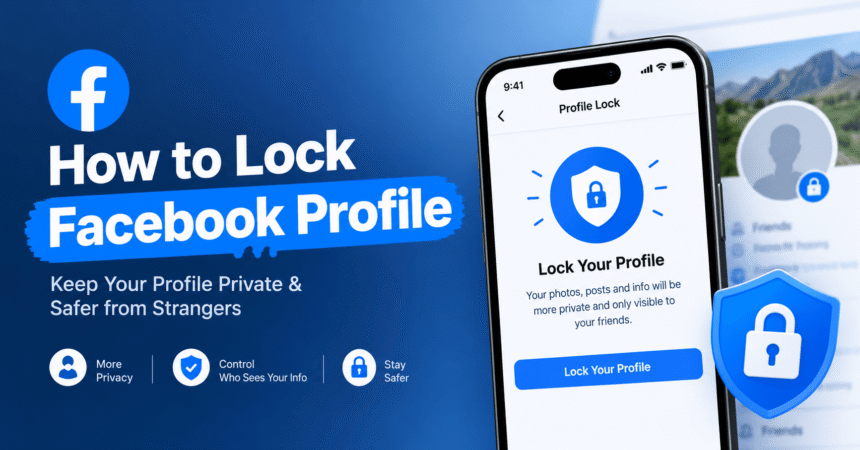
To lock your Facebook profile, open the Facebook app, tap your profile picture to go to your profile, tap the three dots (…) next to Edit profile or Add to story, choose Lock profile, tap Lock your profile and confirm. A locked profile shows your full photos and posts only to your friends. People who are not your friends see a very limited version of your profile. To undo it, go back to the same menu and tap Unlock profile.
Key Takeaways
- Profile lock is a one-tap privacy feature that limits who can see your photos, posts and profile details.
- It is mainly available in the Facebook mobile app on Android and iPhone, and it is not offered on every account or in every country.
- Locking changes your past public posts and your future posts to Friends only and restricts how much strangers can see.
- Non-friends cannot enlarge, download or share your full-size profile picture and cover photo.
- Friends can still see, copy and screenshot what you share, so only add people you trust.
- If the option is missing, you can get almost the same protection manually through Facebook privacy settings.
- You can unlock your profile at any time.
What Is a Locked Facebook Profile?
A locked Facebook profile is a profile with a built-in set of strict privacy controls switched on together. Instead of changing a dozen settings one by one, you tap once and Facebook applies a protective layer. People you are not friends with can still find your name and see a small preview, but they cannot browse your photo albums, read your posts or zoom in on your profile picture. A small Locked badge or shield appears on your profile so visitors know it is protected.
The feature is designed for people who want more control over their identity online. It is especially useful if you receive unwanted friend requests, if strangers copy your photos, or if you simply prefer to share life updates with a close circle. It works alongside your normal Facebook privacy settings, not instead of them.
How to Lock Your Facebook Profile on Android and iPhone
The steps are almost identical on Android phones and iPhones. Menu names can change slightly between app versions, but the path below is the standard one.
- Open the Facebook app and make sure you are logged in.
- Tap your profile picture or your name to open your profile.
- Tap the three dots (…) next to the Edit profile or Add to story button.
- Tap Lock profile.
- Read the short explanation Facebook shows, then tap Lock your profile.
- Tap OK when you see the confirmation message.
After a moment, a locked badge appears on your profile. You can open your profile in a private or incognito browser window, or ask a friend who is not on your friend list to look at it, to see what strangers see.
Can You Lock a Facebook Profile on a Computer?
In most cases, no. Profile lock is mainly a mobile feature, and the lock button does not usually appear on facebook.com. If you are on a desktop and want the same effect, use the manual method later in this guide. It takes a few minutes and gives you very similar protection.
What Happens When You Lock Your Facebook Profile?
Understanding the effects helps you decide whether locking is right for you. Based on how Facebook describes the feature, locking typically does the following:
- Photos and posts: Only friends can see the full photos and posts on your profile, including older ones.
- Past public posts: Posts that were Public are switched to Friends only.
- Future posts: New posts are set to Friends by default.
- Profile picture and cover photo: People who are not friends cannot enlarge, download or share them at full size.
- Tagging: Review settings for tags are tightened so you have more say over what appears on your timeline.
- Profile details: Non-friends see only a limited set of information instead of your full About section.
- Badge: A Locked indicator shows that your profile is protected.
Locked Profile vs Unlocked Profile
| Feature | Unlocked profile | Locked profile |
|---|---|---|
| Who sees your posts | Depends on each post’s audience | Friends only |
| Old public posts | Remain public | Changed to Friends |
| Full-size profile picture | Strangers can open and often download it | Strangers cannot enlarge or download it |
| Photo albums | Visible if set to Public | Visible to friends only |
| Default audience for new posts | Your last chosen audience | Friends |
| Visible badge | No | Yes, a Locked indicator |
What a Locked Profile Does Not Protect
Locking is helpful, but it is not magic. Keep these limits in mind:
- Screenshots: Any friend can take a screenshot of your photo or post. Only accept people you actually know.
- Friend requests and messages: Strangers may still be able to send a friend request or a message, depending on your other settings.
- Public comments: Comments you leave on public pages, groups or other people’s public posts can still be seen under their rules.
- Search: Your name and a small preview can still appear in Facebook search.
- Account security: A locked profile does not stop a hacker who steals your password. Use a strong password and two-factor authentication.
- Facebook Pages: The lock feature is for personal profiles, not business Pages.
Facebook Lock Profile Option Not Showing: Why and What to Do
Many people open their profile and find no Lock profile button. This is common, and there are a few possible reasons.
- The feature is not available for your account yet. Facebook has rolled the feature out gradually and not every account or country has it.
- Your app is outdated. Update Facebook from the Google Play Store or the App Store, then reopen it.
- You are using a desktop browser. Try the mobile app instead.
- You are using Facebook Lite or a mobile browser. These versions may lack the option. Try the standard Facebook app.
- A temporary glitch. Log out and back in, restart your phone, or clear the app cache. Our guide on how to clear cache on Android shows the steps.
If it still does not appear, do not worry. You can reproduce most of the protection by hand.
How to Lock Down Your Facebook Profile Manually
If you cannot see the lock button, follow this manual checklist. Together these steps give you similar privacy to a locked profile.
1. Limit Your Past Posts
Go to Settings & privacy > Settings > Audience and visibility > Posts > Limit past posts and choose Limit past posts. This changes old Public and Friends of friends posts to Friends only.
2. Set Future Posts to Friends
In the same Posts menu, open Who can see your future posts and choose Friends.
3. Hide Your Friends List
Go to Audience and visibility > How people find and contact you, then change who can see your friends list to Only me or Friends.
4. Control Friend Requests
In the same section, set who can send you friend requests to Friends of friends instead of Everyone.
5. Turn On Tag Review
Open Profile and tagging and turn on review for posts you are tagged in, so nothing appears on your profile without approval.
6. Adjust Profile Information
Open your profile, tap Edit profile, and set details like your workplace, school, city, relationship status and birthday to Friends or Only me.
7. Turn Off Search Engine Links
Under How people find and contact you, turn off the option that lets search engines outside Facebook link to your profile.
8. Run Privacy Checkup
Facebook’s built-in Privacy Checkup walks you through who can see what you share, how to keep your account secure and how your data is used. For a longer walkthrough, see our guide to 10 Facebook privacy options to check today.
Keep in mind that profile pictures and cover photos are public by design on Facebook, even with manual settings. That is one of the main reasons the lock feature is useful.
How to Unlock Your Facebook Profile
You can unlock your profile whenever you like.
- Open the Facebook app and go to your profile.
- Tap the three dots (…) next to Edit profile.
- Tap Unlock profile.
- Tap Unlock your profile to confirm.
Unlocking removes the Locked badge and lets you choose audiences again. Facebook may not turn all your old posts back to Public automatically, so review them after unlocking. If you want to leave Facebook for a while instead, read how to deactivate your Facebook account.
How Can You Tell If a Facebook Profile Is Locked?
A locked profile usually shows a shield or lock indicator and a message saying the person locked their profile. You will only see a small profile picture that cannot be opened at full size, and you will see few or no posts unless you are friends. If you open the profile and nothing can be viewed, it may be locked or simply set to very strict privacy.
Should You Lock Your Facebook Profile?
Reasons to Lock It
- You want a private space for friends and family.
- You are worried about strangers copying or misusing your photos.
- You get spam, fake friend requests or harassment.
- You want a quick fix without learning every privacy setting.
- You are a student, a public worker or a person who wants less attention online.
Reasons You May Not Want To
- You run a personal brand, blog or business and need public visibility. A Facebook Page or professional mode may suit you better.
- You want to be found by old classmates and colleagues through public posts.
- You prefer to choose the audience of every post yourself.
Extra Steps to Keep Your Facebook Account Safe
Privacy and security are different things. A locked profile controls who can see you, while security controls who can get in. Add these habits as well:
- Use a strong, unique password. Follow our 12 rules in how to create a strong password, and see the official CISA advice on using strong passwords.
- Change your password if you suspect a problem. Here is how to change your Facebook password.
- Turn on two-factor authentication from Accounts Center > Password and security.
- Be careful with friend requests. Fake profiles often copy photos and ask to connect before sending scam links.
- Avoid phishing. Learn the warning signs in how to spot a phishing email.
- Review your other accounts. Our account privacy settings guide covers Google, Instagram, TikTok and more.
You can also see official help on Facebook’s own Help Center.
Frequently Asked Questions
How do I lock my Facebook profile?
Open the Facebook app, go to your profile, tap the three dots next to Edit profile, choose Lock profile, then tap Lock your profile and confirm. A Locked badge will appear on your profile.
What does locking a Facebook profile do?
It limits what non-friends can see. Your photos and posts become visible to friends only, past public posts are changed to Friends, future posts default to Friends, and strangers cannot enlarge or download your profile picture.
Can I lock my Facebook profile on a computer?
Usually not. The lock option is mainly in the mobile app. On a computer you can get a similar result by limiting past posts, setting future posts to Friends, and tightening profile and friend request settings.
Why can’t I see the Lock profile option on Facebook?
The feature may not be available on your account or in your country, your app may be outdated, or you may be using Facebook Lite or a browser. Update the app, restart it, or use the manual privacy checklist.
How do I unlock my Facebook profile?
Go to your profile, tap the three dots, choose Unlock profile, and confirm. Your Locked badge will disappear, and you can choose new audiences for your content.
Can people still see my profile picture if my profile is locked?
Yes, a small version is still visible, but non-friends cannot enlarge, download or share the full-size picture or cover photo.
Can people still send me friend requests if I lock my profile?
Often yes. Locking does not stop friend requests by itself. Change the friend request setting to Friends of friends if you want fewer requests.
Can friends screenshot my locked profile?
Yes. Locking only controls who can see your content. Anyone who can see it can capture it, so only accept friends you trust.
Does locking my profile hide me from search?
No. People can still find your name in search, but they will see only limited information.
Will my old posts become private when I lock my profile?
Typically, yes. Past public posts are changed to Friends only. Check your Activity Log afterward to confirm nothing remains public.
Is locking my Facebook profile enough to stop hackers?
No. A lock protects privacy, not login security. Use a strong password, two-factor authentication and caution with suspicious links.
Can I lock a Facebook Page?
No. Profile lock is for personal profiles. Pages are public by design and have different controls.
Conclusion
Knowing how to lock your Facebook profile gives you a fast way to protect your photos, posts and personal details. Open your profile in the app, tap the three dots, choose Lock profile and confirm. If the option does not appear, use the manual checklist to limit past posts, set future posts to Friends and control friend requests. Pair this with a strong password and two-factor authentication, and keep learning with our technology tutorials to keep every account safe.