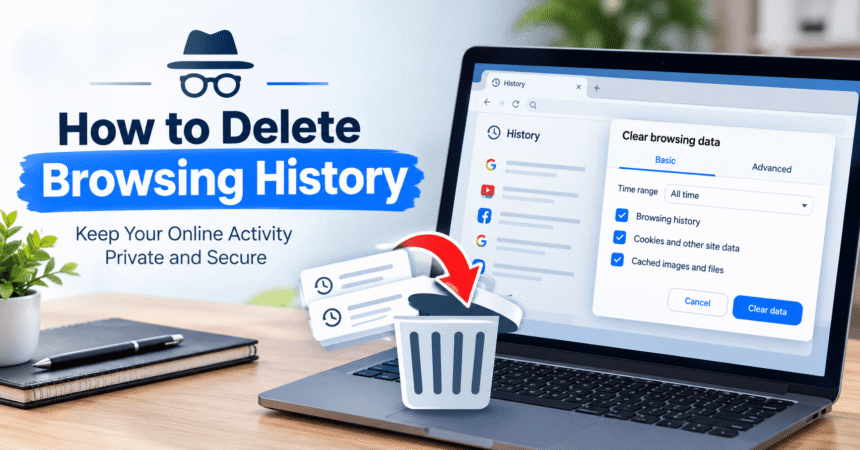
How to delete browsing history: open your browser’s history or privacy settings, choose a time range, tick Browsing history and click Delete or Clear. In most desktop browsers, including Chrome, Edge and Firefox, the shortcut is Ctrl + Shift + Delete (or Cmd + Shift + Delete on a Mac). On iPhone, go to Settings > Apps > Safari > Clear History and Website Data, and on Android open Chrome’s menu and tap Delete browsing data. This guide covers every major browser and device, explains the difference between history, cookies and cache, shows how to delete your Google search history, and answers what deleting history does and does not hide.
Last updated: October 2026. Browsers change menu names often. If a label looks different, use the search box in your browser’s settings or check the official help pages for Chrome, Apple, Microsoft and Firefox.
Quick Answer: How Do I Delete My Browsing History?
- Open your browser and press Ctrl + Shift + Delete (Windows) or Cmd + Shift + Delete (Mac). On a phone, open the browser menu and look for History or Clear browsing data.
- Choose a time range, such as the last hour, last 24 hours or All time.
- Tick Browsing history. Leave cookies and cache unticked if you want to stay signed in.
- Click Delete data or Clear now.
The pages you visited are removed from that browser on that device. Your account, saved passwords and bookmarks are not deleted unless you choose them.
What Is Browsing History?
Browsing history is a list of the web pages you have visited in your browser, usually with the page title, web address and time you visited. Browsers keep it so you can go back to pages, fill in suggestions in the address bar and find sites quickly. It is stored on your device, and if you are signed in and syncing, copies may also be kept in your account.
Browsing history vs cookies vs cache
| Item | What it is | What happens if you delete it |
|---|---|---|
| Browsing history | List of pages you visited | The list disappears; you can no longer search it |
| Cookies | Small files that remember logins and preferences | You may be signed out of websites |
| Cache | Saved parts of pages, such as images, for faster loading | Sites may load a little slower once, but problems can be fixed |
| Saved passwords and autofill | Logins and form data you chose to store | These are removed only if you tick them |
For a deeper look at cache on a phone, read our guide to how to clear cache on Android.
Why Delete Your Browsing History?
- Privacy: stop others using the same device from seeing your visits.
- Shared or public computers: remove traces after using a library, school or work device.
- Fix problems: clearing history, cookies and cache can help when a site misbehaves.
- Fewer personalised suggestions: less stored activity can mean fewer related suggestions.
- Tidy up: a long history can make searching your past visits harder.
How to Delete Browsing History in Google Chrome (Computer)
- Open Chrome and click the three dots in the top-right corner.
- Choose Delete browsing data, or press Ctrl + Shift + Delete.
- Pick a Time range. Choose All time to remove everything.
- Tick Browsing history. Add Cookies and other site data and Cached images and files if you want a deeper clean.
- Click Delete data.
To remove only one page or a few pages, open History (Ctrl + H), tick the boxes next to the entries and click Delete.
How to Delete Browsing History in Chrome on Android
- Open Chrome and tap the three dots.
- Tap History, then Delete browsing data.
- Select a Time range.
- Tick Browsing history and any other items you want to remove.
- Tap Delete data.
If your phone is also running slowly or low on space, see our list of Android phone tips for more ways to keep it fast.
How to Delete Browsing History in Safari on iPhone and iPad
- Open Settings and tap Apps, then Safari. On older versions of iOS, tap Safari directly.
- Scroll down and tap Clear History and Website Data.
- Choose a time range if offered, then confirm with Clear History.
You can also open Safari, tap the book icon, choose History and swipe left on a single entry to delete it. Clearing history in Safari may also clear history on other Apple devices signed in to the same iCloud account.
How to Delete Browsing History in Safari on Mac
- Open Safari.
- Click History in the menu bar, then Clear History.
- Choose all history or a time range, and confirm.
How to Delete Browsing History in Microsoft Edge
- Open Edge and press Ctrl + Shift + Delete.
- Select a Time range.
- Tick Browsing history, and optionally cookies and cached files.
- Click Clear now.
In Edge settings you can also choose what to clear every time you close the browser.
How to Delete Browsing History in Firefox
- Open Firefox and press Ctrl + Shift + Delete.
- Pick a Time range to clear.
- Tick Browsing and download history.
- Click OK or Clear.
How to Delete Browsing History in Samsung Internet
- Open Samsung Internet and tap the menu (three lines).
- Tap Settings, then Personal browsing data and Delete browsing data.
- Tick Browsing history, then tap Delete data.
How to Delete Your Google Search History
Deleting history in your browser does not automatically remove searches saved in your Google Account. If you are signed in, your activity may be stored in My Activity.
- Go to myactivity.google.com and sign in.
- Choose Delete and select a time range, such as the last hour, last day, all time or a custom range.
- Confirm the deletion.
You can also turn on auto-delete in your activity controls so older activity is removed automatically after a period you choose, and you can pause history saving entirely. For more control over what Google and YouTube keep, see our YouTube settings guide and account privacy settings checklist.
How to Delete Search History on iPhone
Safari history is cleared using the Safari steps above. If you use Google in Safari or the Google app, also visit myactivity.google.com to delete your saved Google searches. In the Chrome app on iPhone, tap the three dots, choose Delete Browsing Data, pick a time range, select Browsing History and confirm.
How to Delete Part of Your History Only
- One page: open History, find the entry and use the delete or remove option.
- One site: in Chrome, search for the website in History, tick the results and delete them.
- A time range: use the time range dropdown, such as the last hour or last 24 hours.
How to Stop Your Browser From Saving History
Use a private window
Incognito (Chrome), InPrivate (Edge), Private Browsing (Safari and Firefox) do not save your history, cookies or form data on your device once you close the window. They do not make you anonymous online.
Set auto-clear
Many browsers let you clear history when you close them. Look in Settings under Privacy or Cookies and site data.
Turn off sync if you wish
If you do not want history shared across devices, turn off sync in your browser settings.
What Does Deleting Browsing History Not Do?
This is important. Deleting history on your device does not:
- Hide your activity from your internet provider. Providers can often see which sites you connect to.
- Hide it from your employer or school. Managed networks and devices may record activity.
- Remove data stored by websites. Sites can keep logs, accounts and purchase records.
- Delete account activity saved online. Search and app activity may still be in your Google, Microsoft or Apple account until you delete it there.
- Delete downloads. Downloaded files stay on your device unless you remove them. If you delete a file by accident, read how to recover deleted files.
Is It Safe to Delete Browsing History?
Yes. It is safe and will not damage your device. The only side effects are that you cannot revisit pages from your history, and, if you also clear cookies, you may need to log in again. If you rely on saved passwords, do not tick that box, and consider a password manager. Our guide to how to create a strong password explains how to keep logins safe without remembering them all.
How Often Should You Delete Your Browsing History?
There is no required schedule. Delete history after using a shared device, when troubleshooting a website, or whenever you want more privacy. If you prefer an automatic option, set your browser or Google Account to clear data after a set period, such as every few months.
Browser Problems After Clearing History?
- Signed out of websites: you probably cleared cookies. Log in again.
- Slow first load: cache was cleared, so pages download again once.
- Autofill is gone: you may have cleared form data. Re-enter it or use a password manager.
- History is back: your browser may be syncing from another device. Clear history on all devices or turn off sync.
If problems continue, our tech troubleshooting guide and Wi-Fi troubleshooting article cover other causes of slow browsing. Beware of pop-ups that claim your browser is infected and urge you to click, which can be scams. See how to spot a phishing email for warning signs. For more official tips, visit the FTC Consumer Advice website.
Frequently Asked Questions About Deleting Browsing History
How do I delete my browsing history?
Press Ctrl + Shift + Delete (Cmd + Shift + Delete on Mac) in your browser, choose a time range, tick Browsing history and click Delete or Clear. On phones, use the browser menu and select Delete or Clear browsing data.
What is the shortcut to clear browsing history?
Ctrl + Shift + Delete on Windows and Cmd + Shift + Delete on Mac works in Chrome, Edge and Firefox. Safari uses the History menu.
How do I delete browsing history on iPhone?
Go to Settings > Apps > Safari > Clear History and Website Data. On older iOS versions, go to Settings > Safari.
How do I delete browsing history on Android?
Open Chrome, tap the three dots, choose Delete browsing data, select a time range and tick Browsing history, then tap Delete data.
How do I delete my Google search history?
Visit myactivity.google.com, sign in, choose Delete and select a time range. You can also set auto-delete.
Does deleting browsing history delete passwords?
No, not unless you tick the passwords option. By default, history deletion removes only the list of visited pages.
Is deleting history the same as clearing cache?
No. History is a list of visited pages, while cache is stored page files. You can clear them together or separately.
Can someone still see my deleted history?
Yes, in some cases. Your internet provider, employer, school or websites may still have records, and your account may hold activity data.
Does incognito mode delete history?
Incognito or private mode does not save history on your device when you close the window, but it does not hide your activity from your network or websites.
Can I recover deleted browsing history?
Sometimes, from a synced account, a backup or your Google activity page, but usually not. Assume it is gone.
How do I delete browsing history for one website?
Open History, search for the site name, tick the entries and choose Delete. In Safari on Mac, use History > Show All History and delete the entries.
Will deleting history sign me out of websites?
Only if you also delete cookies. Leave cookies unticked if you want to stay signed in.
How do I delete history automatically?
Use your browser’s setting to clear data when you close it, and set auto-delete for your Google Account’s activity controls.
Final Thoughts
Knowing how to delete browsing history takes only a minute and gives you more control over your privacy. Use the Ctrl + Shift + Delete shortcut on a computer, or your browser’s menu on iPhone and Android. Choose the right time range, decide whether to remove cookies and cache, and remember to clear your Google Account activity too if you are signed in. Deleting history is helpful, but it is not a complete privacy shield, so combine it with strong passwords, careful settings and safe browsing habits.
Tip: Use a private window when you want a one-off session, and set your browser or account to auto-delete older activity, so you do not have to remember to clean up.