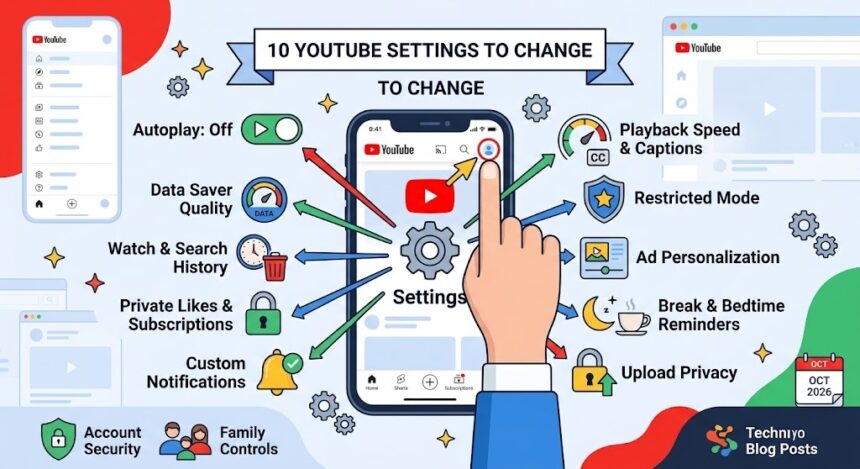
YouTube settings are the controls that decide how videos play, what YouTube remembers about you, who can see your likes and subscriptions, which notifications you get and what content is filtered. The 10 most useful YouTube settings to review are: autoplay, video quality, watch and search history, privacy for likes and subscriptions, notifications, playback speed and captions, Restricted Mode, ad personalization, break and bedtime reminders, and upload privacy for your own videos. This guide explains each one in simple steps for the phone app and the website.
Last updated: October 2026. YouTube changes its menus often, and some options differ between Android, iPhone and desktop. If a label looks different, tap your profile picture and use the search option inside Settings.
Quick Answer: Which YouTube Settings Should You Change First?
- Turn off autoplay if you often watch more than you planned.
- Review your watch history and pause or auto-delete it if you want fewer personalised suggestions.
- Make your likes, playlists and subscriptions private if you do not want others to see them.
- Set video quality so you do not waste mobile data.
- Customise notifications so you only hear from channels you care about.
How to Open YouTube Settings
On the YouTube app (Android and iPhone)
- Open YouTube and tap your profile picture in the top-right corner.
- Tap the gear icon or Settings.
- Browse sections such as General, Playback, Notifications, Privacy and Manage all history.
On a computer
- Go to YouTube and sign in.
- Click your profile picture, then Settings.
- Use the menu on the left to switch between Account, Notifications, Playback and performance, Privacy and more.
For the official explanation of each option, visit the YouTube Help Center.
1. Turn Autoplay On or Off
YouTube autoplay automatically starts a suggested video when the current one ends. It is convenient for music, but it is also one of the easiest ways to lose an hour without noticing.
How to turn off autoplay
- Open any video.
- Find the Autoplay switch near the top of the player (mobile) or at the bottom of the player (desktop).
- Tap or click it to turn autoplay off.
You can also check Settings > Playback (or Autoplay) for the same option. Some versions of the app also let you turn off video previews in the home feed, which reduces accidental plays and saves data.
2. Set Video Quality and Data Saver Options
YouTube normally adjusts quality automatically, but you can control it yourself. This matters if you have a limited data plan or a slow connection, a common situation for many users.
- Open Settings > Video quality preferences.
- Choose settings for Wi-Fi and mobile data. Common choices are Auto, Higher picture quality and Data saver.
- For one video only, tap the three dots or gear icon on the player, choose Quality and pick a resolution.
If videos buffer constantly, the problem may be your connection rather than YouTube. Try the steps in our guide to fixing slow or dropped Wi-Fi.
3. Manage Your YouTube Watch History and Search History
YouTube watch history is the list of videos you have watched. YouTube uses it to recommend more videos and to help you find things you watched earlier. If you prefer more privacy or want to reset your recommendations, you can control it.
How to view or delete your history
- Open Settings > Manage all history (or go to your Google Account activity controls).
- Review YouTube watch history and YouTube search history.
- Choose Delete to remove items for a chosen period or all time.
How to pause or auto-delete history
- In the same activity controls, tap Turn off to stop saving watch or search history.
- Or choose Auto-delete and pick a time period such as 3, 18 or 36 months.
Be aware that pausing history may make your Home feed less personal. On the mobile app, you can also use Incognito mode from your profile menu for a single viewing session. These options are explained on Google’s own My Activity page and the YouTube help articles on managing history.
4. Control YouTube Privacy for Likes, Playlists and Subscriptions
Many people do not realise that their subscriptions, liked videos and saved playlists can be visible to others. The YouTube privacy settings let you change this.
- Open Settings > Privacy.
- Turn on Keep all my liked videos private.
- Turn on Keep all my saved playlists private.
- Turn on Keep all my subscriptions private.
When you turn these on, other people cannot browse what you like or follow from your channel. The options can vary slightly by device, so check both the app and the website. If you want privacy across other platforms too, read our overview of account privacy settings.
5. Customise YouTube Notifications
Too many alerts make YouTube annoying. Good notification settings keep the useful ones and remove the rest.
- Per-channel bell: on a channel page, tap the bell icon and choose All, Personalized or None.
- Settings > Notifications: turn off categories such as recommended videos, activity on your comments, or promotions.
- Scheduled digest: group notifications into a single daily summary at a time you choose.
- Phone permissions: if you want zero alerts, switch off notifications for YouTube in your phone’s app settings.
Choosing None on the bell does not unsubscribe you. You will still see the channel in your Subscriptions feed.
6. Use Playback Speed, Captions and Accessibility Options
Some of the most useful YouTube settings are hidden in the video player.
- Playback speed: tap the gear icon, choose Playback speed and pick a speed from slower to faster. Many people watch tutorials at 1.25x or 1.5x to save time.
- Captions (subtitles): tap the CC button to turn captions on or off. In Settings, you can change caption size, colour and background.
- Auto-translate: in the subtitles menu, you can sometimes choose a translated version of captions.
- Keyboard shortcuts (desktop): press K to pause, J and L to skip back and forward 10 seconds, and F for full screen.
Captions are helpful in noisy places, for learning a language and for anyone who is hard of hearing.
7. Turn On YouTube Restricted Mode
YouTube Restricted Mode is an optional filter that tries to hide videos that may contain mature content and hides comments on videos. It is not perfect, but it adds an extra layer of protection, especially on shared or school devices.
How to turn on Restricted Mode
- Tap your profile picture and open Settings.
- Go to General (or Restricted Mode on desktop).
- Turn on Restricted Mode.
Restricted Mode applies only to the browser or device where you turn it on, so repeat the step on each device. For young children, the separate YouTube Kids app and supervised experiences offer stronger controls than Restricted Mode alone. Parents can read more in the YouTube Help Center, and our TikTok privacy settings guide covers a similar family control called Family Pairing.
8. Manage Ad Personalization
YouTube shows ads based on factors such as your activity and your Google Account settings. You can control how personalised those ads are.
- Open your Google Account and go to Data & privacy, then My Ad Center, or visit adssettings.google.com.
- Review the topics and categories used to personalise ads.
- Turn Ad personalization off if you do not want ads based on your activity.
Turning off personalization does not remove ads. It makes them less targeted. If you are tired of ads, the official option is YouTube Premium, which is a paid subscription. Check current prices on YouTube because they differ by country.
9. Set Break and Bedtime Reminders
YouTube includes wellbeing tools that help you stay in control of your time.
- Remind me to take a break: shows a reminder after a set number of minutes of watching.
- Remind me when it’s bedtime: pauses videos at a time you choose.
- Time watched: shows how long you spend on YouTube each day and week.
You can find these under Settings > General or in the profile menu under Time watched. On Android, the phone’s Digital Wellbeing tools can add app timers on top of YouTube’s own reminders, as explained in our Android phone tips.
10. Choose Privacy Settings for Videos You Upload
If you make videos, privacy options protect your work and your audience. When uploading, YouTube asks you to choose a visibility setting.
| Setting | Who can watch | Best for |
|---|---|---|
| Public | Anyone, and it can appear in search | Videos you want to grow |
| Unlisted | Anyone with the link | Sharing with a group without public search |
| Private | Only you and people you invite | Drafts and personal videos |
| Scheduled | Public at a set time | Planned releases |
You can change visibility later in YouTube Studio > Content. In the same area, you can set audience rules (for example whether a video is made for kids) and control comment settings, such as holding potentially inappropriate comments for review.
Other Useful YouTube Settings Worth Knowing
- Language and location: set your preferred language and country in Settings > General to improve search and recommendations.
- Downloads: in the mobile app, choose download quality and whether to download only on Wi-Fi.
- Connected TV: link your phone to a TV from Settings > Watch on TV. If your TV app misbehaves, our smart TV troubleshooting guide may help.
- Account security: secure your Google Account with 2-Step Verification and run the Google Security Checkup. A hacked Google Account also means a hacked YouTube channel.
YouTube Settings Checklist
| Setting | Recommended choice | Where to find it |
|---|---|---|
| Autoplay | Off if you want control | Video player or Playback settings |
| Video quality | Data saver on mobile data | Settings > Video quality preferences |
| Watch history | Auto-delete or pause | Manage all history |
| Likes, playlists, subscriptions | Private | Settings > Privacy |
| Notifications | Only favourite channels | Settings > Notifications |
| Restricted Mode | On for shared devices | Settings > General |
| Ad personalization | Your choice | My Ad Center |
| Break reminders | On | Settings > General |
Frequently Asked Questions About YouTube Settings
How do I turn off autoplay on YouTube?
Open a video and tap the Autoplay switch in the player controls to turn it off. You can also look for Autoplay in Settings under Playback.
How do I clear my YouTube watch history?
Go to Settings, then Manage all history, open YouTube watch history and choose Delete. You can remove a single video, a time range or everything. You can also pause or auto-delete history.
Can people see my YouTube subscriptions and liked videos?
They can unless you make them private. Open Settings, tap Privacy and turn on the options to keep your subscriptions, liked videos and saved playlists private.
What is Restricted Mode on YouTube?
Restricted Mode is an optional setting that helps filter out videos that may contain mature content and hides comments. It works per device or browser and is not a perfect filter.
How do I change YouTube video quality permanently?
On the mobile app, open Settings and choose Video quality preferences, then pick a setting for Wi-Fi and mobile data. On desktop, quality is often set per video from the gear icon, and the player may remember your choice depending on the browser.
How do I stop YouTube notifications?
Open Settings, tap Notifications and turn off the categories you do not want. You can also change the bell on each channel to None, or turn off YouTube notifications in your phone settings.
How do I use YouTube in Incognito mode?
In the mobile app, tap your profile picture and choose Turn on Incognito. Videos you watch in that mode will not be saved to your watch or search history for that session. Your internet provider, school or workplace may still see your activity.
Why does YouTube keep recommending the same videos?
Recommendations are based on your watch history, searches, subscriptions and engagement. To refresh them, delete or pause watch history, use the Not interested option on videos you do not want, and subscribe only to channels you like.
Is YouTube safe for children?
YouTube offers YouTube Kids and supervised experiences, which are designed for younger users. The regular app is intended for older audiences, so parents should use these tools, enable Restricted Mode where suitable and review what their child watches.
How often should I review my YouTube settings?
Review them every few months or after a major update. Check history, privacy, notifications and your Google Account security at the same time.
Related Guides
- Facebook privacy settings
- TikTok privacy settings
- Instagram privacy settings
- 15 useful Android apps
- Tech troubleshooting guide
Final Thoughts
YouTube works best when you tell it how you want to use it. Turn off autoplay if you lose track of time, manage your history so recommendations stay useful, keep your likes and subscriptions private if you prefer, and tame notifications so only the channels you value reach you. If you share a device with children, add Restricted Mode or use YouTube Kids. A few minutes in Settings can save hours of scrolling and protect your privacy at the same time.
Tip: Bookmark this page and revisit your YouTube settings every few months, since the menus and defaults change regularly.