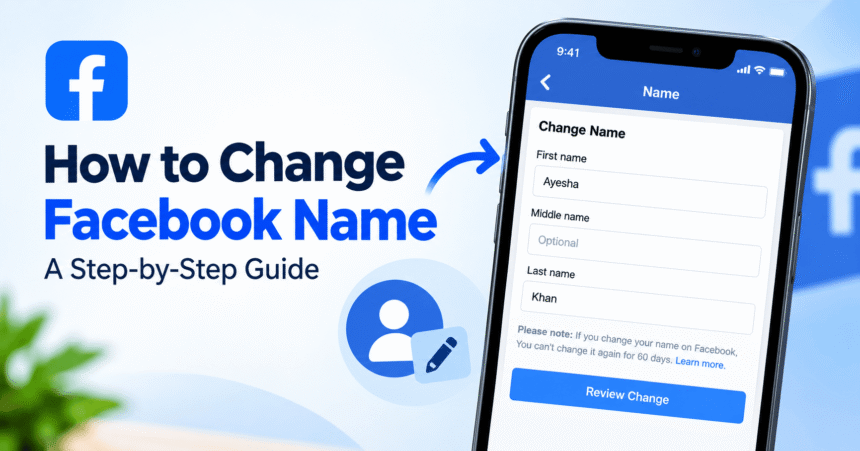
How to change your name on Facebook: open Facebook, go to Settings & privacy > Settings > Accounts Center (called Meta Account on some accounts), tap Profiles, select your Facebook profile, tap Name, type your new first, middle and last name, tap Review change, choose how your name appears, enter your password and save. You can change your Facebook name only once every 60 days, your new name must follow Facebook’s name rules, and Facebook may ask for ID in some cases. This guide covers the steps on iPhone, Android and computer, the name rules, how to add a nickname, how to change a Page name, and what to do when the name change is not working.
Last updated: October 2026. Facebook changes menu names from time to time. If a label looks different, use the search bar in Settings or check the official Facebook Help Center.
Quick Answer: How Do I Change My Name on Facebook?
- Open Facebook and tap the menu (your profile picture or three lines).
- Tap Settings & privacy, then Settings.
- Open Accounts Center (or Meta Account).
- Tap Profiles and choose your Facebook profile.
- Tap Name and enter your new first, middle and last name.
- Tap Review change, pick the display order, enter your password and tap Save changes.
Remember that after a change, Facebook makes you wait 60 days before you can change your name again. Read the spelling twice before you save.
Key Facts at a Glance
- Where to change it: Accounts Center (or Meta Account) > Profiles > your Facebook profile > Name.
- Change limit: once every 60 days.
- Name rules: use the name people know you by in everyday life, with no symbols, numbers or offensive words.
- ID check: Facebook may ask for identification to confirm your name.
- Friends notified? Facebook does not usually send a notice, but friends will see the new name.
- Messenger: your Messenger name follows your Facebook name.
Facebook Name Rules: What Names Are Allowed?
Facebook wants profiles to use real, everyday names. In general, Facebook’s name standards say your name should:
- Match the name people call you in everyday life, such as the name on a bank card, student card or other ID.
- Use one language’s characters, without mixing characters from different languages.
- Avoid symbols, numbers, unusual capitalization, repeating characters or punctuation.
- Avoid titles such as professional, religious or job titles.
- Avoid offensive or suggestive words.
- Not impersonate another person, business or organization.
Nicknames can be allowed if they are a variation of your real name, such as using Bill instead of William. For a stage name, brand or business, Facebook suggests creating a Page instead of changing a personal profile. Standards can be updated, so check the Facebook Help Center if you are unsure.
How to Change Your Facebook Name on iPhone
- Open the Facebook app and tap the menu in the bottom-right corner.
- Scroll down and tap Settings & privacy, then Settings.
- Tap Accounts Center (or See more in Accounts Center).
- Tap Profiles, then select your Facebook profile.
- Tap Name.
- Enter your new first name, middle name (optional) and last name.
- Tap Review change and choose how your name should appear.
- Enter your password if asked and tap Save changes.
How to Change Your Facebook Name on Android
- Open Facebook and tap the three-line menu or your profile picture.
- Tap Settings & privacy, then Settings.
- Open Accounts Center and tap Profiles.
- Choose your Facebook account and tap Name.
- Type your new name, tap Review change and confirm.
- Enter your password and tap Save changes.
If the app is slow or the menu will not load, update Facebook and clear temporary files. Our guide to how to clear cache on Android shows how.
How to Change Your Facebook Name on a Computer
- Go to Facebook in your browser and log in.
- Click your profile picture in the top-right corner.
- Click Settings & privacy, then Settings.
- Click See more in Accounts Center (or go directly to accountscenter.facebook.com).
- Click Profiles, then your Facebook profile.
- Click Name and enter your new name.
- Click Review change, choose the display order and click Save changes.
Why Does Facebook Say I Can Only Change My Name Every 60 Days?
Facebook limits name changes to stop people from repeatedly switching names, which can be used for impersonation and scams. After you change your name, the option is locked for 60 days. If you made a typing mistake, you usually have to wait until the lock ends. If you have a serious problem, such as a legal name change that needs to be reflected, use the Facebook Help Center to contact support. Do not use third-party sites that promise to bypass the limit, because many are scams.
How to Add a Nickname or Other Name on Facebook
If you do not want to change your main name, you can add a nickname, birth name or maiden name to your profile instead.
- Go to your profile and tap Edit profile or open the About section.
- Look for Details about you or Other names.
- Add the nickname or other name and choose whether to show it at the top of your profile.
Menus vary by version, so use the search bar in Settings if you cannot find it.
Facebook Name vs Username: What Is the Difference?
Your name is what people see on your profile, in posts and in Messenger. Your username is part of your profile link (facebook.com/yourusername). Changing your name does not automatically change your username. If you also want a cleaner profile link, look for the username option in your profile settings. Your Facebook name is also separate from your Instagram name, so you need to update each one on its own.
How to Change a Facebook Page Name
A Page name is changed in the Page settings, not in Accounts Center. Switch to your Page, open Settings, find Page name (or Page setup), enter the new name and request the change. Facebook may review it and can refuse names that break its rules. You need admin access to the Page.
Does Changing Your Facebook Name Notify Friends?
Facebook does not usually announce a name change to your friends, but your new name appears on your profile, posts, comments and messages. Old posts and tags show the new name. If you want to control who sees your profile, review our guide to Facebook privacy settings or how to lock your Facebook profile.
Facebook Name Change Not Working: Common Fixes
You changed your name recently
Wait for the 60-day period to end.
Your name breaks the rules
Remove symbols, numbers, titles, emojis or extra punctuation, and use the name people really call you.
Facebook asks for ID
Follow the prompts and upload an accepted ID. The name you request should match what is on the ID or what the ID types allow.
The Name option is missing
Update the app, try the desktop site and look under Accounts Center or Meta Account instead of the old profile settings.
Your password is not accepted
Reset it and try again. Our guide to how to change your Facebook password explains the steps.
Your account is restricted or you think it was hacked
Secure the account first, change your password and turn on two-factor authentication. Learn the warning signs in our guide to how to spot a phishing email, and build a safer login with our strong password guide.
For other app problems, see our tech troubleshooting guide.
Should You Change Your Name or Use Another Option?
- Change your name if your legal name changed, you made a spelling error or you want your real everyday name on your profile.
- Add a nickname if you only want an alternative name shown.
- Create a Page if you need a brand, artist or business name.
- Deactivate instead if you want a break. See how to deactivate a Facebook account.
- Block or unblock people as needed with our guide to how to unblock someone on Facebook.
If you are also updating other accounts, see our guides to Instagram privacy settings, how to delete a YouTube channel and the full account privacy settings checklist. The FTC Consumer Advice website also explains how to avoid fake account and impersonation scams. Browse more help in our technology tutorials.
Frequently Asked Questions About Changing Your Facebook Name
How do I change my name on Facebook?
Go to Settings & privacy > Settings > Accounts Center > Profiles, select your Facebook profile, tap Name, enter the new name, tap Review change and save.
How often can I change my Facebook name?
Once every 60 days.
Can I change my Facebook name on my phone?
Yes. Use the Facebook app on iPhone or Android and follow the Accounts Center steps.
Why can’t I change my name on Facebook?
You may have changed it in the last 60 days, your name may break Facebook’s rules, the option may be missing in your app version, or your account may be restricted.
Can I change my Facebook name without waiting 60 days?
Generally no. If you have a serious reason, contact Facebook support through the Help Center. Avoid sites that promise to bypass the limit.
Does Facebook ask for ID to change a name?
It can. Facebook may ask for ID to confirm your name, especially if the change looks unusual.
Can I use a nickname on Facebook?
Yes, if it is a variation of your real name, or you can add it as an other name on your profile.
Will my friends know I changed my Facebook name?
Facebook does not usually send a notice, but they will see the new name.
Does changing my Facebook name change my username?
No. Your name and your username are separate settings.
Does my Messenger name change when I change my Facebook name?
Yes. Messenger uses your Facebook name.
Does changing my Facebook name change my Instagram name?
No. Instagram names are changed separately in Instagram.
Can I change the name of my Facebook Page?
Yes, if you are an admin. Open the Page settings and request a new Page name.
Can I use emojis or symbols in my Facebook name?
No. Facebook’s rules do not allow symbols, numbers or emojis in your name.
How long does a Facebook name change take?
Many changes apply right away, but Facebook may review some requests, which can take a few days.
Final Thoughts
Knowing how to change your name on Facebook is simple once you find Accounts Center. Check Facebook’s name rules, enter your new name carefully, review the preview and save. Because you can only change it once every 60 days, double-check the spelling first. If you only want a nickname, a Page or a break from the platform, use one of the alternatives above instead of changing your main profile name.
Tip: Take a screenshot of your current name settings before you edit, so you can see exactly what changed if you need to contact support.