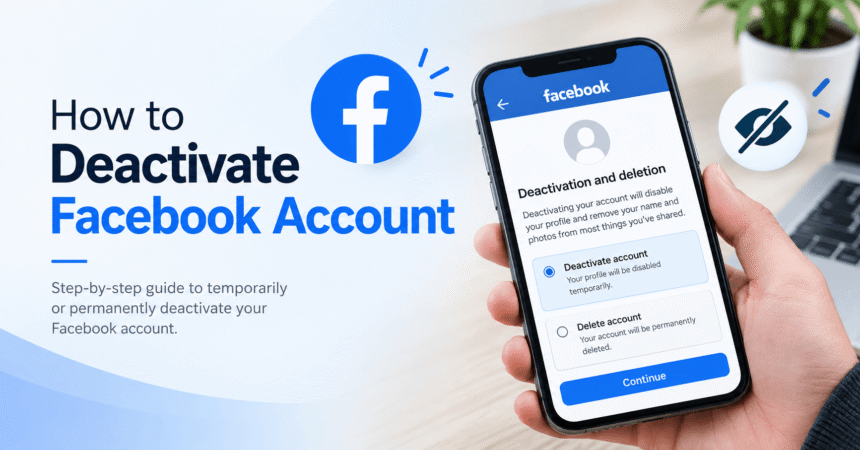
How to deactivate a Facebook account: open Facebook, go to Settings & privacy > Settings > Accounts Center > Personal details > Account ownership and control > Deactivation or deletion, choose your Facebook profile, select Deactivate account, tap Continue, enter your password, pick a reason and confirm. Deactivating Facebook hides your profile, timeline, photos and posts from other people, but it does not delete anything. You can reactivate it any time by logging back in. This guide covers every step on iPhone, Android and computer, the difference between deactivating and deleting, how to keep using Messenger, what happens to your Pages and data, and how to fix problems.
Last updated: October 2026. Facebook changes menu names from time to time. If a label looks different, use the search bar in Settings or check the official Facebook Help Center.
Quick Answer: How Do I Deactivate My Facebook Account?
- Open Facebook and tap your profile picture or the menu icon.
- Tap Settings & privacy, then Settings.
- Open Accounts Center, then Personal details.
- Tap Account ownership and control, then Deactivation or deletion.
- Choose your Facebook account, select Deactivate account and tap Continue.
- Enter your password, choose a reason and follow the final prompts.
Your profile is hidden straight away. To come back, log in with your email or phone number and password.
Deactivate vs Delete Facebook: What Is the Difference?
Many people search for how to deactivate a Facebook account when they really need a break. The two options are very different.
| Feature | Deactivate (temporary) | Delete (permanent) |
|---|---|---|
| Is your profile hidden? | Yes | Yes, after the request |
| Are your photos, posts and friends kept? | Yes, until you return | No, removed after the waiting period |
| Can you undo it? | Yes, by logging in | Only during a short waiting period |
| Can you keep using Messenger? | Yes, if you choose to | No |
| Best for | A break or a privacy pause | Leaving Facebook for good |
With deletion, Facebook says it waits up to 30 days before it begins deleting your data, and it can take up to 90 days to finish removing everything from its systems. If you are not sure, deactivate first.
What Happens When You Deactivate Your Facebook Account?
- Your profile disappears: your timeline, photos and posts are not visible to people on Facebook.
- Your data is saved: Facebook keeps your information so everything returns when you reactivate.
- Some content may remain: messages you sent to friends can still appear in their inboxes, and comments you made may stay visible, usually without a link to your profile.
- Your name may appear in some places: friends may still see your name in their friends list in some cases.
- Apps and logins may stop working: websites where you used “Log in with Facebook” may be affected.
- Pages and groups: if you are the only admin of a Page, it may be unpublished unless you add another admin first.
What to Do Before You Deactivate Facebook
1. Download a copy of your information
Even though deactivating does not delete anything, a backup is a good idea.
- Go to Settings & privacy > Settings > Accounts Center.
- Choose Your information and permissions.
- Tap Download your information and follow the prompts to select what you want.
Keep the file in a safe place. Learn about secure storage in our guide to what is cloud storage.
2. Add another admin to your Pages
If you manage a business Page, give someone else admin access first so it stays online.
3. Check apps that use Facebook login
Some apps and websites let you sign in with Facebook. Switch them to an email login so you are not locked out. Review connected apps using our account privacy settings guide.
4. Decide about Messenger
During deactivation, Facebook usually lets you choose to keep using Messenger. Decide whether you want that before you begin.
5. Tell friends how to reach you
Share your phone number or another app so people can contact you while you are away.
6. Make sure you know your password
Facebook asks for your password. If you forgot it, reset it first. Our guide to how to change your Facebook password shows the steps.
How to Deactivate Facebook on iPhone
- Open the Facebook app and tap the menu (your profile picture or three lines) in the bottom corner.
- Scroll down and tap Settings & privacy, then Settings.
- Tap See more in Accounts Center or Accounts Center.
- Tap Personal details, then Account ownership and control.
- Tap Deactivation or deletion and select your Facebook account.
- Choose Deactivate account and tap Continue.
- Enter your password, select a reason and follow the prompts to finish.
How to Deactivate Facebook on Android
- Open Facebook and tap the three-line menu or your profile picture.
- Tap Settings & privacy, then Settings.
- Open Accounts Center and tap Personal details.
- Tap Account ownership and control, then Deactivation or deletion.
- Select your Facebook profile, choose Deactivate account and tap Continue.
- Enter your password and confirm.
If the app seems slow or the menu will not open, update Facebook and clear temporary files. Our guide to how to clear cache on Android explains how.
How to Deactivate Facebook on a Computer
- Go to Facebook in your browser and log in.
- Click your profile picture in the top-right corner.
- Click Settings & privacy, then Settings.
- Click Accounts Center.
- Select Personal details, then Account ownership and control.
- Click Deactivation or deletion and choose your Facebook account.
- Select Deactivate account and click Continue.
- Enter your password, pick a reason and click Deactivate my account.
How to Deactivate Facebook but Keep Using Messenger
When you deactivate, Facebook usually shows an option such as Continue using Messenger. If you select it, your Facebook profile is hidden but you can still chat with friends on Messenger. Friends can still find you and message you. If you do not want that, leave the option off and Messenger will be deactivated too. To use Messenger again later, you can log in to Facebook or Messenger to reactivate.
How to Reactivate Your Facebook Account
Reactivating is simple.
- Open Facebook or go to the Facebook website.
- Log in with the email address or phone number you used before, and your password.
- Follow the prompts to confirm your identity if Facebook asks.
Your profile, friends, photos and posts come back. Logging in to a Facebook-connected app or website can also reactivate your account, so be careful if you want to stay deactivated. If you cannot log in, use the Forgot password option or the recovery options in the Facebook Help Center.
How Long Can You Deactivate Facebook?
Facebook lets you stay deactivated as long as you like. There is no fixed limit set by you, so your account remains saved until you log in again or choose to delete it. Facebook may have policies about long-term inactive accounts, so check the Help Center if you plan a very long break.
Can Friends Still See Me After I Deactivate?
Most people cannot see your profile, but some traces can remain. Messages you sent stay in friends’ chats, comments in other people’s posts may still appear, and your name can occasionally show in a friend’s list or tag. Photos you uploaded to a group may remain depending on the group. If you want to control who sees what without leaving, use our guide to Facebook privacy settings instead.
Deactivating Facebook Without Losing Instagram
Facebook and Instagram can be linked in Accounts Center. When you choose Deactivation or deletion, you pick which account to deactivate, so deactivating Facebook should not remove your Instagram account. If you want to leave Instagram too, see how to delete an Instagram account and review Instagram privacy settings.
What If You Cannot Deactivate Your Facebook Account?
The option is missing
Update the Facebook app, try the desktop site and look under Accounts Center instead of the old Settings menu. Menus vary by version and region.
The password is not accepted
Reset your password using email or phone, then try again.
You think your account was hacked
Do not deactivate right away. Secure it first by changing your password, turning on two-factor authentication and checking recent logins. Learn the warning signs in our guide to how to spot a phishing email, and create a better password using our strong password guide.
You manage a Page or business account
Add another admin first, or you could lose control of the Page.
You blocked someone and want to undo it later
Blocks stay in place after deactivation. See how to unblock someone on Facebook if you want to change that.
For other app problems, our tech troubleshooting guide may help.
Is It Better to Deactivate or Delete Facebook?
Deactivate if you need a break, want to reduce distractions, or may come back. Delete if you are sure you are finished and have downloaded what you want to keep. If privacy is your main worry, you can also tighten your settings, limit past posts and review apps, which our technology tutorials and the FTC Consumer Advice website explain well.
Frequently Asked Questions About Deactivating Facebook
How do I deactivate my Facebook account?
Go to Settings & privacy > Settings > Accounts Center > Personal details > Account ownership and control > Deactivation or deletion. Select your Facebook account, choose Deactivate account and confirm with your password.
What happens when I deactivate my Facebook account?
Your profile, timeline and photos are hidden, but nothing is deleted. Some content, such as messages you sent, may remain visible to others.
Can I reactivate my Facebook account?
Yes. Log in with your email or phone number and password, and your account comes back.
How long can I keep my Facebook account deactivated?
There is no set limit. Your account stays saved until you log in again or choose to delete it.
Is deactivating Facebook the same as deleting it?
No. Deactivation is temporary and reversible. Deletion is permanent after a waiting period.
Can I deactivate Facebook and keep Messenger?
Yes. During deactivation, choose the option to continue using Messenger.
Will people know I deactivated my Facebook account?
Facebook does not send a notice, but friends may notice your profile has disappeared.
Do deactivated Facebook accounts get deleted automatically?
Facebook does not delete accounts just because you deactivated them, but check its policies for long-term inactive accounts.
Can I deactivate Facebook on my phone?
Yes. Use the app on iPhone or Android and follow the Accounts Center steps.
Will deactivating Facebook delete my Instagram?
No. You choose which account to deactivate in Accounts Center, so your Instagram stays unless you select it.
What happens to my Facebook Page if I deactivate?
If you are the only admin, the Page may be unpublished. Add another admin first.
Can I temporarily deactivate Facebook for a week?
Yes. Deactivate, and when you want to return, log in again. Facebook may ask you to choose a timeframe in some versions, and you can reactivate earlier by logging in.
Why can’t I find the deactivate option on Facebook?
Menus change by version and region. Update the app, use the desktop site, or search for “deactivate” in Settings.
Final Thoughts
Knowing how to deactivate a Facebook account gives you a safe way to take a break without losing your photos, friends or memories. Decide between deactivating and deleting, download your information, add another admin to any Pages, choose whether to keep Messenger, and then follow the Accounts Center steps. When you are ready to return, just log in. While you are away, use the time to strengthen your online security with a unique password, two-factor authentication and careful privacy settings.
Tip: Do not open Facebook-connected apps or websites during your break. Logging in with Facebook can reactivate your account without you realizing it.