Last updated: October 2026
Quick answer: To create a YouTube channel, sign in to YouTube with a Google account, click your profile picture, choose Create a channel, enter your name and handle, add a profile picture and confirm. To upload a video, open YouTube Studio, click Create > Upload videos, select your file, add a title, description and thumbnail, set the visibility to Public and click Publish.
This guide covers both steps from start to finish: how to create a YouTube channel on a computer, Android or iPhone, and how to upload a video to YouTube from each of them. You will also find the best upload settings, fixes for common upload errors and answers to the questions people ask most.
What You Need Before You Start
- A Google account. Any Google account works, and it does not have to be a Gmail address. If you do not have one yet, follow our guide on how to create a Gmail account.
- A device with internet access. A computer, an Android phone or an iPhone all work.
- A finished video file. MP4 is the safest format. You can also practise with a short test clip.
- A channel name. Choose something short, easy to spell and related to what you plan to post.
Key Facts at a Glance
| Question | Short answer |
|---|---|
| Is it free to create a YouTube channel? | Yes. Creating a channel and uploading videos costs nothing. |
| Do I need a channel to upload? | Yes. A Google account alone lets you watch and subscribe, but you need a channel to upload, comment and make playlists. |
| How many videos can I upload at once? | Up to 15 videos at a time in YouTube Studio. |
| What happens if I close the upload window early? | If you close it before choosing visibility, the video is saved as private in your Content page. |
| Best file format | MP4 with H.264 video and AAC audio. |
| How long until I can earn money? | Not at once. See our guide to YouTube monetization requirements. |
How to Create a YouTube Channel on a Computer
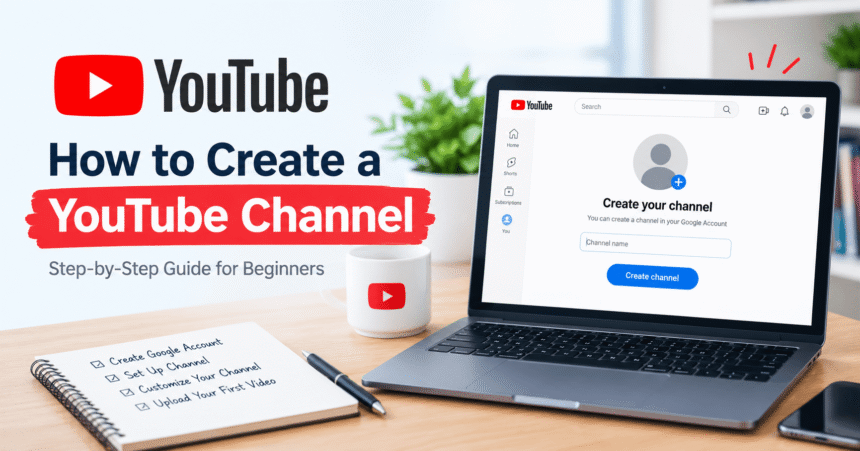
- Go to youtube.com and click Sign in. Use your Google account.
- Click your profile picture in the top right corner.
- Select Create a channel. If you do not see it, open Settings > Add or manage channel(s) and choose Create a channel.
- Check the name and photo shown. You can edit the name, choose a unique @handle and upload a new profile picture.
- Click Create channel. Your channel now exists and you can start uploading.
Google’s official instructions are in the YouTube Help article on creating a channel.
How to Create a YouTube Channel on Android or iPhone
- Open the YouTube app and tap your profile picture (or the You tab).
- Sign in with your Google account if you are not already signed in.
- Tap Create a channel.
- Confirm or edit your name, handle and profile photo.
- Tap Create channel.
If you use a supervised account, for example a child account managed through Family Link, you may not be able to create a channel.
Personal Channel vs Brand Account: Which Should You Choose?
A personal channel uses your Google account name and can only be managed by you. A Brand Account lets you use a different name from your Google account and add other owners or managers. Choose a Brand Account if you run a business, a team channel or a project you may hand over later. To make one, go to your channel list and select Create a new channel.
How to Set Up Your Channel Before the First Upload
- Add a profile picture and banner. A clear logo or face works best.
- Write a short description. Say who the channel is for and what you post, and include your main topic words naturally.
- Add contact and social links. Use the Customization tab in YouTube Studio.
- Verify your account. Phone verification unlocks longer videos, custom thumbnails and faster processing. Google recommends it for the best processing time.
- Review your settings. Our guide to YouTube settings explains autoplay, history, privacy and notifications.
How to Upload a Video to YouTube on a Computer
- Sign in to YouTube Studio.
- Click Create in the top right corner, then Upload videos.
- Drag your file into the window or click Select files.
- Add details: write a clear title, a helpful description, choose or upload a thumbnail and add the video to a playlist if you want.
- Choose an audience. YouTube requires you to say whether the video is made for kids. Set an age restriction if needed.
- Answer the question about altered or synthetic content if it appears.
- Open Video elements to add subtitles, cards or an end screen.
- Wait for Checks to finish. They look for copyright and advertiser-friendly issues before you publish.
- Under Visibility, pick Private, Unlisted or Public, or schedule a date and time.
- Click Publish (or Save).
The full official steps are in the YouTube Help guide to uploading videos.
How to Upload a Video to YouTube on a Phone
- Open the YouTube app and tap the Create (+) button at the bottom.
- Tap Upload a video and allow access to your photos if asked.
- Choose the video and tap Next.
- Add a title and description, then set visibility and audience.
- Tap Upload video.
You can also use the YouTube Studio app, which lets you manage and edit uploads after publishing. Large files upload more reliably on Wi-Fi, and you can choose Wi-Fi only in the app settings to protect your mobile data.
Best Video File Format and Upload Settings
| Setting | Recommended |
|---|---|
| File format | MP4 (MOV, AVI, WMV, WebM and others also work) |
| Video codec | H.264 |
| Audio codec | AAC |
| Aspect ratio | 16:9 for standard videos, 9:16 for Shorts |
| Thumbnail size | 1280 x 720 pixels (16:9) |
| Title length | Up to 100 characters. Put the main topic first. |
| Description length | Up to 5,000 characters |
| Maximum file | Up to 256 GB or 12 hours for verified accounts |
Google publishes its own list of recommended upload encoding settings if you want to match them exactly.
How to Upload a YouTube Short
A Short is a vertical video of up to three minutes. In YouTube Studio, click Create > Upload videos and choose a vertical file, or tap Create > Shorts in the mobile app to record and edit inside YouTube. YouTube treats it as a Short when it is vertical or square and meets the length limit. Read the official Shorts upload guide for the latest rules.
What Happens After You Upload
- Processing. YouTube converts your file into several quality levels. Standard definition is usually ready first and high definition follows.
- Checks. Copyright and ad suitability checks run before publishing.
- Visibility. Private means only you, Unlisted means anyone with the link and Public means everyone.
Common Upload Problems and Fixes
Why is my YouTube upload stuck at 0% or very slow?
Check your connection first, then try another browser or switch to a wired or stronger Wi-Fi network. Restart the upload, turn off VPNs and clear your browser data if the problem continues.
Why is my video stuck on “processing”?
High-resolution files and long videos take longer. Wait some time, then refresh YouTube Studio. If it never finishes, re-export the file as MP4 (H.264) and upload it again.
Why can’t I upload videos longer than 15 minutes?
Your account is probably not verified. Verify your phone number and the limit increases.
Why did my video get a copyright claim?
Music, clips or images owned by someone else can trigger a Content ID claim. Use your own material or licensed audio and check the Checks section before publishing.
Why can’t I find the Create button?
Make sure you are signed in to the account that owns the channel and that it is not a supervised account.
Tips to Help Your First Videos Get Found
- Put the main phrase people would search for in the title and in the first sentence of the description.
- Design a clear thumbnail with large text and strong contrast.
- Add subtitles so more viewers can follow your video.
- Use playlists to group related videos together.
- Post regularly. A simple schedule is easier to keep than a perfect one.
- Protect your account with 2-Step Verification and read our account privacy settings guide. Learn to spot a phishing email, since fake “YouTube policy” emails are common.
Frequently Asked Questions
How do I create a YouTube channel for free?
Sign in to YouTube with a Google account, click your profile picture, choose Create a channel, confirm your name and handle and click Create channel. It costs nothing.
Do I need Gmail to create a YouTube channel?
No. You need a Google account, which can use any email address. A Gmail address is the easiest option.
Can I upload a video to YouTube without a channel?
No. You must create a channel before you can upload, comment or make playlists.
How do I upload a video to YouTube from my phone?
Open the YouTube app, tap Create (+), choose Upload a video, pick the file, add details, set visibility and tap Upload video.
What is the best format to upload a video to YouTube?
MP4 with H.264 video and AAC audio is the best choice. Most other common formats are accepted too.
How long can a YouTube video be?
Standard accounts can upload videos up to 15 minutes. Verified accounts can upload up to 12 hours or 256 GB, whichever limit is reached first.
How many channels can I have on one Google account?
You can have more than one. Use Brand Accounts to create additional channels with different names.
Can I change my YouTube channel name or handle later?
Yes. Open YouTube Studio, go to Customization > Profile and edit the name or handle. Changes are limited, so choose carefully.
Can I delete my channel if I change my mind?
Yes. Follow our guide on how to delete a YouTube channel, or choose the hide option to keep your account.
When can I start making money on YouTube?
You need to join the YouTube Partner Program. The usual minimum for ads is 1,000 subscribers plus 4,000 public watch hours or 10 million Shorts views, and the bar rises for new applicants on 1 February 2027. See YouTube monetization requirements for the full list.
Is YouTube Studio the same as YouTube?
No. YouTube is where people watch videos. YouTube Studio is the dashboard where you upload, edit and analyze your own content.
Related Guides
- YouTube monetization requirements
- How to create a Gmail account
- YouTube settings: 10 options you should change
- How to delete a YouTube channel
- What is cloud storage? (a safe place to back up raw video files)
- More technology tutorials
Final Thoughts
Creating a channel takes about two minutes, and your first upload takes only a few more. Start with a simple video, learn the YouTube Studio basics and improve with each upload. Once your channel is live, plan toward monetization and keep your account secure. For the official reference, bookmark the YouTube Help Center.