Last updated: October 2026
Quick answer: To create a QR code, open a free QR code generator, choose the type of content (website link, text, Wi-Fi, contact or email), paste your link or text, pick a dark color on a light background, and download the code as a PNG or SVG. Always test it with your phone before you print or share it. In Google Chrome you can also right-click any page and choose Create QR code for this page. The whole process takes about two minutes and costs nothing.
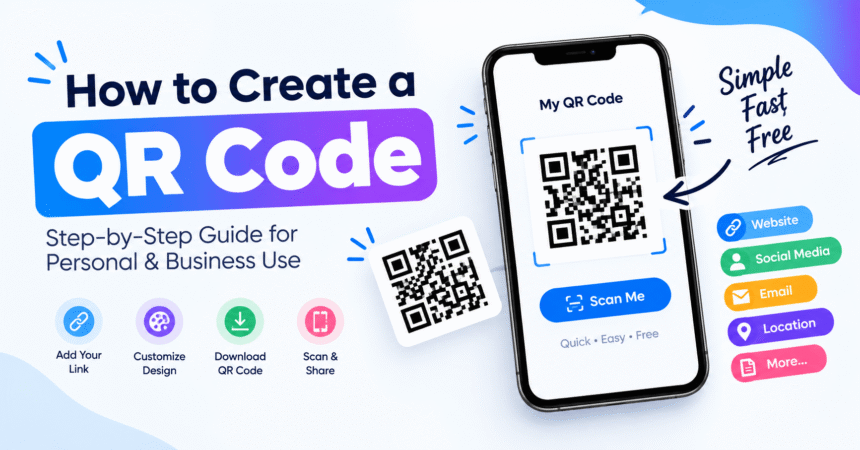
Learning how to create a QR code is one of the most useful small tech skills you can pick up. A QR code (short for Quick Response code) is a square pattern that a phone camera reads instantly to open a website, join a Wi-Fi network, show a menu, save a contact or display plain text. You do not need design skills, coding knowledge or a paid account. This guide shows five free ways to make one, including a Chrome shortcut, iPhone and Android methods and a QR code generator that works in any browser, plus the design rules that make sure your code scans every time.
What Is a QR Code and How Does It Work?
A QR code is a two-dimensional barcode that stores information as a grid of black and white squares called modules. It was invented in 1994 by Denso Wave, a company in the Toyota group, to track car parts faster than a normal barcode could. The format is still explained on the official QR Code website from Denso Wave. A traditional barcode reads in one direction and holds only a few digits. A QR code reads from any angle and can store thousands of characters: up to 7,089 digits or 4,296 letters and numbers in the largest version.
Three large squares in the corners tell the scanner which way is up, and built-in error correction lets the code keep working even when part of it is scratched, dirty or covered by a logo. When your camera reads the pattern, it decodes the stored data and your phone offers to open the link, join the network or save the contact. The QR code does not “contain” a website. It simply holds text, and the phone decides what to do with that text.
Static vs Dynamic QR Codes: Which Should You Create?
Before you make a code, decide whether you need a static or a dynamic one. A static QR code stores your data directly inside the pattern. It is free, never expires and works forever, but you cannot change it after printing. A dynamic QR code stores a short redirect link instead, so you can change the destination later and see how many people scanned it. Dynamic codes are usually offered on paid plans and stop working if you cancel the subscription.
| Feature | Static QR code | Dynamic QR code |
|---|---|---|
| Cost | Free | Usually a paid subscription |
| Edit link after printing | No | Yes |
| Scan tracking | No | Yes |
| Expires | Never | When the plan ends |
| Pattern density | Denser with long content | Simpler, easier to scan |
| Best for | Wi-Fi, contact cards, personal links | Marketing, menus, packaging |
For personal use, such as sharing your Wi-Fi, a profile link or an event page, a static code is the right choice. For a business that may change its menu or landing page, a dynamic code saves you from reprinting.
How to Create a QR Code: 5 Free Methods
Method 1: Use a free QR code generator (best for most people)
A free QR code generator is a website that turns your link or text into a downloadable image. Dozens exist, and the steps are almost identical on all of them:
- Open a reputable QR code generator in your browser. Choose one that offers a free static code with no forced sign-up and no watermark.
- Select the content type: URL, Text, Wi-Fi, vCard (contact), Email or SMS.
- Paste your full link, including
https://, or type your text. - Customize the look if you want: choose a dark foreground color and a light background, and add a small logo only if you test it afterwards.
- Download the file. Choose SVG or high-resolution PNG for printing, because a small low-quality image will blur when enlarged.
- Test the code with at least two phones before you publish or print it.
Be careful with generators that ask for payment to “unlock” a code you already created. Many sites show a free preview, then turn it into a dynamic code that stops working after a trial. If a tool redirects through its own short link, it is a dynamic code. A genuine static code will show your real link when you scan it.
Method 2: Create a QR code in Google Chrome
Chrome has a built-in QR code maker for any web page, which makes it the fastest option when you only need to share a link. Open the page you want to share, right-click an empty area and choose Create QR code for this page. You can also use the share option in the address bar. Chrome shows the code immediately, and you can download it as a PNG file. On Android, open the page in Chrome, tap the three-dot menu, choose Share and then QR code. Menu names can change slightly between versions.
Method 3: Create a QR code on iPhone with Shortcuts
The iPhone does not have a one-tap QR maker in the Camera app, but the free Shortcuts app can generate one. Open Shortcuts, tap the plus button and add a Text action with your link. Add a Generate QR Code action next, then add Save to Photo Album or Quick Look. Tap the play button and your QR code appears as an image you can share or print. Save the shortcut and you can reuse it any time.
Method 4: Create a Wi-Fi QR code on Android
Most modern Android phones can turn your connected Wi-Fi network into a Wi-Fi QR code. Go to Settings > Network & internet > Internet, tap the gear icon beside your network, choose Share and confirm with your fingerprint or PIN. On Samsung phones, go to Settings > Connections > Wi-Fi, tap the gear icon and select QR code. Anyone who scans it can join without typing the password. For more phone features like this, see our Android phone tips.
Method 5: Use a design tool such as Canva
If you are adding a QR code to a poster, flyer, business card or social post, a design tool’s built-in QR generator saves a step. Add the QR code element, paste your link and it is placed directly on your design. Export the finished design as a PDF or high-resolution image. Our guide to web apps and the list of productivity tools cover more browser-based apps like this.
How to Create a Wi-Fi QR Code for Guests
A Wi-Fi QR code lets guests join your network by scanning instead of typing a long password. Choose the Wi-Fi option in a QR code generator, enter your network name (SSID), password and security type (WPA/WPA2/WPA3), then download the image. The code stores text in a standard format like this:
WIFI:T:WPA;S:YourNetworkName;P:YourPassword;;
Because the password is stored in plain text inside the code, anyone who can see the code can join your network. Do not post it publicly, and consider using your router’s guest network for visitors. If you later change your password, the old QR code stops working and you must make a new one. Our step-by-step guide on how to change your WiFi password shows the full process, and our strong password guide explains how to choose one that is safe and still easy to share.
What Can You Put in a QR Code?
| Content type | What happens when scanned | Common use |
|---|---|---|
| Website URL | Opens the link in the browser | Menus, portfolios, landing pages |
| Plain text | Displays the text | Notes, serial numbers, short messages |
| Wi-Fi | Offers to join the network | Home and guest networks |
| vCard | Offers to save a contact | Business cards |
| Opens a pre-filled email | Support and feedback | |
| SMS or phone | Starts a message or call | Customer service |
| App store link | Opens the app page | App promotion |
| PDF or file link | Opens or downloads a hosted file | Brochures, manuals |
A QR code cannot hold a large file itself. To share a PDF, upload it to a cloud service and create a code for the link. If you need to prepare the document first, see our guide to converting PDF to Word.
How to Make a QR Code That Scans Every Time
A QR code that looks good but does not scan is useless. Follow these rules whenever you create one:
- Keep high contrast. Use dark modules on a light background. Inverted codes (light on dark) fail on many older scanners, and low-contrast colors such as yellow on white are unreliable.
- Leave a quiet zone. Keep an empty margin of at least four modules (roughly the width of four small squares) around the code. Text or images touching the edge cause scan failures.
- Use a safe size. A printed code should be at least about 2 cm (0.8 inch) wide for close scanning. A common rule is that the code should be about one-tenth of the scanning distance, so a code scanned from 1 meter away should be about 10 cm wide.
- Shorten long links. The more characters you encode, the denser and harder to read the pattern becomes. Use a short, clean URL or a dynamic code.
- Choose the right error correction. The four levels recover roughly 7% (L), 15% (M), 25% (Q) or 30% (H) of damage. Use M or Q for normal use and H if you place a logo in the center.
- Print on a flat, matte surface. Glare, curved bottles and wrinkled fabric reduce scan success.
- Add a call to action. A short label such as “Scan for the menu” tells people what to expect and increases scans.
How Do You Scan a QR Code?
To scan a QR code on a phone, open the built-in Camera app, point it at the code and tap the link or banner that appears. You do not need a separate app on modern phones.
- iPhone: Open Camera, hold it steady over the code and tap the yellow link that appears. You can also use the Code Scanner in Control Center.
- Android: Open Camera or Google Lens and point at the code. On many phones, Google Lens or the Search app has a scan option as well.
- QR code on your own screen: Take a screenshot, open it in Google Photos or Google Lens, and tap the code. On iPhone, open the screenshot in Photos and touch the code in the image.
- On a computer: Use your phone, or upload the image to a QR reader tool or a browser extension that scans images.
Are QR Codes Safe to Scan and Share?
QR codes are safe in themselves, but the link inside can be malicious. The US Federal Trade Commission has warned that scammers place fake QR codes over real ones, for example on parking meters, or send them by text and email to steal information. Read the FTC’s advice in its consumer alert about QR code scams. To stay safe:
- Check the preview link before you open it, and look for misspelled domains.
- Do not scan codes in unexpected emails or messages, especially ones that create urgency. This trick is called “quishing,” and you can learn the warning signs in our guide to spotting a phishing email.
- Check that a sticker has not been placed over another code in public places.
- Never enter a password or payment details on a page you reached through a QR code unless you are sure it is the real site.
- Download apps from your official app store, not from a QR code link.
If you create codes for others, protect your own accounts too. Review our account privacy settings guide to lock down the profiles your codes may point to.
Why Is My QR Code Not Scanning?
A QR code usually fails because of low contrast, a missing quiet zone, a code that is too small, too much data, glare or a broken link. Work through this quick checklist:
- Clean your camera lens and hold the phone steady 10 to 30 cm from the code.
- Improve the lighting and avoid reflections.
- Check that the colors are dark on light and that nothing overlaps the code.
- Increase the size or shorten the link and regenerate the code.
- Open the link in a normal browser to confirm that it works and is not blocked.
- Try a different phone or the Google Lens app. If your camera itself has problems, our tech troubleshooting guide helps.
Frequently Asked Questions About Creating a QR Code
How do I create a QR code for free?
Use a free QR code generator, enter your link or text, download the image and test it. Chrome’s built-in “Create QR code for this page” option is another free method.
Do free QR codes expire?
A true static QR code never expires because the data is stored inside the pattern. A dynamic code can stop working when a free trial or paid plan ends, so check which type a tool creates.
Can I make a QR code for a Google Form, PDF or YouTube video?
Yes. Copy the shareable link of the form, file or video, paste it into a generator as a URL and download the code. Make sure the sharing permissions allow anyone with the link to view it.
How do I create a QR code for my phone number or contact?
Choose the vCard or phone option in a generator, enter your details and download the code. Scanning a vCard code offers to save the contact to the phone.
What size should a QR code be?
For printed material, use at least 2 cm (0.8 inch) wide for close scanning. For posters or signs, scale it so the width is about one-tenth of the expected scanning distance.
Can I change a QR code after I create it?
You cannot change a static code. To change the destination, use a dynamic QR code or create a new static code and replace the old one.
Is a QR code the same as a barcode?
Both are machine-readable, but a traditional barcode is one-dimensional and holds a short number, while a QR code is two-dimensional and can store links, text and much more data.
Can a QR code have a logo or colors?
Yes, as long as contrast stays high and the quiet zone is clear. Use a higher error correction level when you add a logo, and always test the final code.
How do I share my Wi-Fi with a QR code?
On Android, open your Wi-Fi settings and tap Share on the connected network. Otherwise use a generator’s Wi-Fi option. Our router reset guide explains what to do if you lose access to your network settings.
Final Thoughts
Now you know how to create a QR code in several ways: a free online generator for most jobs, Chrome for quick page sharing, Shortcuts on iPhone, the share option on Android for Wi-Fi, and design tools for print. Choose a static code for permanent personal links, a dynamic code if you need edits and analytics, keep high contrast and a clear margin, and always test before you share. For more simple how-to guides, browse our technology tutorials.