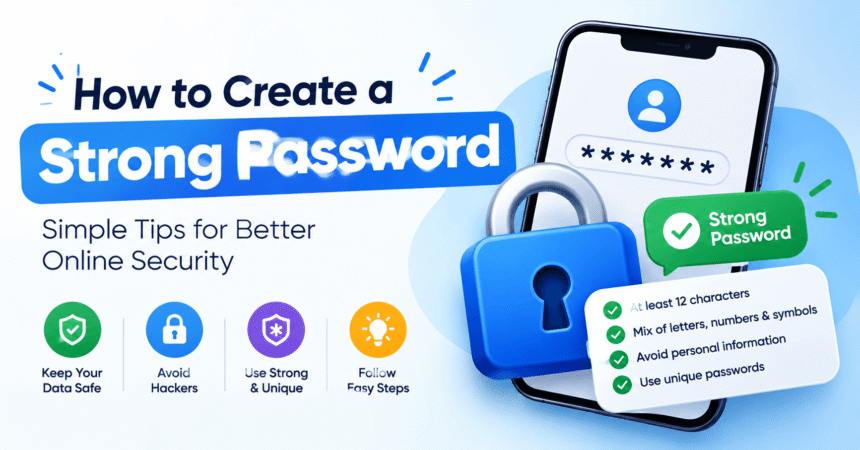
How to create a strong password: make it long (at least 16 characters), random or built from several unrelated words, and unique for every account. The easiest method is to let a password manager generate a random password for you, or to create a passphrase of five to seven unrelated words, such as horse-purple-lantern-bacon-river-shoes. Never reuse a password, never build it from your name, birthday or phone number, and always add two-factor authentication on important accounts. This guide explains exactly how to do it, step by step, in plain language.
Last updated: October 2026. Recommendations in this article follow current guidance from the US Cybersecurity and Infrastructure Security Agency (CISA) and the National Institute of Standards and Technology (NIST).
Quick Answer: What Makes a Password Strong?
A strong password has three qualities. If a password is missing even one of them, it is weaker than it looks.
- Long: at least 16 characters. Every extra character multiplies the time an attacker needs to guess it.
- Random or unpredictable: not a real word on its own, not a pattern like Qwerty123!, and nothing connected to your personal life.
- Unique: used on one account only. If one website is hacked, your other accounts stay safe.
CISA gives the same three-part rule in its Secure Our World guide to strong passwords: long, random and unique, with a password manager doing the remembering for you.
Why Strong Passwords Matter
Most account takeovers do not happen because a hacker is clever. They happen because a password was short, reused or already leaked. Attackers use automated tools that try millions of guesses per second, and they also try passwords that were exposed in earlier data breaches on other websites. This second method is called credential stuffing, and it works whenever someone reuses the same password in several places.
A weak password can lead to stolen social media accounts, drained bank or wallet balances, hijacked email (which then unlocks every other account through “forgot password” links) and identity theft. That is why password strength is the first item on every security checklist, including our guide to account privacy settings.
How to Create a Strong Password: Step by Step
Follow this simple process. It takes less than five minutes and works for any website or app.
- Decide how you will store it. If you will use a password manager, let it generate the password. If you must remember it (for example, your phone lock or your password manager’s master password), use a passphrase.
- Pick a length of 16 characters or more. For your most important accounts, such as email and banking, go to 20 or more.
- Choose your method. Use either a random string of letters, numbers and symbols, or a passphrase of five to seven unrelated words.
- Make it unique. Check that you have never used it anywhere else.
- Save it securely. Store it in a reputable password manager, not in a notes app, a screenshot or a sticky note on your monitor.
- Turn on two-factor authentication. A strong password plus a second step is far harder to break than a password alone.
Method 1: Use a Password Manager to Generate Random Passwords
This is the strongest and easiest option for most people. A password manager creates a long, random password, saves it in an encrypted vault and fills it in automatically when you log in. You only remember one strong master password.
A random password looks like this: cXmnZK65rf*&DaaD. That is an example only. Never use an example from the internet as your real password, because attackers add published examples to their guessing lists.
Good password manager options
- Bitwarden: open-source, with a strong free plan. We also include it in our list of useful Android apps.
- Google Password Manager: built into Chrome and Android. It can create strong passwords, autofill them and warn you about leaked or reused ones. See our Android phone tips for where to find it.
- Apple Passwords: built into iPhone, iPad and Mac, with the same generate, fill and warn features.
- 1Password and Dashlane: paid options with polished apps and family plans.
Whichever you choose, protect the manager itself with a long passphrase and two-factor authentication. If you want other apps that keep your digital life organized, see our roundup of productivity tools.
Method 2: Create a Passphrase You Can Remember
A passphrase is a password made from several words. Because it is long, it is very hard to guess, yet it is much easier to remember than a jumble of symbols. Use it for the few passwords you cannot store in a manager: your device login, your email, and your password manager’s master password.
How to build a good passphrase
- Pick five to seven random words that have no connection to each other. Do not choose a famous quote, song lyric or movie line.
- Join them with hyphens, spaces or numbers, for example lantern-orbit-pepper-seven-cloud-violin.
- Optionally misspell one word or add a number in the middle to make it less predictable.
- Say it out loud a few times or picture a short silly story linking the words, so it sticks in your memory.
The words must really be random. Pulling words from a dice-based word list or from a password manager’s passphrase generator is better than choosing words you like, because humans are very predictable.
Strong vs Weak Password Examples
| Password type | Example | Verdict |
|---|---|---|
| Common number sequence | 123456 | Cracked instantly |
| Common word with a symbol | Password@1 | Very weak, on every attacker’s list |
| Name plus birth year | Ahmed1998! | Weak, easy to guess from social media |
| Keyboard pattern | Qwerty123! | Weak, a known pattern |
| Short random string | x7!Kp2 | Too short even though it looks random |
| Passphrase of unrelated words | lantern-orbit-pepper-seven-cloud-violin | Strong and memorable (example only) |
| Long random string | Generated by a password manager | Very strong |
Remember that the examples above are for learning. Create your own and never copy one.
12 Rules for a Strong Password
1. Make it at least 16 characters
Length matters more than complexity. A 16-character passphrase of plain words is stronger than an 8-character password full of symbols.
2. Use a different password for every account
Reuse is the biggest everyday mistake. One breach at a small website can unlock your email, social media and shopping accounts if the password is the same.
3. Avoid personal information
Do not use your name, nickname, birthday, phone number, pet’s name, city or favorite team. Attackers check your public profiles first.
4. Avoid common words and patterns
Words like password, welcome, iloveyou and keyboard runs such as qwerty or asdfgh appear on the first lines of cracking lists.
5. Do not rely on simple substitutions
Replacing a with @ or o with 0 does not fool modern tools. They already test these swaps automatically.
6. Use a password manager
You cannot remember dozens of long, random passwords, and you should not try. Let software do it.
7. Turn on two-factor authentication (2FA)
2FA asks for a second proof, such as a code from an authenticator app. Even if someone learns your password, they cannot log in without it. We explain how to turn it on in our technology tutorials.
8. Prefer passkeys where they are offered
Passkeys replace passwords with a cryptographic key stored on your device and unlocked by your fingerprint, face or screen lock. They cannot be phished in the usual way. You can learn more at the FIDO Alliance passkeys page. If a site offers a passkey, using it is a smart upgrade, and a strong password remains a good backup.
9. Check whether your password has leaked
The free service Have I Been Pwned lets you check whether your email address appeared in a known data breach. If it did, change the password for that site and any other site where you used it.
10. Never share passwords or codes
No real company, bank or support agent will ask for your password or a one-time code by message, phone or email. Treat such requests as scams.
11. Be careful on shared or public devices
Avoid logging in to sensitive accounts on public computers. If you must, use a private window, never save the password and log out fully afterwards.
12. Update only when needed
You do not need to change a strong, unique password every few months. Change it when you suspect a breach, when a site tells you it was hacked, or when you shared it with someone.
How Often Should You Change Your Passwords?
Older advice said to change passwords every 60 or 90 days. Current guidance has moved away from that. NIST’s digital identity guidelines (SP 800-63B) advise against forcing regular changes, because people respond by making small, predictable edits like adding a number at the end. The better rule is to use a long, unique password and change it only if there is evidence it was exposed.
Exceptions: change it immediately if you see a login alert you do not recognize, a company announces a breach, or you typed it on a device you do not trust.
How Long Does It Take to Crack a Password?
The exact time depends on the attacker’s hardware and how the website stores passwords, so any table of numbers is only an estimate. The general pattern is reliable, though:
- Short passwords (under 8 characters) can often be cracked in seconds to minutes.
- Common passwords and predictable patterns fall almost instantly, whatever their length.
- Each additional random character makes cracking dramatically harder.
- Passwords of 16 or more truly random characters, or passphrases of five to seven random words, are far beyond practical reach for most attackers.
This is why length and randomness beat clever tricks.
Common Password Mistakes to Avoid
- Using the same password everywhere or the same one with a number added at the end.
- Saving passwords in your browser without a device lock. If someone can open your phone or laptop, they can open your saved passwords.
- Writing passwords in a notes app, email draft or screenshot. These are the first places a thief looks.
- Answering security questions truthfully. Facts like your mother’s maiden name can be found online. Use random answers stored in your password manager.
- Ignoring your email password. Your email can reset almost every other account, so it deserves your strongest password and 2FA.
- Clicking login links in messages. Phishing pages copy real login screens. Type the website address yourself or use the official app.
Which Accounts Need the Strongest Passwords?
Protect these first, in this order:
- Your main email accounts. They can reset all others.
- Your password manager.
- Banking, payment and wallet apps.
- Your phone and computer sign-ins (Apple ID, Google account, Microsoft account).
- Social media accounts such as Instagram, Facebook, WhatsApp and TikTok, which attackers use to scam your friends and family.
- Cloud storage and work tools, especially those holding private documents. Our guide to web apps explains how to use them safely.
Even your Wi-Fi network needs a strong password, because anyone who joins it can try to reach your devices. If your connection is acting up after a change, our Wi-Fi troubleshooting guide can help.
What to Do If Your Password Is Stolen or Leaked
- Change the password immediately on the affected site, using a new, unique one.
- Change it everywhere else you used the same or a similar password.
- Turn on two-factor authentication if it was not already on.
- Log out of all devices from the account’s security settings and review recent activity.
- Check your email for forwarding rules or recovery changes you did not make.
- Watch for scams. Leaked emails and phone numbers are often used for phishing.
- Consider deleting accounts you no longer use. Old, forgotten accounts are easy targets. If you want to close an Instagram profile, follow our guide on how to delete an Instagram account.
For a wider device check-up, read our tech troubleshooting guide.
Strong Password Checklist
| Check | Yes / No |
|---|---|
| At least 16 characters long | Yes |
| Random or made from unrelated words | Yes |
| Not used on any other account | Yes |
| No names, dates or personal details | Yes |
| Stored in a password manager | Yes |
| Two-factor authentication turned on | Yes |
| Not found in a known data breach | Yes |
Frequently Asked Questions About Strong Passwords
What is a strong password?
A strong password is long (16 characters or more), random or made from unrelated words, and used for only one account. It does not contain personal details and is stored safely, ideally in a password manager.
How many characters should a strong password have?
Aim for at least 16 characters. For email, banking and your password manager, 20 or more is better. Longer is always stronger.
Is a passphrase better than a password?
For passwords you must remember, yes. A passphrase of five to seven random words is long and memorable. For everything else, a manager-generated random password is the best choice.
Do I need special characters in my password?
Not necessarily. Length and randomness matter more than symbols. Many experts now prefer a long passphrase over a short password packed with symbols, although symbols do add some strength when the password is random.
What is the best way to remember strong passwords?
Do not try to remember them all. Use a password manager and memorize only one strong master passphrase.
Is it safe to use a password generator?
Yes, if it comes from a trusted source such as a reputable password manager or your phone’s built-in password tool. Avoid unknown websites that generate passwords, because you cannot tell what they store.
Are password managers safe?
Reputable password managers encrypt your vault so that only you can open it. They are considered much safer than reusing passwords or storing them in notes. Protect yours with a long master passphrase and 2FA.
Should I save passwords in my browser?
Browser managers from Google, Apple and others are acceptable, especially compared with reusing passwords, provided your device is locked with a PIN, fingerprint or face unlock and your account has 2FA.
How do I know if my password has been hacked?
Check your email address at Have I Been Pwned, review the security alerts in your password manager, and watch for login notifications you did not trigger. If in doubt, change the password.
What is the difference between 2FA and a passkey?
2FA adds a second step, such as a code, after your password. A passkey replaces the password with a secure key on your device. Both improve security, and passkeys are generally harder to phish.
Can I use the same password with small changes?
No. Attackers try common variations automatically, so MyPass1, MyPass2 and MyPass3 are effectively the same password.
What should I do about a password I already use everywhere?
Start with your email, bank and main social media accounts and replace those first. Then work through the rest over the next few weeks, using a password manager to speed things up.
Final Thoughts
Learning how to create a strong password is one of the simplest and most valuable security habits you can build. Remember the formula: long, random, unique. Let a password manager generate and store your passwords, use a memorable passphrase for the few you must remember, and turn on two-factor authentication or passkeys wherever you can. Start today with your email account, then move on to your banking and social media accounts. A single afternoon of effort now can save you from account takeovers, scams and a lot of stress later.
Tip: Share this guide with parents, grandparents and teens. They are common targets for scammers, and a strong password is the easiest protection you can give them.