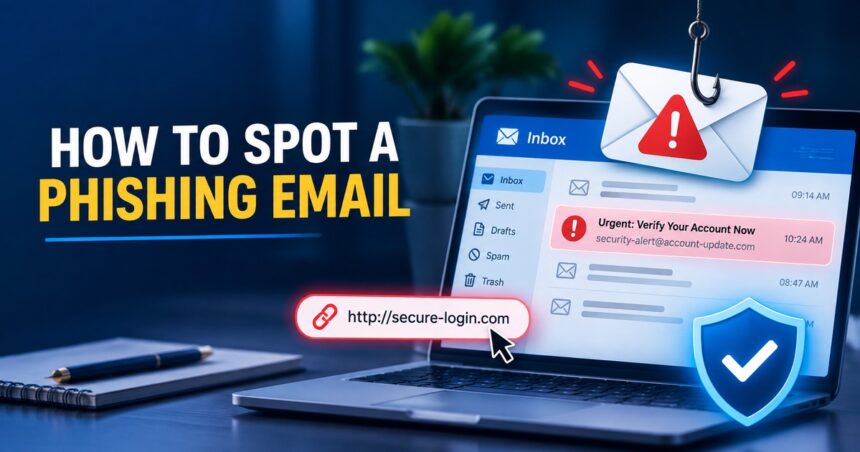
How to spot a phishing email: check the sender’s real address, look for urgency or threats, hover over links without clicking to see where they really go, be suspicious of unexpected attachments, and watch for requests for passwords, codes, payments or personal details. A genuine company will not pressure you to act immediately or ask for your password by email. If an email feels wrong, do not click anything. Go to the official website or app by typing the address yourself, or contact the company using a phone number you already trust. This guide shows the 12 warning signs, real-world examples, and exactly what to do if you already clicked.
Last updated: October 2026. Guidance follows recommendations from the US Cybersecurity and Infrastructure Security Agency (CISA) and the US Federal Trade Commission (FTC).
Quick Answer: What Is a Phishing Email?
A phishing email is a fake message that pretends to come from a trusted source, such as a bank, delivery company, employer, government office or popular website. Its goal is to trick you into clicking a malicious link, opening an infected attachment, or giving away sensitive information like passwords, card numbers and one-time codes. Phishing is one of the most common ways accounts and money are stolen, because it targets people, not technology.
Why Phishing Emails Are Getting Harder to Spot
Old phishing emails were full of spelling mistakes and awkward grammar. Today, criminals use better writing tools, copy real logos and layouts, and personalize messages with your name, employer or recent purchases. Some even use AI to write convincing text in many languages. This means you can no longer rely on spelling errors alone. You need to check the sender, the link, the request and the pressure being applied.
The consequences of falling for phishing include stolen social media and email accounts, drained bank or wallet balances, identity theft, and malware that locks your files. Strong habits protect you, and they work together with strong account security. Our guide on how to create a strong password explains the other half of the defense.
12 Signs of a Phishing Email
1. The sender’s address does not match the organization
The display name can say “PayPal Support” or “Your Bank”, but the actual email address may be something like support@paypal-security-help.com or a random Gmail address. Click or tap the sender’s name to see the full address. Look for tiny spelling changes such as micros0ft.com or amaz0n-orders.net, extra words in the domain, and unusual endings.
2. Urgent or threatening language
Phishers want you to act before you think. Phrases like “Your account will be closed in 24 hours”, “Unusual activity detected”, “Final warning” or “Payment failed, act now” are red flags. Real companies give you time and offer more than one way to contact them.
3. Generic greetings
“Dear customer”, “Dear user” or “Dear account holder” suggests a mass mailing. Be aware that some phishing emails do use your real name, so a personal greeting does not prove safety.
4. Links that do not go where they claim
On a computer, hover your mouse over a link without clicking and read the address that appears at the bottom of the window. On a phone, press and hold the link to preview it. If the address does not match the company’s real website, do not open it. Beware of shortened links and addresses that put the real brand name in the wrong place, such as paypal.com.secure-login.example.net, where the real domain is the last part before the first slash.
5. Unexpected attachments
Be very careful with attachments you did not request, especially invoices, shipping documents, “scanned” files, voice messages and files with extensions such as .zip, .html, .iso, .exe, .scr or Office files that ask you to “enable macros” or “enable content”. A PDF can also contain malicious links. If you must check a document, confirm with the sender through a separate channel first. If you are converting or opening PDFs from unknown senders, read our guide on how to convert PDF to Word for safe handling tips.
6. Requests for passwords, codes or personal data
A legitimate company will never ask you to send your password, PIN, full card number or a one-time code by email, text or phone. If an email says “verify your account” and sends you to a login page, treat it as phishing until proven otherwise.
7. Requests for money or gift cards
Emails that ask for wire transfers, gift cards, crypto or urgent payments, especially from a “boss”, “relative” or “vendor” with new bank details, are classic business email compromise and impersonation scams. Always verify by calling a known number.
8. Too good to be true offers
Surprise prizes, lottery wins, refunds you did not expect, inheritance claims, free gadgets and job offers with unusually high pay are bait. If you did not enter a contest, you cannot win it.
9. A mismatch between the “from” and “reply-to” address
Some phishing emails look like they came from a trusted address but are set to send your reply to the attacker. If the reply address looks different from the sender, stop and verify.
10. Poor design, odd formatting or strange logos
Blurry logos, wrong colors, mismatched fonts and a footer with a strange address can show that an email was copied. Do not rely only on appearance, because good fakes look perfect.
11. Unusual timing or context
Be suspicious if an email arrives from a service you do not use, mentions an order you never placed, or comes at an odd time with a strange request. Context is one of your best tools. Ask yourself: Was I expecting this?
12. QR codes in emails or attachments
Attackers hide malicious links behind QR codes (“quishing”) so that email filters cannot see them. Scanning sends you to a fake login page on your phone. Do not scan QR codes from unexpected emails, and check the address your phone shows before opening it.
Phishing Email vs Real Email: Quick Comparison
| Check | Real email | Phishing email |
|---|---|---|
| Sender address | Matches the official domain | Odd domain, misspelling or free email service |
| Tone | Calm and professional | Urgent, threatening or too friendly |
| Links | Lead to the official site | Lead to a lookalike or shortened address |
| Request | Tells you to log in through the official app or website | Asks for passwords, codes or payment through the email |
| Attachment | Expected and from a known source | Unexpected invoice, zip or macro-enabled file |
| Greeting | Uses your name or account info they should know | “Dear customer” or a name that is slightly wrong |
| Contact options | Several ways to reach support | Only one link or reply address |
Common Phishing Email Examples
Fake bank or payment alert
“We detected suspicious activity. Confirm your identity within 12 hours or your account will be suspended.” The link opens a lookalike login page that steals your username and password. In some regions, scammers also copy mobile wallet and money-transfer services.
Delivery or parcel scam
“Your package could not be delivered. Pay a small fee to reschedule.” The payment page steals your card details.
Fake invoice or purchase confirmation
“Your order of $499.99 has been processed. See the attached invoice.” The attachment contains malware, or a phone number leads you to a scam call center.
Account security alert
“Someone logged in from a new device.” The link leads to a fake sign-in page. This type often copies Google, Microsoft, Apple, Instagram or Facebook. If you use these services, review your settings with our guides on Instagram privacy settings and Facebook privacy settings.
Boss or colleague request
“Are you at your desk? I need a quick favor.” This is the start of a gift card or payment scam using a spoofed or hacked account.
Fake job or scholarship offers
Messages that ask for a fee, a passport copy or bank details before an interview are almost always scams.
Types of Phishing You Should Know
- Mass phishing: the same fake email sent to millions of people.
- Spear phishing: a personalized message aimed at one person, often using details from social media or LinkedIn.
- Whaling: spear phishing aimed at executives or finance staff.
- Clone phishing: a copy of a real email you received before, with the link or attachment swapped for a malicious one.
- Business email compromise (BEC): an attacker poses as a boss or supplier to redirect payments.
- Smishing: phishing by SMS or messaging apps. See our WhatsApp privacy settings guide to lower your exposure.
- Vishing: phishing by phone call, often with a spoofed caller ID.
- Quishing: phishing through QR codes.
How to Check an Email Step by Step
- Pause. Do not click anything while you feel rushed.
- Check the sender. Open the full email address and compare it with the company’s official domain.
- Read the message calmly. Ask what the email wants you to do. Is it asking for a login, a payment or a download?
- Hover over every link. Compare the real address with what the text says.
- Inspect attachments carefully. If you did not expect the file, do not open it.
- Look at the email’s technical details. In Gmail, open the three-dot menu and choose Show original to see whether SPF, DKIM and DMARC checks passed. A failure is a strong warning sign, although a pass does not guarantee safety.
- Verify independently. Open the official website by typing the address, or use the official app, and check your account there. Or call the number printed on your card or the company’s real site.
- Search for the message. Copy a unique phrase into a search engine. Many scams are already reported.
- Report and delete it. Reporting helps protect others.
What to Do If You Clicked a Phishing Link
Do not panic. Acting quickly limits the damage.
- Disconnect if you downloaded a file. Turn off Wi-Fi or unplug the network cable to stop malware from communicating.
- Do not enter any more information. If you only clicked the link and left the page, the risk is lower, but you should still run a scan.
- Change your passwords right away. Start with the affected account, then your email, using a clean device. Use a unique, long password, and read our guide to creating a strong password.
- Turn on two-factor authentication or passkeys everywhere you can.
- Run a full security scan. Use Windows Security or a reputable antivirus. If your device acts strangely, see our tech troubleshooting guide.
- Contact your bank or card provider if you entered financial details. Ask them to block cards and watch for unusual transactions.
- Log out of all devices and review recent activity and recovery options in the affected accounts.
- Check for email rules. Attackers sometimes add forwarding rules to your mailbox to keep seeing your messages.
- Warn contacts if your account sent messages you did not write.
- Monitor your identity. Check whether your email appears in known breaches at Have I Been Pwned.
- Report the incident (see below).
How to Report Phishing Emails
- In your email app: Gmail has Report phishing in the three-dot menu, and Outlook has a Report option. Reporting improves filters for everyone.
- Your organization: forward suspicious work emails to your IT or security team.
- Anti-Phishing Working Group: forward phishing emails to reportphishing@apwg.org. Learn more at apwg.org.
- United States: report scams to the FTC at ReportFraud.ftc.gov. See also the FTC guide on how to recognize and avoid phishing scams.
- Pakistan: cybercrime complaints can be made to the FIA’s National Response Centre for Cyber Crimes (NR3C). Check the site for the current complaint process and helpline.
- The impersonated company: many banks and platforms have a dedicated address for reporting fake emails.
CISA also publishes a clear guide, Recognize and Report Phishing, which is worth bookmarking.
How to Protect Yourself From Phishing
Habits that help
- Never click links in unexpected emails. Go to the website yourself.
- Do not share one-time codes with anyone, ever.
- Use a password manager. It will not autofill your password on a fake site, which is a useful warning.
- Use two-factor authentication, and passkeys when available.
- Keep your phone, computer, browser and apps updated. Our Windows 11 tips cover update settings.
- Limit what you share publicly. Scammers use your profile to personalize messages, so review your account privacy settings.
- Be careful on public Wi-Fi and with unknown web tools, including free file converters. Our guide to web apps explains how to use them safely.
Tools that help
- Spam and phishing filters in Gmail, Outlook and your email provider.
- Browser safe-browsing protection and up-to-date antivirus.
- Email authentication results (SPF, DKIM, DMARC) if you manage your own domain.
- Security training and phishing simulations for teams and families.
Phishing Safety Checklist
| Before you click | Yes / No |
|---|---|
| Was I expecting this email? | Yes |
| Does the sender address match the real organization? | Yes |
| Does the link show the real website when I hover over it? | Yes |
| Is the message calm, without threats or a rush? | Yes |
| Is it free of requests for passwords, codes or payments? | Yes |
| Is any attachment expected and safe? | Yes |
| Have I verified through the official app or website? | Yes |
If any answer is “No”, stop and verify before you do anything else.
Frequently Asked Questions About Phishing Emails
How can I tell if an email is a phishing email?
Check the sender’s real address, look for urgent or threatening language, hover over links to see their true destination, and be suspicious of unexpected attachments or requests for passwords, codes or payments. When in doubt, contact the company through its official website or app.
What are the most common signs of a phishing email?
The most common signs are a mismatched sender address, urgent language, generic greetings, suspicious links, unexpected attachments, requests for sensitive information, offers that seem too good to be true, and unusual payment requests.
Can you get a virus by just opening a phishing email?
Usually no. Most harm happens when you click a link, open an attachment or enter information. Modern email apps block most automatic threats, but keep your software updated and avoid interacting with suspicious messages.
What happens if I click on a phishing link but do nothing else?
Often nothing serious, but some pages try to run scripts or trick you into downloading files. Close the page, do not enter any details, run a security scan and change your password if you are unsure.
What should I do if I entered my password on a phishing site?
Change that password immediately on the real site and anywhere else you reused it, turn on two-factor authentication, log out of all sessions and check for unusual activity.
How do I check if a link is safe?
Hover over it to read the real address, do not trust shortened links from unknown senders, and type the company’s address manually instead. Use your browser’s built-in protection and avoid logging in through email links.
Can phishing emails come from real email addresses?
Yes. Attackers can spoof addresses or hack genuine accounts, so a familiar sender does not guarantee safety. If a message from a known person feels odd, confirm by phone or another channel.
How do I report a phishing email in Gmail?
Open the email, click the three dots, and choose Report phishing. Gmail then helps protect other users.
How do I report a phishing email in Outlook?
Select the message, then use the Report option in the toolbar and choose Phishing. Your organization may have its own reporting button.
Why do I get so many phishing emails?
Your address may have appeared in a data breach or on a public website, or scammers may be guessing common addresses. Use unique email aliases where possible, keep filters turned on, and avoid replying to spam.
Is a phishing email always full of spelling mistakes?
No. Modern phishing emails can be well written. Do not use spelling as your only test. Focus on the sender, the links, the request and the pressure.
What is the difference between phishing and spam?
Spam is unwanted bulk email, usually advertising. Phishing is a deliberate attempt to steal information or money. Some spam is also phishing.
Can phishing happen on WhatsApp, SMS and social media?
Yes. Smishing, fake profiles, fake giveaways and impersonation messages are common. The same rules apply: do not click, verify through official channels and report the message.
Final Thoughts
Knowing how to spot a phishing email is one of the most valuable digital skills you can learn. Pause before you click, check the sender, hover over links, distrust urgency and never share passwords or codes. If something looks suspicious, verify through the official website or app, report it and delete it. If you already clicked, move fast: change passwords, enable two-factor authentication, scan your device and contact your bank if money is involved. A few seconds of care can protect your accounts, your money and your identity.
Tip: Share this guide with family members, especially parents and teenagers. They are frequent targets. For more practical help, browse our technology tutorials.