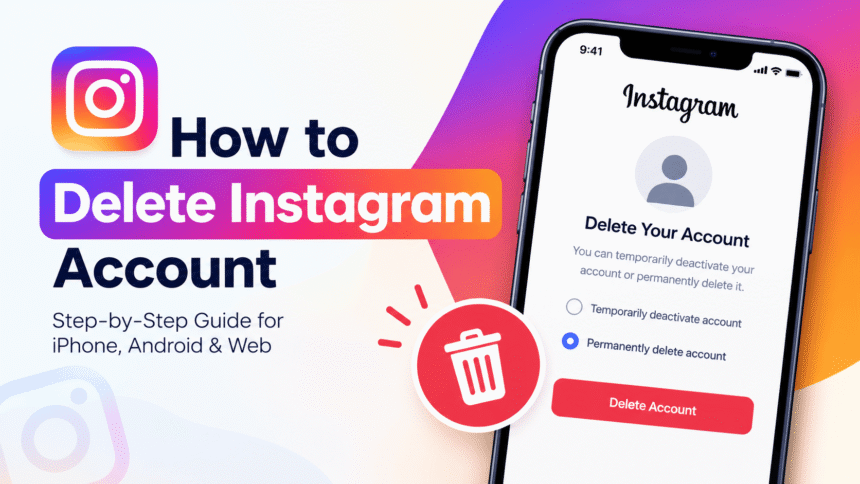
How to delete an Instagram account: open Instagram, go to Settings and privacy > Accounts Center > Personal details > Account ownership and control > Deactivation or deletion, choose your Instagram account, select Delete account, tap Continue, pick a reason, re-enter your password and confirm. Instagram then hides your profile and permanently deletes it after 30 days. If you only want a break, you can deactivate your account instead, which hides it temporarily and lets you come back by logging in. This guide covers both options for iPhone, Android and web, what happens to your data, and what to do before you press the button.
Last updated: October 2026. Instagram renames menus from time to time. If a label looks different on your phone, use the search bar inside Settings and privacy or check the official Instagram Help Center page on deleting your account.
Quick Answer: How Do I Delete My Instagram Account?
- Log in to the account you want to delete. Instagram cannot delete an account for you if you cannot log in.
- Tap your profile picture, then the menu icon (three lines).
- Tap Settings and privacy, then Accounts Center.
- Tap Personal details, then Account ownership and control.
- Tap Deactivation or deletion and select your Instagram account.
- Choose Delete account and tap Continue.
- Select a reason, enter your password and confirm the deletion.
Your account is hidden right away. If you do not log back in for 30 days, it is permanently deleted.
Delete vs Deactivate: Which Should You Choose?
Many people search for how to delete an Instagram account when what they really want is a break. The two options are very different, so choose carefully.
| Feature | Deactivate (temporary) | Delete (permanent) |
|---|---|---|
| Is your profile hidden? | Yes, immediately | Yes, immediately |
| Are posts, followers and messages kept? | Yes, restored when you return | No, removed after the waiting period |
| Can you undo it? | Yes, by logging in again | Only within 30 days, by logging in |
| Can you get your data back afterwards? | Yes | No, once the account is permanently deleted |
| Best for | A social media break or exam season | Leaving Instagram for good |
Rule of thumb: if you might want your photos, followers or username again, deactivate first. If you are sure, delete.
What to Do Before You Delete Your Instagram Account
Deletion cannot be reversed after the waiting period, so spend ten minutes on this checklist first.
1. Download a copy of your data
Once the account is gone, you will not have access to Instagram’s data download tool. Before you delete, request a copy of your photos, videos, Reels, Stories, messages and comments.
- Go to Settings and privacy > Accounts Center.
- Tap Your information and permissions, then Download your information.
- Choose your Instagram account, select what you want (everything or specific items), and pick a format such as HTML or JSON.
- Instagram emails a download link when the file is ready. This can take from a few minutes to a few days, so request it early.
2. Check apps where you log in with Instagram
Some games, shopping sites and creative tools let you sign in with Instagram. If you delete the account, you may lose access to them. Open each one and switch to an email login first. Then review your app permissions, as explained in our guide to account privacy settings.
3. Understand how Facebook and Meta accounts are linked
Instagram and Facebook share a hub called Accounts Center. Deleting an Instagram account does not delete your Facebook account, but if you used Facebook to log in to Instagram, you should confirm you can still log in to both separately. Our Facebook privacy settings guide shows how to review your Facebook security afterwards.
4. Tell people where to find you
Instagram does not announce your departure. If friends, customers or clients rely on your account, post your new contact details or another platform in a final Story or post before you leave.
5. Save your username decisions
If you are deleting an account to create a fresh one, remember that your old username may not be easily available again. If you care about the name, consider deactivating or renaming instead.
6. Business and creator accounts
If you run ads, a shop or a linked Facebook Page, check payments, subscriptions and connected tools before deleting. Download your insights and customer messages first.
How to Delete Your Instagram Account on iPhone and Android (App)
The steps are almost identical on both phones.
- Open the Instagram app and log in.
- Tap your profile picture in the bottom-right corner.
- Tap the menu icon (three lines) in the top-right corner.
- Tap Settings and privacy, then Accounts Center.
- Tap Personal details.
- Tap Account ownership and control, then Deactivation or deletion.
- Select the Instagram account you want to remove if you have several linked.
- Choose Delete account and tap Continue.
- Select a reason from the menu, enter your password, and confirm.
The final delete button appears only after you choose a reason and type your password. If you cannot find the option inside the app, use the browser method below.
How to Delete Your Instagram Account on a Computer or Mobile Browser
- Open a web browser and go to Instagram’s Delete Your Account page, logging in if asked.
- Select the reason for leaving from the drop-down list.
- Re-enter your password.
- Click Delete [your username] and confirm.
This method is useful if the app does not show the delete option, or if you are using an older version of the app. If you are not sure the page is real, type the address yourself rather than clicking links from emails or messages, because fake Instagram pages are a common phishing trick.
How to Temporarily Deactivate Your Instagram Account
Deactivating is the safer choice if you are unsure. Your profile, photos, comments and likes are hidden until you reactivate.
- Go to Settings and privacy > Accounts Center > Personal details > Account ownership and control.
- Tap Deactivation or deletion and choose your account.
- Select Deactivate account and tap Continue.
- Choose a reason, enter your password and confirm.
To come back, simply log in again. Instagram may limit how often you can deactivate an account, so do not treat it as a daily on-off switch. If you are taking a break because of stress or too many notifications, you can also use built-in tools such as mute, limits and notification controls, which we cover in our guide to Instagram privacy settings.
What Happens After You Delete Your Instagram Account?
Here is the timeline, based on Instagram’s official guidance.
- Immediately: your profile, photos, videos, comments, likes and followers are no longer visible to other people.
- Days 1 to 30: your content still exists but is hidden. If you change your mind, log in and cancel the deletion request.
- After 30 days: your account and information are permanently deleted and you cannot retrieve them.
- Up to 90 days: the full deletion process can take this long, and copies may remain for a time in backup storage used for disaster recovery.
Messages you sent to other people may still appear in their inboxes, because those conversations also belong to the other person. Comments you left on other people’s posts are removed with your account.
Can I recover a deleted Instagram account?
Yes, but only within the 30-day waiting period. Log in with your username and password and follow the prompts to cancel the deletion. After 30 days there is no recovery, and Instagram support cannot bring the account back.
Will my followers be notified?
No. Instagram does not send a notification to your followers when you delete or deactivate your account. They will simply find that your profile is no longer available.
How to Delete an Instagram Account Without a Password
Instagram says it cannot delete an account for you for security reasons, so you must be able to log in. If you forgot your password, reset it first.
- On the login screen, tap Forgot password?
- Enter your username, email address or phone number.
- Follow the link or code sent to you, and create a new password.
- Log in and follow the delete steps above.
When creating the new password, make it long and unique. Our guide on how to create a strong password explains a simple method, and the CISA password guidance recommends at least 16 characters.
What If You Cannot Log In or the Account Was Hacked?
If someone else controls your account, do not rush to delete it. Deleting a hacked account may make it harder to prove ownership and recover your photos and contacts. Try these steps first:
- Use the Forgot password and Need more help? options on the login screen.
- Check your email for messages from Instagram about a changed email or phone number, and use the link to undo the change if available.
- Visit the Instagram Help Center and follow the hacked account recovery steps.
- Once you regain control, change your password, turn on two-factor authentication and log out of unknown devices.
- Then decide whether to delete the account.
How to Delete an Instagram Account Created Through Facebook
If you signed up for Instagram with Facebook, you can still delete Instagram on its own. The steps are the same: open Accounts Center, choose the Instagram account, and select Delete account. Your Facebook profile stays active unless you delete it separately. If you use the same email or login for both, double-check which account you are choosing on the final screen.
How to Delete One Instagram Account If You Have Several
Instagram lets you link multiple accounts in Accounts Center. When you reach Deactivation or deletion, pick the specific account from the list. Make sure the username at the top of the confirmation screen is the one you want to remove. Deleting one account does not delete the others.
After Deleting: Clean Up Your Digital Footprint
Deleting Instagram is a good moment to tidy the rest of your online presence.
- Remove Instagram from connected apps and other services that used it for login.
- Delete the app from your phone and clear saved logins from your browser.
- Review your other social accounts. Our guides to TikTok privacy settings and WhatsApp privacy settings help you lock down what you keep.
- Update your password manager by deleting the old Instagram entry.
- Search your name online to see whether old photos or posts of you remain elsewhere, and ask sites to remove them if needed.
- Follow a safe-account routine. Our technology tutorials show how to protect every account with strong passwords and two-factor authentication.
Common Problems When Deleting Instagram
The delete option is missing
Update the Instagram app, then try the browser method. Some versions move the option into Accounts Center, and some older screens show only the web page.
Instagram will not accept my password
Reset the password and try again. Make sure caps lock is off and that you are using the password for the right account.
I deleted the account but it still appears
Profiles can take a short time to disappear from search engines and cached pages. Your account is hidden inside Instagram almost immediately. Search results that show old snippets usually fade after the engines refresh.
I logged in during the 30 days by accident
Logging in may cancel the deletion request, and your account would return to normal. If this happens, repeat the delete steps and then stay logged out of all devices for the full 30 days.
If anything on your phone seems broken while you do this, our tech troubleshooting guide covers common fixes.
Frequently Asked Questions About Deleting Instagram
How do I delete my Instagram account permanently?
Go to Settings and privacy, then Accounts Center, Personal details, Account ownership and control, and Deactivation or deletion. Choose your account, select Delete account, give a reason, enter your password and confirm. It is permanently deleted after 30 days.
How long does it take to delete an Instagram account?
Your profile is hidden at once. Permanent deletion happens 30 days after your request, and the full removal of data can take up to 90 days.
What is the difference between deleting and deactivating Instagram?
Deactivating hides your profile temporarily and you can return by logging in. Deleting removes your profile, photos, videos, comments, likes and followers permanently after the waiting period.
Can I delete Instagram from the app?
Yes, through Accounts Center in most versions. If the option does not appear, use Instagram’s Delete Your Account page in a web browser.
Will deleting Instagram delete my Facebook account?
No. Facebook is a separate account. Deleting Instagram removes only the Instagram profile, although the two are linked in Accounts Center.
Can I get my photos back after deleting Instagram?
Not from Instagram once the account is permanently deleted. That is why you should download your information before you delete.
Does Instagram tell people when I delete my account?
No. Followers are not notified. They will see that your profile can no longer be found.
Can I delete my Instagram account without logging in?
No. Instagram needs you to log in to request deletion. If you forgot your password, reset it first, then delete.
Can I use the same username again after deleting?
It is not guaranteed. Someone else may claim the name once it is released. If you want to keep it, deactivate instead of deleting.
Is it better to deactivate or delete Instagram?
Deactivate if you want a break and may return. Delete if you are sure you want to leave permanently and have saved your data.
Can I delete someone else’s Instagram account?
No. You can only delete an account you can log in to. If you see an impersonation, fake or abusive account, report it through Instagram’s reporting tools instead.
How do I delete my child’s Instagram account?
If you can log in to the child’s account with their permission, use the same steps. If you cannot, and the account belongs to a child under the minimum age, use the reporting options in the Instagram Help Center.
Final Thoughts
Knowing how to delete an Instagram account puts you back in control of your data and your time online. Start by deciding whether you want a break (deactivate) or a clean exit (delete). Download your information, move any logins that depend on Instagram, then follow the steps in Accounts Center and stay logged out for 30 days. Afterwards, use the moment to strengthen your remaining accounts with unique passwords and two-factor authentication, and keep them private with our guides to Instagram privacy settings and account privacy settings.
Tip: Still not sure? Deactivate for a week first. If you do not miss it, come back and delete the account for good.