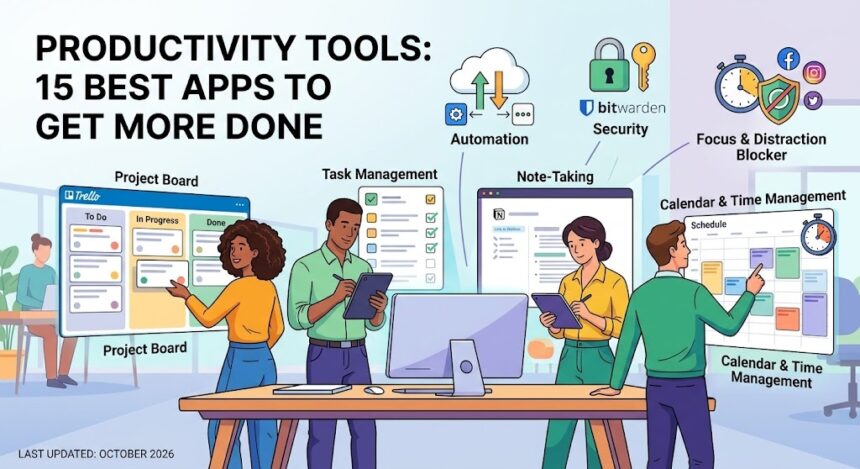
Productivity tools are apps and web services that help you plan tasks, take notes, manage time, collaborate with others and stay focused so you can finish more work with less stress. The best productivity tools for most people fall into six groups: task management apps, note-taking apps, calendar and time management tools, project management software, focus and distraction blockers, and automation tools. This guide explains what each group does, recommends 15 well-known tools, and shows how to build a simple system without drowning in apps.
Last updated: October 2026. Features and prices change often, so check each tool’s official website for current plans before you commit.
Quick Answer: What Are the Best Productivity Tools?
There is no single best tool, because the right choice depends on your work style. As a starting point:
- For tasks: Todoist, Microsoft To Do or TickTick.
- For notes: Notion, Obsidian or Google Keep.
- For time and calendar: Google Calendar and a simple time tracker such as Toggl Track.
- For team projects: Trello or Asana.
- For focus: a timer app such as Forest or a site blocker.
- For safety: a password manager such as Bitwarden.
What Are Productivity Tools and Why Do They Matter?
Productivity tools reduce the mental load of remembering things. Instead of holding your to-do list, ideas and deadlines in your head, you store them in a trusted system. That frees your attention for the work itself. The right setup can help you:
- See all your tasks and deadlines in one place.
- Capture ideas quickly before you forget them.
- Protect time for deep work.
- Share progress with teammates, clients or classmates.
- Repeat routine tasks automatically.
Remember that tools support good habits but do not replace them. A messy system in a fancy app is still a messy system.
Task Management Apps
Task management apps are digital to-do lists with extra features such as due dates, reminders, priorities, labels and recurring tasks. They are the foundation of most productivity systems.
1. Todoist
Todoist is a clean task manager that supports natural language input, so typing “pay rent every month” can create a repeating task. It works on web, desktop and mobile, and offers projects, labels and filters. Best for: people who want a fast, simple daily to-do list.
2. Microsoft To Do
Microsoft To Do is a straightforward list app with a “My Day” view for daily planning and integration with Outlook and other Microsoft services. Best for: people who already use Microsoft accounts.
3. TickTick
TickTick combines tasks, a calendar view, habit tracking and a built-in focus timer. Best for: people who want tasks and habits in one app.
Note-Taking Apps
Note-taking apps store ideas, meeting notes, research and reference material so you can search for them later. The best ones sync across devices and let you organise notes with tags or links.
4. Notion
Notion is a flexible workspace that mixes notes, databases, wikis and simple project boards. It has a learning curve, but templates help you get started. Best for: people who want one workspace for notes, plans and documents. We also mention it in our list of useful Android apps.
5. Obsidian
Obsidian stores notes as plain files on your device and lets you link notes together to build a personal knowledge base. Best for: students, writers and researchers who value privacy and long-term storage.
6. Google Keep
Google Keep is a quick, colourful sticky-note app with checklists, labels, reminders and voice notes. Best for: shopping lists and fast reminders.
Calendar and Time Management Tools
Time management tools help you decide when work will happen and show where your hours actually go.
7. Google Calendar
Google Calendar is the default choice for many people. It shows events, reminders and tasks, lets you share calendars, and supports time zones and meeting links. Best for: scheduling, appointments and shared calendars.
8. Toggl Track
Toggl Track is a one-click timer that records how long you spend on each project. Seeing real numbers helps you estimate better and spot time wasters. Best for: freelancers, students and anyone billing for time.
9. Clockify
Clockify is another time tracker with reports for individuals and teams. Best for: teams that want simple tracking and reports.
Project Management Software
Project management software is for work that involves several people, steps and deadlines. It shows who is doing what and when it is due.
10. Trello
Trello uses boards, lists and cards, much like sticky notes on a wall. Moving a card from “To do” to “Done” is easy and satisfying. Best for: small teams, personal projects and simple workflows.
11. Asana
Asana supports list, board and timeline views, task dependencies and team workloads. Best for: teams that need more structure than a simple board.
Focus and Distraction-Blocking Tools
12. Forest
Forest turns focus time into a game: you plant a virtual tree that grows while you stay off your phone, and it dies if you leave the app. Best for: students and people who struggle with phone habits.
13. Site and app blockers
Blockers such as Freedom or built-in features like Android’s Digital Wellbeing and Focus mode stop distracting sites and apps for a set period. Our Android phone tips explain how to set up Digital Wellbeing, and our Windows 11 tips cover Focus sessions on the PC. Best for: anyone who loses time to social media or video sites.
Automation and Security Tools
14. Zapier or IFTTT
These services connect apps so repeated tasks happen automatically, for example saving email attachments to cloud storage or adding form responses to a spreadsheet. Best for: people who repeat the same steps every day.
15. Bitwarden (password manager)
A password manager is a quiet productivity tool because it stops you from wasting time resetting passwords. Bitwarden is open source and works across browsers and phones. Best for: everyone. See our essential Windows software guide for more security tools.
Productivity Tools Comparison Table
| Tool | Category | Best for |
|---|---|---|
| Todoist | Task management | Fast daily to-do lists |
| Microsoft To Do | Task management | Microsoft users |
| TickTick | Tasks and habits | All-in-one personal planning |
| Notion | Notes and workspace | Notes, docs and databases |
| Obsidian | Notes | Linked personal knowledge |
| Google Keep | Quick notes | Lists and reminders |
| Google Calendar | Calendar | Scheduling and sharing |
| Toggl Track | Time tracking | Seeing where time goes |
| Trello | Project boards | Simple team workflows |
| Asana | Project management | Structured team projects |
| Forest | Focus | Reducing phone use |
| Zapier | Automation | Connecting apps |
| Bitwarden | Security | Password management |
Productivity Methods That Work With These Tools
A tool is only as useful as the method behind it. These four methods are simple and widely used.
- Pomodoro Technique: work in focused 25-minute blocks, followed by a 5-minute break. After four rounds, take a longer break.
- Time blocking: assign specific tasks to specific blocks on your calendar so work does not float around.
- Eisenhower Matrix: sort tasks by urgent and important to decide what to do now, schedule, delegate or drop.
- Getting Things Done (GTD): capture everything in an inbox, clarify what each item needs, organise it and review it weekly.
How to Choose the Right Productivity Tools
- Start with the problem: are you forgetting tasks, losing notes, missing deadlines or getting distracted? Pick a tool for that one problem.
- Choose one tool per job: one task app, one notes app, one calendar. Duplicate tools create confusion.
- Test the free plan: use it for at least a week before paying.
- Check device support: make sure the tool works on all devices you use. Many of these are web apps that open in any browser.
- Check export options: you should be able to take your data with you if you switch tools.
- Review privacy: read what the company stores and shares. Our account privacy settings guide explains how to secure your accounts.
How to Build a Simple Productivity System in 20 Minutes
- Collect: write down every task, idea and commitment in one task app or notebook.
- Sort: give each task a due date or label it as “someday”.
- Pick three priorities: choose the three most important tasks for tomorrow.
- Block time: put those three tasks on your calendar.
- Review: spend five minutes each evening and 15 minutes each week checking and updating the list.
Our technology tutorials also include step-by-step guides for setting up backups and securing accounts, which fit well into this routine.
Common Productivity Tool Mistakes to Avoid
- Tool hopping: switching apps every week is a form of procrastination. Stick with one system for at least a month.
- Over-complicating: too many labels, tags and projects make a list hard to use.
- Ignoring notifications settings: turn off alerts you do not need, or the tool becomes a distraction.
- Skipping reviews: a list you never check will quickly fall out of date.
- Weak security: use strong, unique passwords and two-factor authentication on every account that stores work or personal data.
Frequently Asked Questions About Productivity Tools
What are productivity tools?
Productivity tools are apps and services that help you organise tasks, notes, time and teamwork so you can complete work more efficiently. Examples include to-do apps, calendars, note apps and project boards.
What is the best productivity app for beginners?
A simple task app like Todoist or Microsoft To Do, combined with Google Calendar, is a good start. They are easy to learn and cover the basics of tasks and scheduling.
What are the best free productivity tools?
Many tools offer a useful free plan, including Google Calendar, Google Keep, Microsoft To Do, Trello and Notion. Free plan limits change, so check each website for the current offer.
What is the difference between task management and project management?
Task management focuses on individual to-do items, usually for one person. Project management tracks groups of tasks, deadlines and responsibilities for a team working toward a shared goal.
Which note-taking app is best?
It depends on your needs. Google Keep is best for quick notes, Notion for a full workspace and Obsidian for linked, privacy-focused notes stored on your device.
How do I stay focused while working?
Try the Pomodoro Technique, silence notifications, use a focus mode or blocker, and keep your phone out of reach. Plan your top three tasks the night before so you know where to begin.
Do productivity apps really work?
They help when they match your habits and when you use them consistently. They do not work if you spend more time managing the tool than doing the work.
How many productivity tools should I use?
Most people do well with three to five: a task manager, a notes app, a calendar, a password manager and optionally a focus tool. More tools usually means more confusion.
Are productivity tools safe for private information?
They can be, if you choose reputable providers, use strong passwords and turn on two-factor authentication. Avoid storing highly sensitive data such as passwords or ID numbers in plain notes.
What productivity tools do students use?
Students often use Google Calendar, Notion or Obsidian for notes, Todoist or TickTick for assignments, and focus tools such as Forest or Pomodoro timers.
Related Guides
- Web apps: what they are and how to use them
- 15 useful Android apps
- 10 essential Windows software programs
- YouTube settings to stay in control of your time
Final Thoughts
The best productivity tools are the ones you actually use. Start small: pick a task app, a notes app and a calendar, connect them with a simple weekly review, and add focus or automation tools only when a real problem appears. Protect your accounts with a password manager and two-factor authentication, and revisit your setup every few months. A calm, simple system will always beat a complicated one that you abandon after a week.
Tip: Choose one tool from this list today, set it up in ten minutes and use it for seven days before judging it.