

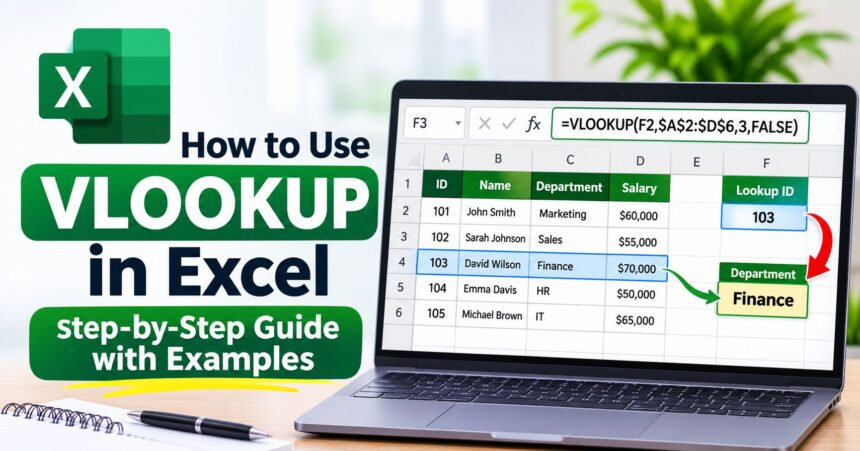
Quick answer: To use VLOOKUP in Excel, type =VLOOKUP(lookup_value, table_array, col_index_num, FALSE) in a cell. Excel searches the first column of your table for the lookup value and returns a value from the column number you choose, in the same row. Use FALSE as the last argument for an exact match.
VLOOKUP is one of the most useful Excel functions for anyone who works with lists, prices, student records, invoices or employee data. Instead of scrolling through hundreds of rows, you type one formula and Excel finds the answer for you. This guide explains what VLOOKUP is, how the formula works, how to use it step by step, how to fix common errors, and when a newer function such as XLOOKUP is a better choice.
What Is VLOOKUP in Excel?
VLOOKUP stands for Vertical Lookup. It is an Excel function that looks for a value in the first column of a table and returns a related value from another column in the same row. For example, if you have a list of employee IDs, you can use VLOOKUP to pull each person’s name, department or salary by typing only the ID.
VLOOKUP works in Microsoft Excel for Windows, Mac and the web, and a very similar function exists in Google Sheets. If you use Excel in a browser, our guide to web apps explains how browser versions of Office tools work.
VLOOKUP Formula Syntax
The VLOOKUP formula has four arguments:
=VLOOKUP(lookup_value, table_array, col_index_num, [range_lookup])
| Argument | What it means | Example |
|---|---|---|
| lookup_value | The value you want to find. It must be in the first column of the table. | F2 or 103 |
| table_array | The range of cells that contains your data. | $A$2:$D$6 |
| col_index_num | The column number in the table that holds the answer. The first column is 1. | 3 |
| range_lookup | FALSE for an exact match, TRUE for an approximate match. | FALSE |
Microsoft explains the same syntax on its official VLOOKUP function support page.
How to Use VLOOKUP in Excel: Step by Step
Here is a simple example. Imagine this employee table in cells A1 to D6:
| ID | Name | Department | Salary |
|---|---|---|---|
| 101 | Ayesha | Sales | 85000 |
| 102 | Bilal | Marketing | 72000 |
| 103 | Hina | Finance | 95000 |
| 104 | Usman | Sales | 68000 |
| 105 | Sara | HR | 64000 |
You want to find the department of employee 103.
- Pick a cell for the result. Click an empty cell, for example G2. Type the employee ID you want to look up in F2.
- Start the formula. In G2 type
=VLOOKUP(. - Enter the lookup value. Click F2, then type a comma.
- Select the table. Select A2:D6 and type a comma. Press F4 to lock the range as $A$2:$D$6 so it does not move when you copy the formula.
- Enter the column number. Department is the third column, so type
3and a comma. - Choose exact match. Type
FALSEand close the bracket. - Press Enter. The final formula is
=VLOOKUP(F2,$A$2:$D$6,3,FALSE)and it returns Finance.
To get the salary instead, change the column number to 4. To get the name, use 2.
VLOOKUP Exact Match vs Approximate Match
The last argument decides how Excel matches your value, and getting it wrong is the most common beginner mistake.
- FALSE (or 0) = exact match. Excel returns a result only if it finds the exact value. If not, you get #N/A. Use this for IDs, names, product codes and emails.
- TRUE (or 1) = approximate match. Excel finds the closest value that is less than or equal to your lookup value. The first column must be sorted in ascending order. Use this for tax slabs, grade bands and commission tiers.
If you leave the last argument empty, Excel uses TRUE by default, which can silently return wrong answers. For most tasks, always type FALSE.
Approximate match example: With marks in column A (0, 50, 60, 70, 80) and grades in column B (F, D, C, B, A), the formula =VLOOKUP(73,A2:B6,2,TRUE) returns B, because 70 is the largest value that does not exceed 73.
How to Use VLOOKUP With Multiple Sheets
You can look up data stored on another sheet by adding the sheet name before the range. If your price list is on a sheet called Prices:
=VLOOKUP(A2,Prices!$A:$C,3,FALSE)
To pull data from a different workbook, keep both files open and select the range in the other file while writing the formula. Excel adds the file name for you, for example '[Prices.xlsx]Sheet1'!$A:$C.
How to Use VLOOKUP With Wildcards
When you use an exact match, you can search partial text with wildcards. An asterisk (*) stands for any number of characters, and a question mark (?) stands for a single character.
=VLOOKUP("Ay*",$B$2:$D$6,2,FALSE) finds the first name that starts with “Ay”.
VLOOKUP Not Working? Common Errors and Fixes
| Error | Likely cause | How to fix it |
|---|---|---|
| #N/A | The value was not found, or there are extra spaces, or a number is stored as text. | Check spelling, use TRIM to remove spaces, and make sure both sides have the same data type. |
| #REF! | The column number is larger than the number of columns in your table. | Reduce the column number or widen the table range. |
| #VALUE! | The column number is less than 1, or the lookup value is longer than 255 characters. | Use a column number of 1 or more and shorten the lookup value. |
| #NAME? | The function name is misspelled, or text is missing quotation marks. | Retype the formula and put text values in quotes. |
| Wrong result | Approximate match is on with unsorted data, or the range moved when copied. | Use FALSE and lock the range with $ signs. |
To hide #N/A errors in a finished report, wrap the formula in IFERROR:
=IFERROR(VLOOKUP(F2,$A$2:$D$6,3,FALSE),"Not found")
Limitations of VLOOKUP
- It can only look to the right. The lookup value must be in the first column of the table, so you cannot return a value that sits to its left.
- It returns only the first match. If an ID appears twice, you get the first row only.
- The column number is hard-coded. If you insert or delete a column, the formula can break.
- It is case-insensitive, so “ali” and “ALI” are treated as the same value.
VLOOKUP vs XLOOKUP vs INDEX MATCH
| Feature | VLOOKUP | XLOOKUP | INDEX + MATCH |
|---|---|---|---|
| Looks left | No | Yes | Yes |
| Default match | Approximate | Exact | Depends on MATCH |
| Survives column insertion | No | Yes | Yes |
| Built-in “not found” message | No | Yes | No |
| Works in older Excel | Yes | No | Yes |
XLOOKUP is available in Microsoft 365, Excel 2021 and later, and Excel for the web. The same example looks like this: =XLOOKUP(F2,A2:A6,C2:C6,"Not found"). You can read the official XLOOKUP documentation from Microsoft for all options. If you share files with people who use older Excel versions, VLOOKUP or INDEX MATCH is the safer choice.
Does VLOOKUP Work in Google Sheets?
Yes. Google Sheets has a VLOOKUP function with the same arguments, and the formula you write in Excel will usually work unchanged. See Google’s VLOOKUP help page for details. If you are new to Google’s tools, start with our guides on how to use Google Drive and how to use Google Docs.
Tips for Using VLOOKUP Like a Pro
- Always use FALSE for exact matches unless you really need approximate matching.
- Lock your table range with F4 so it does not shift when you copy the formula down.
- Convert your data to an Excel Table (Ctrl + T) so the range grows automatically when you add rows.
- Clean your data first. Remove extra spaces with TRIM and convert text numbers to real numbers.
- Use IFERROR to show a friendly message instead of #N/A.
- Make sure the lookup column is the first column of your selected range.
Excel works best as part of a good software setup. Our list of essential Windows software programs covers office suites and other tools worth having, and if you need to share your finished sheet, see how to convert Word to PDF for a similar method with Office files.
Frequently Asked Questions About VLOOKUP
What does VLOOKUP do in Excel?
VLOOKUP searches for a value in the first column of a table and returns a value from another column in the same row. It saves time when you need to match data between lists.
What is the VLOOKUP formula?
The formula is =VLOOKUP(lookup_value, table_array, col_index_num, [range_lookup]). For an exact match, use FALSE as the last argument.
What does the 3 mean in a VLOOKUP formula?
The number is the column index. A 3 tells Excel to return a value from the third column of your selected table range, counting from the first column of that range.
Why is my VLOOKUP returning #N/A?
The most common reasons are a lookup value that does not exist in the first column, extra spaces, numbers stored as text, or using exact match on data that has small differences. Check the data type and clean the cells with TRIM.
Can VLOOKUP return multiple values?
No. VLOOKUP returns only the first match. To return all matches, use the FILTER function in Microsoft 365 or Excel 2021 and later.
Can VLOOKUP look to the left?
No. VLOOKUP can only return values to the right of the lookup column. Use XLOOKUP or INDEX with MATCH to look left.
Is VLOOKUP case sensitive?
No. VLOOKUP treats uppercase and lowercase letters as the same.
Is VLOOKUP being replaced by XLOOKUP?
XLOOKUP is the newer and more flexible function, and Microsoft recommends it for current versions of Excel. VLOOKUP still works in every version, so it remains widely used.
What is the difference between VLOOKUP and HLOOKUP?
VLOOKUP searches down a column (vertical), while HLOOKUP searches across a row (horizontal). Most data is arranged in columns, so VLOOKUP is more common.
How do I use VLOOKUP with two criteria?
Create a helper column that joins both values, such as =A2&B2, and look up the combined value. In newer Excel versions you can also use XLOOKUP with joined arrays.
Conclusion
Knowing how to use VLOOKUP in Excel saves hours of manual searching. Remember the four parts: what to find, where to look, which column to return, and FALSE for an exact match. Practice with a small table first, then try it across sheets and with IFERROR. When you are ready, learn XLOOKUP as the modern upgrade for newer versions of Excel.