Last updated: October 2026
Quick answer: Cloud storage is an online service that lets you save files on remote servers run by a provider, such as Google Drive, iCloud, OneDrive or Dropbox, instead of only on your own device. You upload files over the internet, and you can open, edit and share them from any phone, tablet or computer with a login. Most providers offer a free plan with limited space and paid plans for more.
If you have ever backed up photos to your phone’s cloud, opened a document from Gmail, or shared a folder with a friend through a link, you have already used cloud storage. But what is cloud storage exactly, how does it work, and is it safe? This guide explains everything in plain language, with examples, pros and cons, and tips for choosing the right service.
Key Takeaways
- Cloud storage means saving data on internet-connected servers managed by a provider.
- It lets you access files from any device and share them easily.
- Popular examples include Google Drive, iCloud, OneDrive, Dropbox and Amazon S3.
- Free plans exist, but they have limited space.
- Strong passwords and two-factor authentication make cloud storage much safer.
- Cloud storage works best as one part of a backup plan, not the only part.
What Is Cloud Storage? A Simple Definition
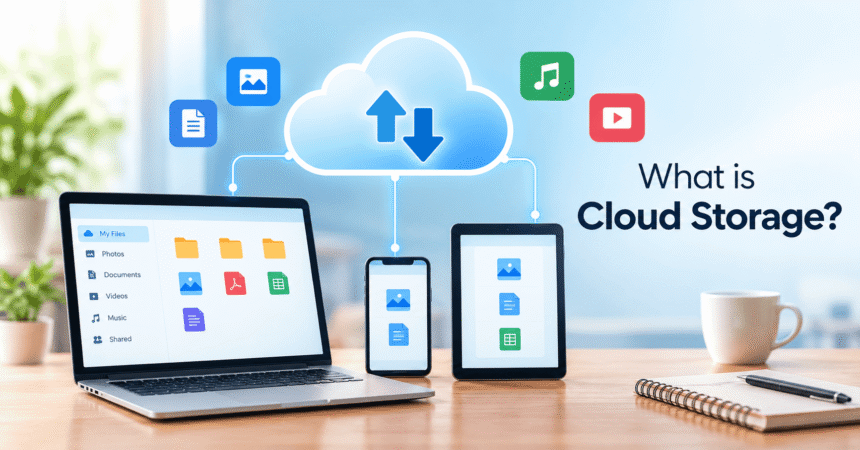
Cloud storage is a way of keeping digital data, such as documents, photos, videos and backups, on servers in data centres that you reach through the internet. Instead of buying and maintaining your own hard drive, you rent space from a company. The company looks after the hardware, security updates and backups, while you simply log in and use your files.
The word “cloud” is a simple name for the internet and the remote computers behind it. The US National Institute of Standards and Technology describes cloud computing in its official definition (NIST SP 800-145), and you can read a general overview on Wikipedia’s cloud storage page.
How Does Cloud Storage Work?
Here is the process in simple steps:
- You upload a file. It travels from your device to the provider’s servers over an encrypted internet connection.
- The provider stores it. The file is saved in a data centre, usually copied to more than one machine or location so it is not lost if one server fails.
- You access it anywhere. When you sign in on another device, the service downloads or streams the file to you.
- Changes sync automatically. If you edit a file on your laptop, the update appears on your phone and other devices.
- You control sharing. You can send a link or invite people with permissions to view or edit.
Behind the scenes, providers use huge networks of servers, storage systems and security tools. You do not need to understand the technology to use it, just like you do not need to understand electricity to use a light bulb.
Types of Cloud Storage
By ownership
- Public cloud storage: run by a provider and shared among many customers. Google Drive and Dropbox are good examples. It is the most common choice for individuals and small businesses.
- Private cloud storage: built and used by a single organisation, either in its own data centre or on dedicated hardware. It gives more control but costs more.
- Hybrid cloud storage: a mix of both, often used by companies that keep sensitive data privately and everything else in the public cloud.
By storage format
- File storage: data is organised in folders and files, like on your computer. This is what most people use in Drive or OneDrive.
- Object storage: data is stored as objects with labels, ideal for huge amounts of photos, videos and backups. Amazon S3 is a well-known example. You can learn more at Amazon Web Services.
- Block storage: data is split into blocks and used mainly for servers, databases and virtual machines.
Cloud Storage Examples
| Service | Best for | Notes |
|---|---|---|
| Google Drive | Docs, Sheets, Gmail users | Shares storage with Gmail and Google Photos |
| iCloud | iPhone, iPad and Mac users | Backs up photos, contacts and devices |
| Microsoft OneDrive | Windows and Microsoft 365 users | Built into Windows and Office |
| Dropbox | File syncing and sharing | Works across many platforms |
| Amazon S3 | Developers and businesses | Object storage for apps and websites |
Visit the Google Drive Help Center, Apple iCloud support and Microsoft OneDrive for official feature and plan details.
How Much Free Cloud Storage Do You Get?
Most providers give you a small amount of free space. Google Drive has long offered 15 GB shared across Gmail, Drive and Photos, while OneDrive and iCloud typically start at about 5 GB and Dropbox Basic at about 2 GB. Plans change over time, so always check the provider’s current pricing page before deciding. Paid plans commonly start with 100 GB to 200 GB and go up to many terabytes for a monthly or yearly fee.
Benefits of Cloud Storage
- Access from anywhere: open your files on any device with internet.
- Automatic backup: your photos and documents are protected if your phone or laptop is lost, stolen or broken.
- Easy sharing and collaboration: send a link instead of emailing large attachments, and work on the same document at once. See our guide on how to use Google Docs.
- Scalability: add more space whenever you need it.
- Lower hardware cost: no need to buy and maintain extra drives.
- Version history: restore older versions of a file. It also helps when you need to recover deleted files.
Disadvantages and Risks
- Needs internet: you may not be able to open files offline unless you enable offline mode.
- Ongoing cost: subscriptions add up over the years.
- Privacy and security concerns: your data is on someone else’s servers, so account security matters.
- Account lockouts: losing access to your account can mean losing access to your files.
- Provider dependence: price changes, policy changes or service shutdowns can affect you.
Cloud Storage vs Local Storage
| Feature | Cloud storage | Local storage (hard drive, SSD, USB) |
|---|---|---|
| Access | Any device with internet | Only where the device is |
| Cost | Monthly or yearly fee | One-time purchase |
| Backup | Automatic, stored off-site | Manual, needs extra drives |
| Speed | Depends on internet speed | Very fast |
| Risk of loss | Low hardware risk, account risk | Drive failure, theft, damage |
| Sharing | Easy with links | Needs copying or sending |
The best choice for most people is to use both. Keep important files on your device and in the cloud, and add an external drive for extra safety. If you are choosing a computer, our laptop buying guide explains how much local storage you really need when you use cloud services.
Is Cloud Storage Safe?
Reputable providers use encryption, secure data centres and constant monitoring, which is often stronger than what an average home computer has. Most problems come from weak passwords, phishing messages and shared links set to public. You can make your cloud account much safer with these steps:
- Use a long, unique password. Our guide on how to create a strong password shows how.
- Turn on two-factor authentication.
- Check who has access to shared files and folders regularly.
- Avoid public Wi-Fi without protection when handling sensitive files.
- Be careful with emails asking you to log in to your storage account.
- For highly private files, consider encrypting them before upload.
How to Start Using Cloud Storage
- Choose a service that matches your devices: Google Drive for Android, iCloud for iPhone, OneDrive for Windows.
- Create or sign in to your account.
- Install the app on your phone or computer, or use the website.
- Upload your files by dragging them in or using the Upload button.
- Turn on automatic backup for photos and important folders.
- Organise with folders and clear names.
- Share carefully with view-only access unless people need to edit.
Many online tools rely on cloud storage behind the scenes. Read more in our posts on web apps and productivity tools.
How to Choose the Best Cloud Storage
- Storage size and price: compare free space and upgrade costs.
- Device compatibility: make sure there are apps for all your devices.
- Security features: look for encryption, two-factor authentication and activity logs.
- Collaboration tools: choose Google Drive or OneDrive if you work on documents with others.
- Ease of recovery: check how long deleted files are kept.
- Privacy policy: understand how the company handles your data.
Frequently Asked Questions
What is cloud storage in simple words?
It is online space where you save your files so you can open them from any device with internet.
How does cloud storage work?
Files are uploaded to a provider’s servers over the internet, stored securely in data centres, and synced to your devices when you log in.
What are examples of cloud storage?
Google Drive, iCloud, Microsoft OneDrive, Dropbox and Amazon S3 are common examples.
Is cloud storage free?
Most services offer a free tier with limited space and sell larger plans for a fee.
Is cloud storage safe for personal photos and documents?
Yes, if you use a strong password and two-factor authentication. Reputable providers encrypt data and protect it in secure data centres.
What is the difference between cloud storage and cloud backup?
Cloud storage lets you store and access files. Cloud backup automatically copies your data so you can restore it after loss. Some services do both.
Do I need internet to use cloud storage?
You need it to upload and sync. Some apps let you mark files for offline access.
What happens if I stop paying for cloud storage?
Providers usually give a grace period, then may limit uploads or delete data if you stay over the free limit. Download a copy of your files before cancelling.
Is the cloud a physical place?
Yes. The cloud is made of real servers in data centres around the world, connected through the internet.
Which is the best cloud storage?
It depends on your needs. Google Drive suits Google users, iCloud suits Apple users, and OneDrive suits Windows and Microsoft 365 users.
Can I get my files back if I delete them from the cloud?
Often yes, from the trash or bin for a limited period. See our guide on how to recover deleted files.
Conclusion
So, what is cloud storage? It is a convenient and flexible way to store, protect and share your files online. With a trustworthy provider, strong security habits and a good backup plan, it can make your digital life easier and safer. Start with a free plan, upload your most important files, and explore more of our guides, such as how to use Google Docs, how to change WiFi channel and our technology tutorials.