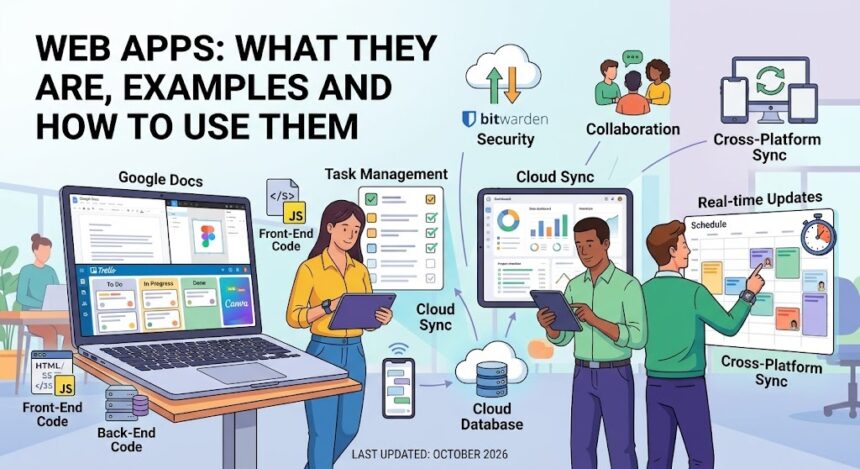
Web apps are software programs that run inside your web browser instead of being installed on your device. You open them with a link or bookmark, sign in, and use them on any computer, tablet or phone with an internet connection. Popular examples include Google Docs, Canva, Figma, Trello, Notion and Gmail. This guide explains what web apps are, how they work, how they differ from websites, native apps and progressive web apps, which ones are worth using, and how to keep your data safe.
Last updated: October 2026. Product features and free plans change often, so check each service’s own website for current details before you sign up.
Quick Answer: What Is a Web App?
A web app is an interactive application that you use through a browser such as Chrome, Edge, Firefox or Safari. Unlike a simple website that mainly shows information, a web app lets you do tasks: write documents, edit photos, manage projects, chat with a team or track expenses. The code runs partly in your browser and partly on remote servers, which also store your data in the cloud. Because of this, you can usually sign in from any device and continue where you left off.
How Do Web Apps Work?
Every web app has two main parts that talk to each other over the internet.
- Front end (client side): the part you see and click. It is built with HTML, CSS and JavaScript and runs inside your browser.
- Back end (server side): the part that stores your files, checks your login, runs calculations and sends results back to the browser.
- Database and storage: where your documents, settings and account details are kept, usually in the cloud.
- APIs: connections that let one app share data with another, such as a calendar app linking with your email.
When you press a button, your browser sends a request to the server, the server processes it and returns an update, and the page changes without reloading. For a technical explanation, see the overview of a web application on Wikipedia.
Web Apps vs Websites vs Native Apps vs Progressive Web Apps
People often mix these terms up. The table below shows the key differences.
| Type | Where it runs | Installation | Works offline? | Example |
|---|---|---|---|---|
| Website | Browser | None | No | News site, company page |
| Web app | Browser | None | Usually limited | Google Docs, Trello |
| Progressive web app (PWA) | Browser, can be installed | Optional, from the browser | Often yes | Many modern web tools |
| Native app | Operating system | App store or installer | Often yes | Camera app, games |
Web apps vs native apps
The debate of web apps vs native apps comes down to convenience versus power. Web apps need no download, update automatically and work across Windows, macOS, Linux, Android and iOS. Native apps can use phone hardware more deeply, run faster for demanding tasks such as 3D games and video editing, and often work better offline. If you are choosing between them, think about how often you will use the tool and how much speed or offline access you need. Our guide to useful Android apps covers the native side, while our essential Windows software list covers desktop programs.
What Are Progressive Web Apps?
Progressive web apps (PWAs) are web apps that use modern browser features to feel more like installed apps. A PWA can have its own icon, open in its own window, send notifications and keep working with a weak connection thanks to cached files. The technology is documented in the MDN guide to progressive web apps.
How to install a PWA
- Chrome or Edge on a computer: open the web app, then click the Install icon in the address bar or choose Install from the browser menu.
- Chrome on Android: tap the three dots and choose Install app or Add to Home screen.
- Safari on iPhone or iPad: tap the Share button and choose Add to Home Screen.
Menu names vary by browser version. If you do not see an install option, the site may not support it.
Benefits of Web Apps
- No installation: open a link and start. This is helpful on shared, school or work computers where you cannot install software.
- Works on any device: the same tool runs on Windows, macOS, Linux, Android and iOS.
- Automatic updates: you always use the latest version without manual downloads.
- Easy collaboration: many people can edit the same document or board at once.
- Cloud storage: your work is saved online, so losing a laptop does not mean losing your files.
- Lower cost: many web apps offer a free plan, so you can try before paying. Always check the current plan limits.
Drawbacks of Web Apps
- Internet dependence: without a connection, many tools stop working or offer only limited offline mode.
- Browser limits: heavy tasks like professional video editing may be slower than in desktop software.
- Privacy and data control: your files live on someone else’s servers, so you rely on the provider’s security.
- Subscription costs: useful features may sit behind a monthly fee.
- Changes outside your control: a company can change features, pricing or shut down a service.
Best Web Apps by Category
These are widely used web apps in each category. Features and plans change, so visit each official site for the latest details.
Writing, documents and spreadsheets
- Google Docs, Sheets and Slides: free with a Google account, with real-time collaboration and comments. Visit Google Workspace for details.
- Microsoft 365 for the web: browser versions of Word, Excel and PowerPoint that work well with files made on the desktop.
Design and creativity
- Canva: a simple tool for social posts, presentations, posters and logos with templates.
- Figma: a collaborative design tool popular for app and website mockups.
- Photopea: a free browser-based image editor with a layout similar to desktop photo editors.
- Squoosh: a free tool that compresses images in the browser.
Notes, tasks and project management
- Notion: an all-in-one workspace for notes, databases and wikis.
- Trello: a card-based board that makes simple projects easy to track.
- Todoist: a clean task manager with reminders and labels.
We compare more of these in our guide to productivity tools.
Communication and meetings
- Gmail and Outlook on the web: email with search, filters and calendar links.
- Slack and Microsoft Teams: team chat with channels and file sharing.
- Google Meet and Zoom (web client): video meetings that can run in a browser.
Utilities and learning
- Excalidraw: a free virtual whiteboard for sketches and diagrams.
- Google Translate: text, website and document translation.
- Online code editors: browser tools for practising programming without installing anything.
How to Choose the Right Web App
- Define the job: write down the task you want to finish, such as managing a team project or editing a photo.
- Try the free plan first: use it for a week to see whether it fits your habits.
- Check integrations: make sure it connects to the tools you already use, such as your calendar or cloud storage.
- Look for export options: you should be able to download your data in a common format like PDF, CSV or DOCX.
- Read the privacy policy: find out what data is collected and whether it is shared.
- Test on mobile: if you will use it on a phone, confirm the mobile experience is smooth.
Are Web Apps Safe? Security and Privacy Tips
Most reputable web apps use encryption and strong security, but your own habits matter just as much. Follow these steps:
- Check for HTTPS: the address should start with https:// and show a lock icon.
- Use a unique password: a password manager creates and stores strong passwords for every service.
- Turn on two-factor authentication: this blocks most account takeovers even if your password leaks.
- Review “Sign in with Google/Facebook” permissions: remove apps you no longer use. Our guide to Facebook privacy settings shows how to review connected apps.
- Be careful with browser extensions: install only what you need from trusted sources.
- Beware of phishing: a fake login page can look exactly like the real one. Type the address yourself or use a saved bookmark.
- Keep your browser updated: updates fix security flaws.
Developers follow security checklists such as the OWASP Top 10, which lists the most common web application risks. For account protection basics, read our account privacy settings guide.
Tips for Getting the Most From Web Apps
- Pin or install your favourites: turn frequently used apps into PWAs or pin the tab in your browser.
- Learn keyboard shortcuts: most web apps list them under a help menu, and they save a lot of time.
- Use separate browser profiles: keep work and personal accounts apart to avoid mistakes.
- Back up important files: download a copy of critical documents regularly.
- Clear cache if something breaks: if a web app loads incorrectly, a refresh, cache clear or a different browser often fixes it. Our tech troubleshooting guide explains more steps.
- Check your connection: slow loading is often a network issue, so try the steps in our Wi-Fi troubleshooting guide.
Web App Types at a Glance
| Category | Popular examples | Best for |
|---|---|---|
| Documents | Google Docs, Microsoft 365 for the web | Writing and collaboration |
| Design | Canva, Figma, Photopea | Graphics and mockups |
| Project tools | Trello, Notion, Todoist | Planning and tasks |
| Communication | Slack, Gmail, Google Meet | Messaging and meetings |
| Utilities | Squoosh, Excalidraw, Google Translate | Quick everyday tasks |
Frequently Asked Questions About Web Apps
What is a web app in simple words?
A web app is a program you use in your browser instead of installing it. You sign in through a web address and can use it on any device with internet access.
What is the difference between a web app and a website?
A website mainly displays information, like a blog or news page. A web app lets you perform tasks and often asks you to sign in, such as editing a document or managing a to-do list.
What are some examples of web apps?
Common examples include Gmail, Google Docs, Canva, Figma, Trello, Notion, Slack and online banking portals. All of them run in a browser.
Do web apps work offline?
Some do, especially progressive web apps and tools with a built-in offline mode. Many others need an internet connection, so check the app’s settings or help pages before you travel.
What is a progressive web app (PWA)?
A progressive web app is a web app that can be installed on your device and can run in its own window. It may support offline use, notifications and faster loading using modern browser features.
Are web apps better than mobile apps?
Neither is always better. Web apps are easy to access and update, while mobile apps can be faster and use device features more deeply. Many services offer both so you can choose.
Are web apps free?
Many web apps have a free plan with limits, and paid plans for extra features. Pricing varies and changes, so check the official pricing page.
Are web apps safe to use?
Reputable web apps are generally secure, but you should still use unique passwords, two-factor authentication and trusted sources. Avoid entering personal data on sites that do not use HTTPS.
How do I install a web app on my phone?
If the app supports it, open it in Chrome or Safari and use Install app or Add to Home Screen from the menu. It then appears as an icon on your home screen.
Can I use web apps on Windows, Mac, Android and iPhone?
Yes. Because they run in a browser, web apps work on almost any device with a modern browser. Features may differ slightly between devices.
Related Guides
- Productivity tools to get more done
- 15 useful Android apps
- Windows 11 tips and shortcuts
- Technology tutorials
Final Thoughts
Web apps have changed how we work, study and create. They remove the need for large installs, keep your files available everywhere and make teamwork easier. At the same time, they depend on the internet and on the providers you trust. Start with a clear task, try the free plan, protect your account with two-factor authentication and keep a backup of important files. With a few well-chosen tools, a browser can replace a long list of installed programs.
Tip: Pick no more than three or four core web apps and learn them well. Fewer, better tools beat a crowded browser full of half-used accounts.