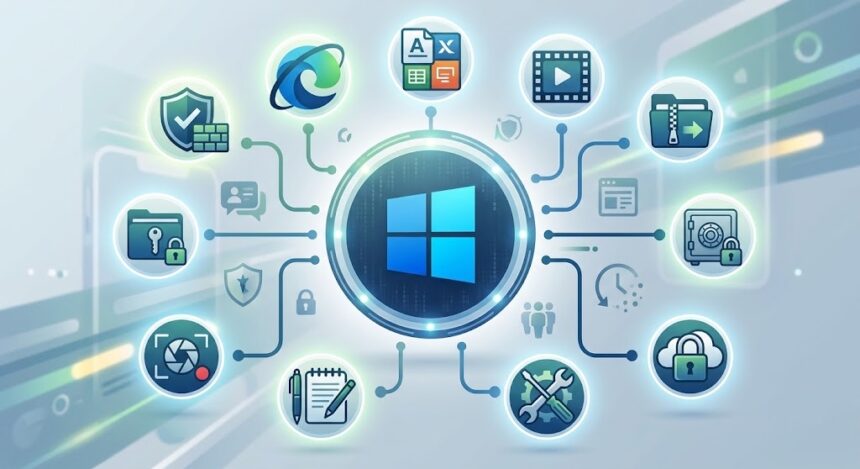
Quick answer: The most essential Windows software for a new or existing PC includes a secure web browser (Chrome or Firefox), a file archiver (7-Zip), a universal media player (VLC), an antivirus layer (Windows Security plus Malwarebytes), an office suite (LibreOffice or Microsoft 365), a code and text editor (Notepad++), a productivity toolkit (Microsoft PowerToys), a password manager (Bitwarden), a fast file search tool (Everything), and a screen recorder (OBS Studio). Most of these are free.
Installing the right Windows software is the difference between a PC that feels slow, cluttered and unsafe, and one that feels fast, organized and secure. Windows ships with a decent set of built-in tools, but it leaves large gaps: no powerful archiver, limited media format support, no real password manager and basic file search.
This guide covers the 10 essential Windows software programs every PC user should know, why each one matters, who needs it, and how to choose between alternatives. Whether you use Windows 10 or Windows 11, this list will help you build a reliable, productive setup in under an hour.
Table of Contents
- What Is Windows Software?
- How We Chose These Programs
- The 10 Essential Windows Software Programs
- Quick Comparison Table
- How to Install Windows Software Safely
- Frequently Asked Questions
- Final Thoughts
What Is Windows Software?
Windows software is any program, application or utility designed to run on the Microsoft Windows operating system. It includes system utilities, productivity apps, security tools, media players, creative tools and games. Windows software is typically distributed as an installer (.exe or .msi file), through the Microsoft Store, or through a package manager such as WinGet.
There are three main types of Windows software:
- Free software: costs nothing to use, such as VLC or 7-Zip.
- Open-source software: free and with publicly available source code, such as Notepad++ and OBS Studio.
- Paid or subscription software: commercial products such as Microsoft 365 or premium security suites.
How We Chose These Programs
Each program on this list was selected using five practical criteria:
- Usefulness: it solves a problem almost every PC user faces.
- Reputation: it has a long track record and active development.
- Safety: it comes from a trusted, verifiable publisher.
- Cost: a strong free option exists, or the paid version is clearly worth it.
- Compatibility: it runs well on both Windows 10 and Windows 11.
The 10 Essential Windows Software Programs
1. Google Chrome or Mozilla Firefox (Web Browser)
Your browser is the program you use most, so it should be fast, secure and regularly updated. Windows includes Microsoft Edge, which is a capable browser, but many users prefer Google Chrome for its huge extension library and device sync, or Mozilla Firefox for its privacy-first approach and strong tracking protection.
Best for: everyday browsing, web apps, online work and extensions.
Cost: free.
Tip: keep automatic updates enabled and install only the extensions you genuinely need, since every extension adds risk and uses memory.
2. 7-Zip (File Archiver)
7-Zip is a free, open-source file archiver that creates and extracts ZIP, 7z, RAR (extract), TAR, GZ and many other formats. Windows can open ZIP files natively, but it handles fewer formats and offers little control over compression and encryption.
Best for: compressing large folders, opening unusual archive types and protecting files with AES-256 encryption.
Cost: free.
Why it matters: it is lightweight, has no ads, and integrates directly into the right-click menu.
3. VLC Media Player (Universal Media Player)
VLC plays almost any audio or video file without needing extra codecs, including MKV, AVI, MOV, FLAC and DVD content. It also streams network sources, converts files, and can play partially downloaded or slightly damaged videos.
Best for: anyone who watches downloaded video, uses mixed media formats or wants a clean player with no ads.
Cost: free and open source.
Tip: download it only from the official VideoLAN website to avoid fake installers.
4. Windows Security and Malwarebytes (Antivirus and Anti-Malware)
Windows Security (formerly Windows Defender) is built into Windows 10 and Windows 11 and provides solid real-time protection. For most home users, it is a strong baseline. Adding a second-opinion scanner such as Malwarebytes helps detect potentially unwanted programs, adware and browser hijackers that traditional antivirus can miss.
Best for: all PC users, especially those who download files, install free software or share a computer.
Cost: Windows Security is free; Malwarebytes offers a free manual scanner and a paid real-time version.
Important: do not run two real-time antivirus engines at the same time, as they can conflict and slow your system.
5. LibreOffice or Microsoft 365 (Office Suite)
Every PC needs a way to create documents, spreadsheets and presentations. Microsoft 365 is the industry standard, with the best compatibility for Word, Excel and PowerPoint files and cloud collaboration. LibreOffice is a powerful free alternative that opens and saves Microsoft Office formats and includes a word processor, spreadsheet, presentation tool and database.
Best for: students, home users, freelancers and offices.
Cost: LibreOffice is free; Microsoft 365 requires a subscription.
How to choose: if you collaborate heavily with Microsoft users, choose Microsoft 365. If you mostly work alone and want to save money, LibreOffice is excellent.
6. Notepad++ (Text and Code Editor)
Notepad++ is a fast, free editor that goes far beyond the standard Notepad. It offers tabbed editing, syntax highlighting for dozens of languages, search and replace across multiple files, and session recovery that restores unsaved tabs after a crash.
Best for: developers, bloggers, data cleaners and anyone who edits plain text, logs or configuration files.
Cost: free and open source.
7. Microsoft PowerToys (Productivity Toolkit)
PowerToys is a free collection of utilities published by Microsoft that adds features Windows does not include by default. Popular tools include FancyZones for custom window layouts, PowerToys Run for a quick app launcher, a bulk file renamer, a color picker and a keyboard remapper.
Best for: power users, multitaskers and people with large or multiple monitors.
Cost: free and open source, available from GitHub or the Microsoft Store.
8. Bitwarden (Password Manager)
Reusing weak passwords is one of the biggest security risks for PC users. A password manager creates, stores and auto-fills strong, unique passwords for every account. Bitwarden is open source, works across Windows, phones (see our list of useful Android apps) and browsers, and offers a generous free tier with a low-cost premium plan.
Best for: anyone with more than a handful of online accounts.
Cost: free core features; optional paid upgrade.
Tip: protect your vault with a long master passphrase and turn on two-factor authentication.
9. Everything (Instant File Search)
Everything, from voidtools, is a lightweight search utility that indexes file and folder names on your drives almost instantly and shows results as you type. For finding files by name, it is dramatically faster than the default Windows search.
Best for: people with large file collections, work folders or multiple drives.
Cost: free.
10. OBS Studio (Screen Recording and Streaming)
OBS Studio is a free, open-source program for recording your screen and live streaming. It supports multiple scenes, webcam overlays, audio mixing and high-quality output. It is useful for tutorials, gameplay, online classes, product demos and presentations.
Best for: teachers, content creators, support teams and gamers.
Cost: free and open source.
Note: Windows also includes the Xbox Game Bar for quick, simple recordings, but OBS gives far more control.
Quick Comparison Table
| Program | Category | Cost | Best For |
|---|---|---|---|
| Chrome / Firefox | Browser | Free | Everyday browsing |
| 7-Zip | File archiver | Free | Compression and extraction |
| VLC | Media player | Free | Any audio or video format |
| Windows Security + Malwarebytes | Security | Free / Paid | Malware protection |
| LibreOffice / Microsoft 365 | Office suite | Free / Paid | Documents and spreadsheets |
| Notepad++ | Text editor | Free | Editing text and code |
| PowerToys | Productivity | Free | Window management and shortcuts |
| Bitwarden | Password manager | Free / Paid | Account security |
| Everything | File search | Free | Instant file finding |
| OBS Studio | Screen recording | Free | Tutorials and streaming |
How to Install Windows Software Safely
Installing software is where most PC infections begin, so follow these safe habits (and if something slips through, see our tutorial on how to spot and remove malware):
- Use official sources. Download from the developer’s own website, the Microsoft Store or a trusted package manager like WinGet. Avoid third-party download aggregators that bundle extra programs.
- Check the publisher. On the Windows installer prompt, confirm the verified publisher name matches the developer.
- Read each installer screen. Decline bundled toolbars, browser changes or trial software you did not ask for. Choose “Custom” or “Advanced” install when offered.
- Keep everything updated. Outdated software is a common entry point for attackers. Enable auto-update where possible.
- Remove what you do not use. Go to Settings, then Apps, then Installed apps, and uninstall programs you no longer need.
- Create a restore point. Before installing major software, create a system restore point so you can roll back if something goes wrong.
Pro tip: You can install many of the programs above with a single command using WinGet. For example, open Windows Terminal and run winget install 7zip.7zip to install 7-Zip automatically.
Frequently Asked Questions
What is the best free Windows software for a new PC?
The best free Windows software for a new PC includes Firefox or Chrome for browsing, 7-Zip for archives, VLC for media, LibreOffice for documents, Notepad++ for text editing, Bitwarden for passwords and PowerToys for productivity. Together they cover almost every daily task at no cost.
Do I need antivirus software on Windows 11?
Windows 11 includes Windows Security, which provides real-time antivirus protection and is sufficient for many home users when combined with safe habits and regular updates. An additional on-demand scanner like Malwarebytes can add a useful second layer of detection.
Is it safe to download free Windows software?
Yes, if you download from the official developer website or the Microsoft Store. Free software becomes risky when it comes from unofficial mirrors, cracked software sites or bundled installers. Always verify the source and scan downloads when in doubt.
What is the difference between Windows software and Windows apps?
The terms are often used interchangeably. Traditionally, “software” refers to programs installed from .exe or .msi files, while “apps” often refers to programs from the Microsoft Store. Both run on Windows and serve the same purpose.
How do I install software on Windows 10 or 11?
Download the installer from the official website, double-click it, approve the User Account Control prompt and follow the on-screen steps. You can also install apps from the Microsoft Store or use the WinGet command-line tool for faster installs.
Which Windows software should I install first after a clean install?
Install Windows updates and drivers first, then your browser, password manager, security tools, office suite, 7-Zip and VLC. Add specialty tools such as OBS Studio or Notepad++ based on your needs.
How many programs are too many on a PC?
There is no fixed number. What matters is how many programs run at startup and use background resources. Review the Startup tab in Task Manager and disable anything you do not need at boot to keep your PC fast. If it still runs slowly, follow the steps in our tech troubleshooting guide.
Can free Windows software replace paid software?
For many tasks, yes. LibreOffice replaces basic office work, OBS Studio replaces paid recorders, and 7-Zip replaces paid archivers. Paid software still makes sense when you need advanced support, specific file compatibility or professional-grade features.
How do I keep my Windows software updated?
Turn on automatic updates inside each program, use the Microsoft Store’s update section, or run winget upgrade --all in a terminal to update many installed programs at once.
Final Thoughts
The right Windows software turns an ordinary PC into a faster, safer and more capable machine. The ten programs in this guide, a browser, 7-Zip, VLC, a security layer, an office suite, Notepad++, PowerToys, Bitwarden, Everything and OBS Studio, cover the core needs of nearly every user, and most cost nothing.
Start with security and productivity basics, add tools as your needs grow, and keep your software updated and clutter-free. With a trusted setup, you will get more from your PC with fewer problems.
Which Windows software could you not live without? Share your favorites in the comments.